How to restore Firefox’s old UI and theme after the rounded redesign
Mozilla has redesigned Firefox, giving the browser a rounder interface and replacing the dark mode color scheme with a more colorful palette. Users have mixed reactions to the new design, and some may want to restore the previous look.
In this article, I’ll show you how to change the new Firefox dark mode from its colorful palette to a more subdued one, as well as how to restore the previous UI design.
I didn’t like Firefox’s new design at first, but switching the theme to Proton using the method below addressed most of what bothered me. In my case, the default theme change caused more of the unfamiliar feel than the UI redesign itself.
Table of Contents
How to restore a more subdued dark mode color scheme
Firefox’s new dark mode uses a colorful palette that barely resembles a conventional dark theme.

If you want to keep the new UI design but change only the dark mode colors, follow these steps.
Press Ctrl + Shift + A, or open [Add-ons and themes] from the menu
Open the [Themes] tab, then click [Show more] in the [Firefox Themes] section
![Screenshot of the [Themes] tab in Firefox settings](/_next/image/?url=%2Fapi%2Fmedia%2Ffile%2Ffirefox-theme-tab.png&w=3840&q=75)
Click Install for [Gray]
![Screenshot showing the [Gray] theme selected in the Firefox theme list](/_next/image/?url=%2Fapi%2Fmedia%2Ffile%2Ffirefox-theme-gray.png&w=3840&q=75)
Firefox now uses a more subdued color scheme in dark mode
![Screenshot of Firefox with the [Gray] theme enabled](/_next/image/?url=%2Fapi%2Fmedia%2Ffile%2Ffirefox-gray-theme-ui.png&w=3840&q=75)
How to restore the old Firefox UI
You can restore Firefox’s previous UI design by changing an internal preference.
Enter
about:configin the Firefox address bar and open the pageIf Firefox displays a warning, read it and continue if you understand and accept the risks
Enter
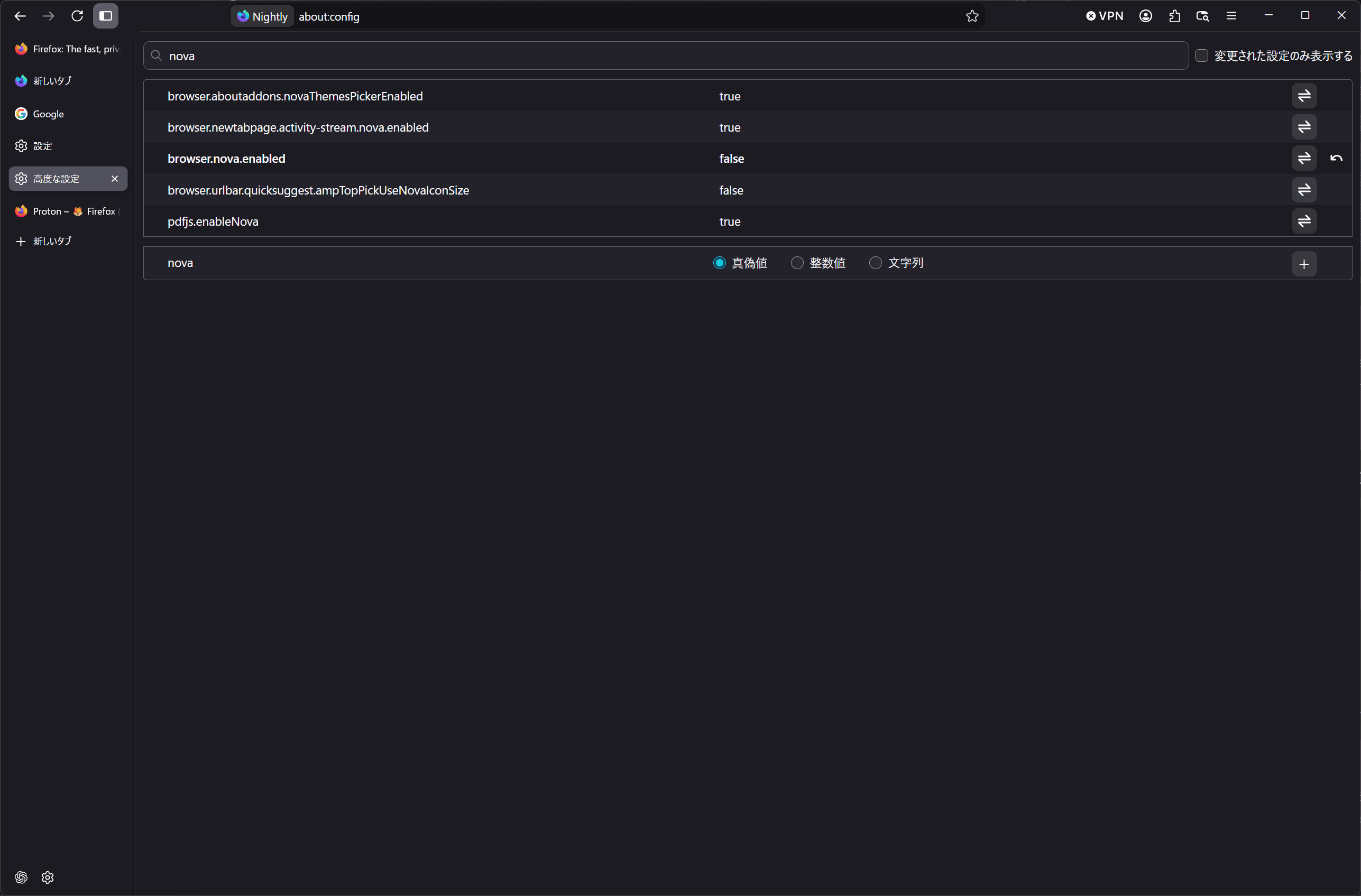
novain the search box on the page, rather than the address bar, then click the button at the right end ofbrowser.nova.enabledto change its value tofalse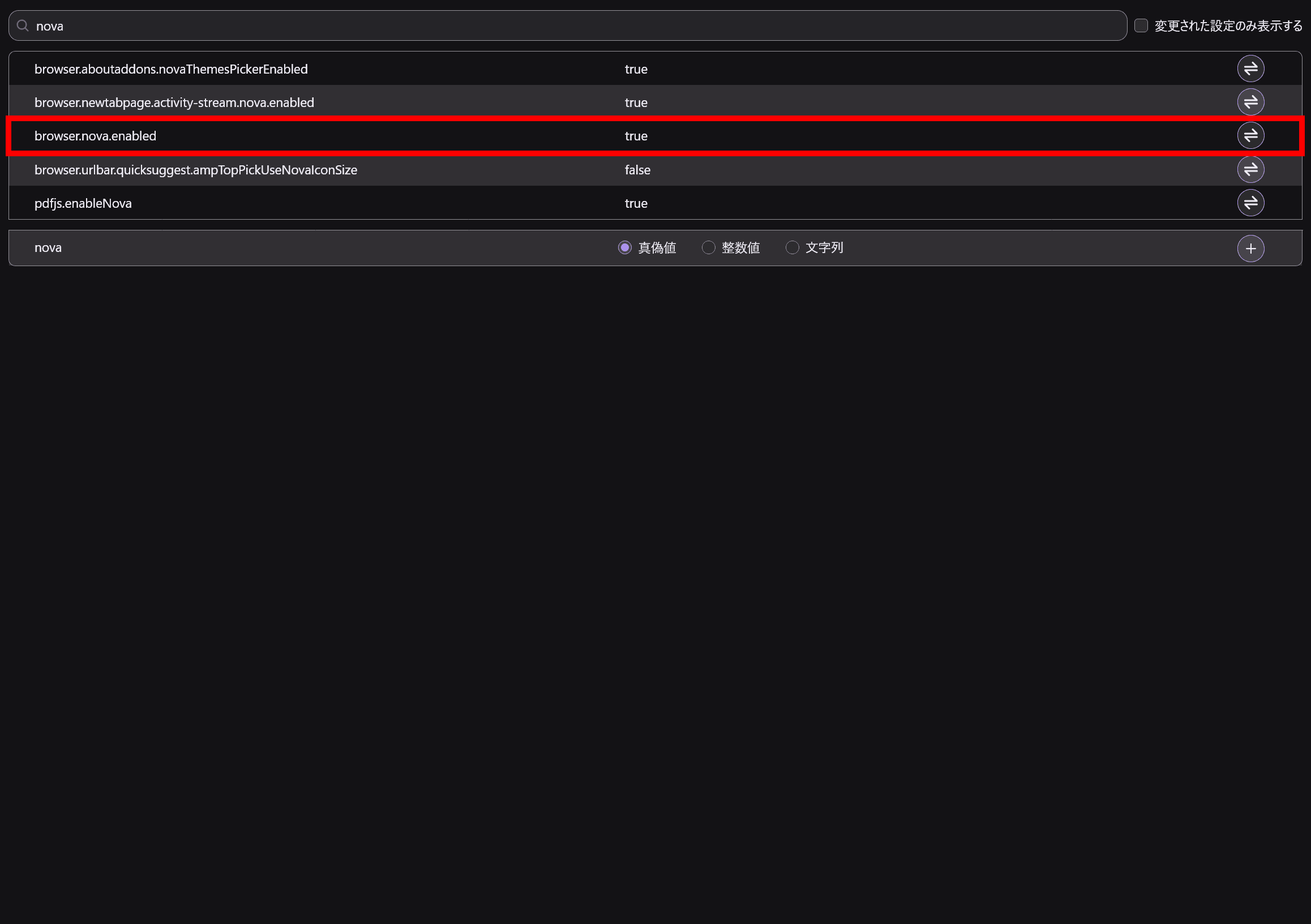
Firefox returns to the previous UI design
Conclusion
I covered two ways to restore Firefox’s previous appearance.
If the new colorful dark or light mode bothers you, switch to one of Firefox’s built-in themes with a more subdued palette, or install Mozilla’s official Proton theme.
If you want to restore the entire previous UI design, open about:config and set browser.nova.enabled to false.
Verification details
Verification environment
- OS: Windows 11
- Browser: Firefox Nightly version 159.0a1
Verification details
I confirmed that the steps in the article can restore Firefox’s previous color scheme and UI.
Last verification date
Share this article
Follow us for updates
Adding us to your preferred sources on Google makes it easier to find our articles on Google. Also, be sure to follow us on X and our RSS feed.


-1.png&w=1080&q=75)
I've been using JavaScript more than my native language since birth. I am nowhere and everywhere on the internet.
I build web apps and browser extensions in TypeScript as a web frontend programmer. I released Shadowban Scanner, a tool that detects shadowbans on X, and Restore Link Card, a tool that brings back link cards. Media outlets in Japan and abroad covered both tools. For iGEM 2023, I built the Wiki for Team Japan-United and helped the team win the Grand Prize. On my blog, I cover news about X and social media, test and troubleshoot bugs, and share frontend development insights.








![[新しいXチャットへようこそ]というテキストが画面に大きく表示されており、その下には次の3つの説明が表示されている。[エンドツーエンドの暗号化:メッセージは、端末にかかわらずエンドツーエンドで暗号化されています。][最先端のプライバシー:Xを含め、他の人がメッセージを読むことはできません。][パスコードを設定:メッセージを保護するため、4桁のパスコードを設定してください。]これらの説明の下には、[パスコードを作成]という大きなボタンが配置されている](/_next/image/?url=%2Fapi%2Fmedia%2Ffile%2Fwelcome-to-new-chat.png&w=1920&q=75)