I tried Hex, the voice dictation app from the makers of OpenCode, and found its LLM integration useful
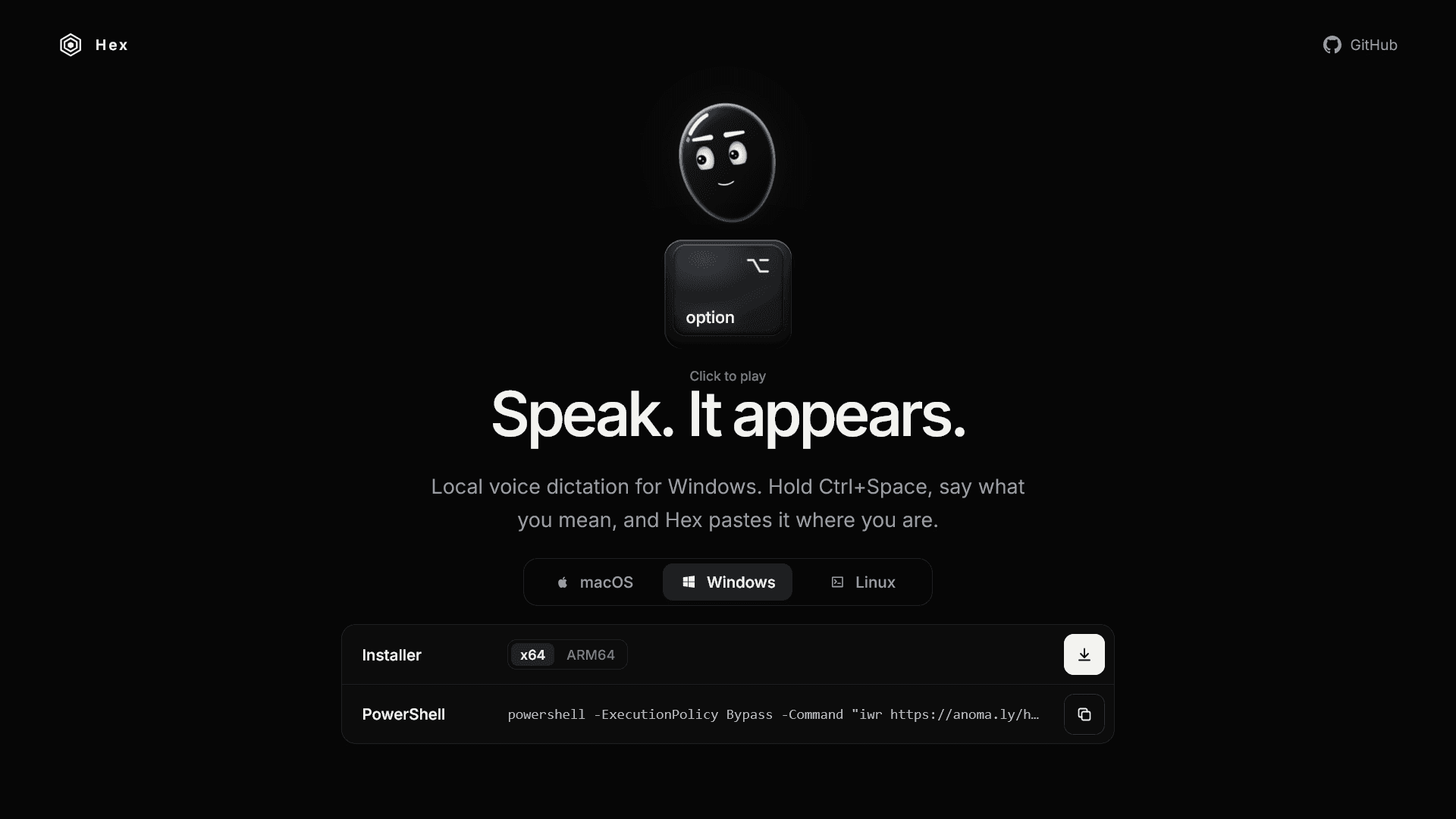
Anomaly, the company behind OpenCode, recently released a stable version of its voice dictation app, Hex, so I decided to give it a try.
With Hex, you can transcribe speech using locally downloaded speech recognition models, then refine the results with plugins or AI. I found the AI-powered text correction feature useful. You can customize the prompt to polish your writing or format the transcription however you like.
Table of Contents
Hex's features
Hex is an open-source desktop voice dictation app developed by Anomaly, the company behind OpenCode. It uses locally downloaded speech recognition models to transcribe audio. If you are Japanese, as of the time of writing this article, you can choose from the following models that support Japanese:
- Whisper large-v3-turbo
- SenseVoice Small
- Qwen3-ASR 0.6B
- Cohere Transcribe
- Nemotron 3.5 ASR
For supported models, you can use the Vocabulary feature to define the correct spellings of specific terms and reduce transcription errors.
Hex can also replace words based on predefined rules or rewrite text using AI. With some customization, you can build a voice dictation workflow that suits your needs.
Until now, whenever I needed voice dictation, I used the built-in Windows feature, which you can launch with Win + H. I consider it a capable dictation tool, with good recognition accuracy and automatic punctuation.
However, many existing dictation apps struggle with proper nouns and text that mixes Japanese and English, as you often encounter in technical articles. They also leave you to correct transcription errors by hand. When prompting AI, a few recognition mistakes rarely matter, but as someone who writes blog posts, I find those errors and inconsistent terminology frustrating.
For those reasons, I rarely used voice dictation in my writing. After trying Hex, I found that its AI integration addressed most of these problems and made dictation much more practical.
Getting started
To install Hex, visit the official website and either copy the installation command or download the installer.

Once you complete the initial setup, you can start voice dictation with Ctrl + Space by default.
My recommended settings
Hex lets you choose your speech recognition model. After discussing the options with ChatGPT, I settled on Whisper large-v3-turbo because it offers a good balance of recognition accuracy and other factors.
One of Hex's most useful features is in the [Output] tab of its settings window. Here, you can configure rule-based word replacements, TypeScript transformations, and AI-powered rewriting through OpenCode. I found the interface somewhat inconvenient because the GUI is read-only. To change these settings, you need to edit the configuration file or use AI.
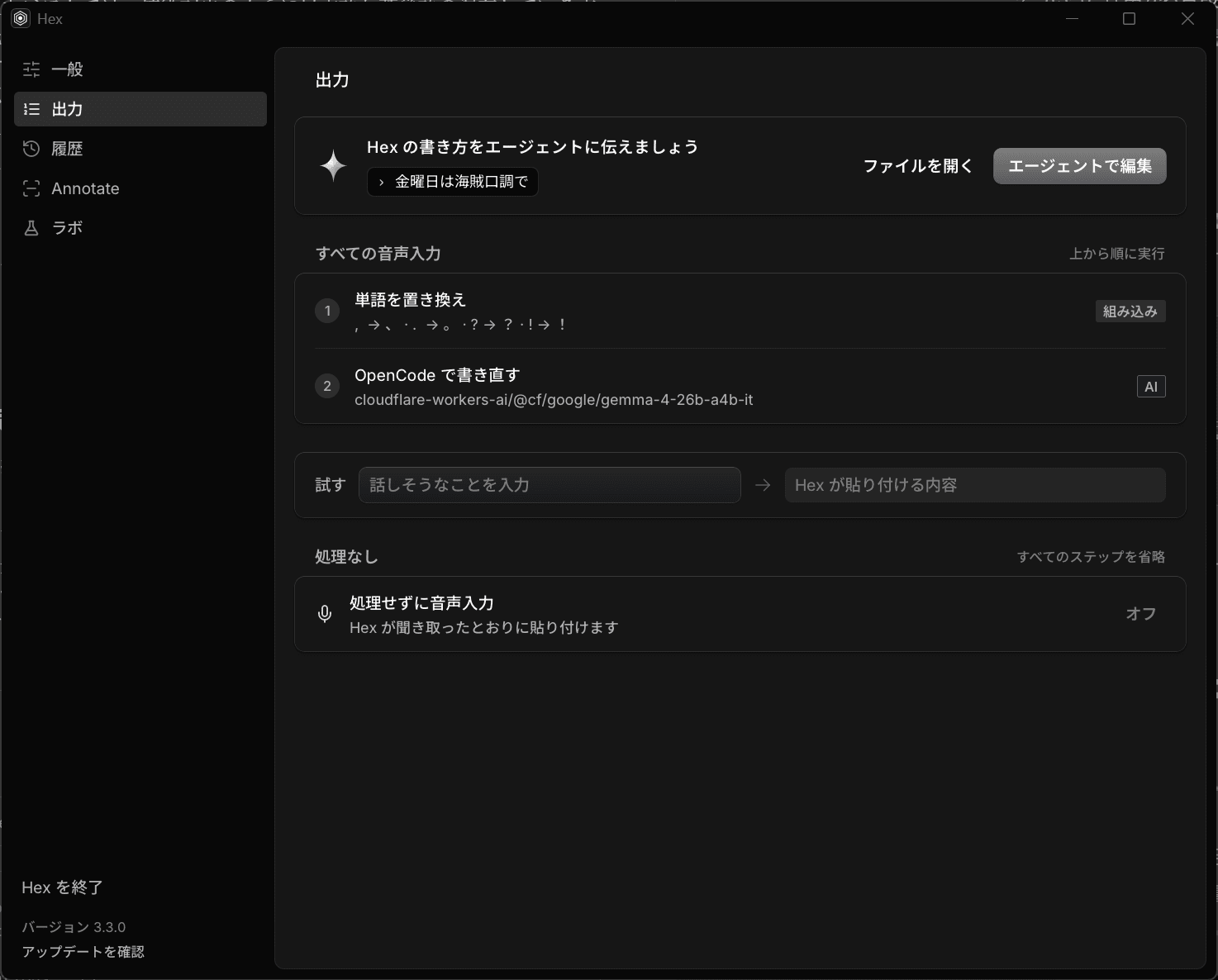
I configured the output settings as follows:
{ "dictation_processing": { "default_mode": { "name": "Global", "applications": [], "browser_hosts": [], "replacements": [ { "matched_phrase": ", ", "output": "、" }, { "matched_phrase": ". ", "output": "。" }, { "matched_phrase": "?", "output": "?" }, { "matched_phrase": "!", "output": "!" } ], "transformations": [], "post_processing": { "enabled": true, "prompt": "ユーザーの入力した文章は、音声を文字起こしした素起こしのテキストです。音声認識による誤認識や誤字脱字、言い間違い、言い淀み、表記ミス、フィラーなどを含む可能性があります。誤認識や誤字脱字、言い間違い(例:〇〇じゃなくて△△)、表記ミスは修正し、言い淀みやフィラー(例:えっと)はクリーンアップしてください。固有名詞は正しい表記に修正してください(例:アップルの製品→Appleの製品)。読みやすいように、必要に応じて句読点を追加し、適切にケバ取りまで実施してください。日本語と英数字の間には半角スペースを入れないでください。Web記事で開かれることの多い単語は開いてください(例:その時→そのとき、その他→そのほか)。「コマンド〇〇」は特殊なコマンドとして扱ってください。たとえば、コマンド改行(コマンド開業)は改行を挿入し、コマンド改段落は改行を2つ挿入します。\n例:「その project については、えっと、gitlab を使って間違えた github を使って実施するのが適切だと思います」→「そのプロジェクトについては、GitHubを使って実施するのが適切だと思います。」\n例:「これはコマンドのテストですコマンド改行これは2行目です。」→「これはコマンドのテストです\nこれは2行目です。」\n例:「正確な音声入力コマンド三点リーダーコマンドびっくりマーク」→「正確な音声入力…!」\n例:「これは改段落のテストですコマンド改段落2段落目です」→「これは改段落のテストです\n\n2段落目です」\n例:「コマンドh2これは見出しですコマンド改行コマンド改行コマンド箇条書きこれはリストです」→「## これは見出しです\n\n- これはリストです」\n例:「JPYCはコマンド英語ステーブルコインコマンド英語終了です。」→「JPYCはstable coinです。」\n例:「コマンド英訳これはテストです。」→「This is a test.」修正後の文章のみを出力してください。", "model": "cloudflare-workers-ai/@cf/google/gemma-4-26b-a4b-it", "variant": "none", "deadline_seconds": 30 } }, "modes": [] }}With this configuration, Hex first applies rule-based replacements through replacements, then uses AI to refine the text through post_processing.
I use replacements to convert half-width commas and periods into Japanese punctuation. Hex sometimes produces half-width punctuation with its default settings, so these rules correct those inconsistencies.
For post_processing, I use OpenCode to clean up false starts, correct proper nouns to their official spellings, and adjust Japanese orthography. This includes writing certain words in kana rather than kanji, following common Japanese web writing conventions.
I also added the ability to issue instructions to the AI by saying commands that start with the Japanese word komando (command). For example, I can say "command newline" or "command exclamation mark" to insert a line break or an exclamation mark, or "command translate to English" to translate text into English.
I haven't registered a fixed list of commands using rules. As long as the LLM understands the instruction, I can come up with new commands on the spot.
For post_processing, I use Gemma 4 through the free tier of Cloudflare Workers AI.
Hex uses models configured in OpenCode, so you can use Cloudflare Workers AI by registering its API key in OpenCode. The free tier of Cloudflare Workers AI falls short for more demanding AI agent tasks, but it works well for cleaning up dictated text.
If you prefer to use your ChatGPT subscription or a local LLM, you can configure those options in OpenCode and select the corresponding model in Hex.
My experience with Hex
I haven't used voice dictation much in the past because I couldn't fine-tune how the software formatted my text, and I had to correct transcription errors by hand. Hex addresses these problems through rule-based replacements and AI-powered correction, making it a useful tool for my workflow.
I found AI-powered correction particularly effective. I can apply the Japanese orthographic conventions commonly used in web articles and have the AI recognize when I've corrected myself mid-sentence, keeping only the revised wording. There's plenty of room to customize the results.
One drawback I noticed with Whisper is that Hex doesn't display the transcription while I'm speaking. However, because AI can clean up hesitations and speech errors afterward, this hasn't been much of a problem.
I've also realized that I tend to produce longer sentences when dictating. I'm still considering whether to use Hex for writing articles, but I plan to make it a regular part of my workflow when giving instructions to coding agents.
Verification details
Verification environment
- Windows 11
- Hex version 3.3.0
Verification details
I installed Hex on Windows 11 and actually used the replacement feature and integration with OpenCode.
Last verification date
Share this article
Follow us for updates
Adding us to your preferred sources on Google makes it easier to find our articles on Google. Also, be sure to follow us on X and our RSS feed.



I've been using JavaScript more than my native language since birth. I am nowhere and everywhere on the internet.
I build web apps and browser extensions in TypeScript as a web frontend programmer. I released Shadowban Scanner, a tool that detects shadowbans on X, and Restore Link Card, a tool that brings back link cards. Media outlets in Japan and abroad covered both tools. For iGEM 2023, I built the Wiki for Team Japan-United and helped the team win the Grand Prize. On my blog, I cover news about X and social media, test and troubleshoot bugs, and share frontend development insights.