How to delete Grok conversation history and what happens when you delete it

X (Twitter) includes the AI "Grok" developed by its parent company, xAI. This article explains in detail what happens when you delete your Grok conversation history and how to delete it.
Table of Contents
What happens when you delete Grok conversation history?
When you delete your Grok conversation history, you will no longer be able to view that.
As soon as you delete the conversation history, it will immediately become unavailable to view, but it may be stored internally by X for 30 days.
If it is necessary to retain data for security or legal reasons, it may remain stored internally by X even after more than 30 days have passed.
In any case, once you perform the action to delete the conversation history, you will immediately no longer be able to view it yourself.
In principle, you cannot restore conversation history once it has been deleted.
Also, if you created a shared link to the conversation history, note that even if you delete it, it may remain somewhere outside of X.
For example, if the history was cached by Google or similar services, it may continue to appear in search results for a while, and if it was saved in a web archive, it may be preserved semi-permanently unless you take separate steps to have it removed.
In addition, while you can delete interactions on Grok's dedicated page within X, if you interacted by mentioning Grok, you will need to manually delete the posts you made yourself, and you cannot delete Grok's replies.
How to delete Grok conversation history
There are two ways to delete Grok conversation history: deleting individual conversations and deleting everything at once. In this article, we will explain each method in order.
How to delete conversation history individually
If you want to delete Grok conversation history one by one, you can do so with the following steps.
Open the Grok page in X
Open the history from the button at the top right of the screen
![A screenshot of the dedicated Grok page in X; in the center of the screen, a text box for interacting with Grok is displayed, and in the upper right, a [History] button is displayed.](/_next/image/?url=%2Fapi%2Fmedia%2Ffile%2Fgrok-chat-page-history-button-english.png&w=3840&q=75)
Find the thread you want to delete, click the menu button on the far right of that thread, and select [Delete]
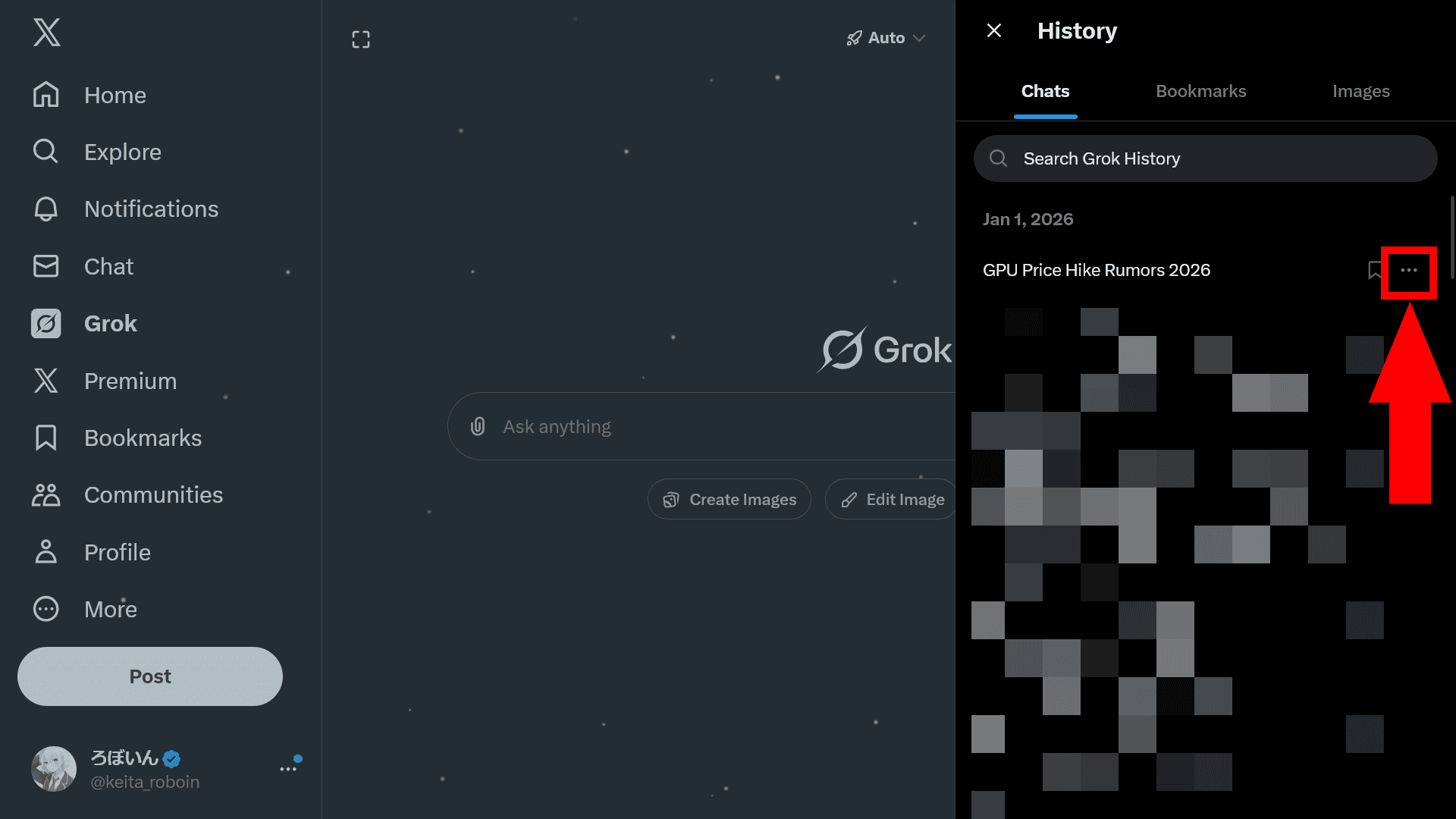
![In the sidebar, a list of conversation histories with Grok is displayed, and in the menu for one of them, a button labeled [Delete] is displayed.](/_next/image/?url=%2Fapi%2Fmedia%2Ffile%2Fgrok-history-delete-button-english.png&w=3840&q=75)
That history will be deleted
How to delete conversation history in bulk
To delete your conversation history with Grok all at once, perform the action from Settings using the following steps.
Open [Settings and privacy] in X
Open [Privacy and safety] > [Grok & Third-Party Collaborators]
Click [Delete conversation history]
![A screenshot of X’s Settings page, [Grok & Third-Party Collaborators]. At the bottom of the page, a red button labeled [Delete conversation history] is displayed.](/_next/image/?url=%2Fapi%2Fmedia%2Ffile%2Fgrok-delete-all-history-english.png&w=3840&q=75)
A confirmation dialog will appear, so if everything is fine, click [Delete]
![A dialog titled [Do you want to delete your conversations?] is displayed, and as an explanation it says, [You’re about to delete your grok conversation history. You will not be able to access these conversations again.] The dialog shows two buttons: [Delete] and [Cancel].](/_next/image/?url=%2Fapi%2Fmedia%2Ffile%2Fgrok-history-delete-dialog-english.png&w=3840&q=75)
All conversation history will be deleted
Conclusion
We introduced how to delete Grok conversation history either individually or all at once in bulk.
When you delete conversation history, it will disappear from your view immediately, but it may be stored internally by X for 30 days.
If it is necessary to retain data for security or legal reasons, it may remain stored internally even after more than 30 days have passed.
Even if you delete your Grok conversation history, note that if you made that history public yourself, it may still remain in search engine caches or web archives.
References
Share this article
Follow us for updates
Adding us to your preferred sources on Google makes it easier to find our articles on Google. Also, be sure to follow us on X and our RSS feed.


Next articles
- How to prevent your images from being edited with Grok via “Edit image” on X (Twitter)
- [2026 Latest edition] How to turn off / opt out of having your posts used to train Grok
- Why Grok shows “High Demand” and how to fix it
- How to deal with the bug that prevents line breaks in X DMs (XChat) and Grok: A bug is occurring where pressing Enter sends the message
- Why is "Made with AI" automatically added to my X posts? Can I remove it? Testing the conditions for the label
-1.png&w=1080&q=75)
I've been using JavaScript more than my native language since birth. I am nowhere and everywhere on the internet.
I build web apps and browser extensions in TypeScript as a web frontend programmer. I released Shadowban Scanner, a tool that detects shadowbans on X, and Restore Link Card, a tool that brings back link cards. Media outlets in Japan and abroad covered both tools. For iGEM 2023, I built the Wiki for Team Japan-United and helped the team win the Grand Prize. On my blog, I cover news about X and social media, test and troubleshoot bugs, and share frontend development insights.

![Xのポストの投稿画面に[Made with AI]というラベルが表示されているスクリーンショット](/_next/image/?url=%2Fapi%2Fmedia%2Ffile%2Fx-made-with-ai-label.png&w=1920&q=75)
![ブロックユーザー確認ツール あなたをブロックしているユーザーを特定できます。あなたは何人ものユーザーに持続的な影響力や反響を与えているのか調べてみましょう。※本ツールはX(旧Twitter)社の**公式API**を利用して情報を取得します。 [Xにログインして確認を開始]](/_next/image/?url=%2Fapi%2Fmedia%2Ffile%2Fx-block-checker-phishing-campaign.png&w=3840&q=75)
![[Search Engine Selector]というアプリからの通知のスクリーンショット。[ブラウザと検索サービスを選択]というタイトルで、本文には[ウェブページを表示しリンクを開くアプリと、検索サービスアプリを選択してください]と書かれている。通知の下部には[アプリを選択してください]というボタンが表示されている](/_next/image/?url=%2Fapi%2Fmedia%2Ffile%2Fandroid-search-engine-selector-notification.png&w=3840&q=75)
![[新しいXチャットへようこそ]というテキストが画面に大きく表示されており、その下には次の3つの説明が表示されている。[エンドツーエンドの暗号化:メッセージは、端末にかかわらずエンドツーエンドで暗号化されています。][最先端のプライバシー:Xを含め、他の人がメッセージを読むことはできません。][パスコードを設定:メッセージを保護するため、4桁のパスコードを設定してください。]これらの説明の下には、[パスコードを作成]という大きなボタンが配置されている](/_next/image/?url=%2Fapi%2Fmedia%2Ffile%2Fwelcome-to-new-chat.png&w=1920&q=75)