I released Amazon Music Rich Presence to show your current Amazon Music track on Discord
I released Amazon Music Rich Presence, a tool that shows information about the song you are playing on Amazon Music in your Discord profile.
Table of Contents
Showing Amazon Music information on Discord
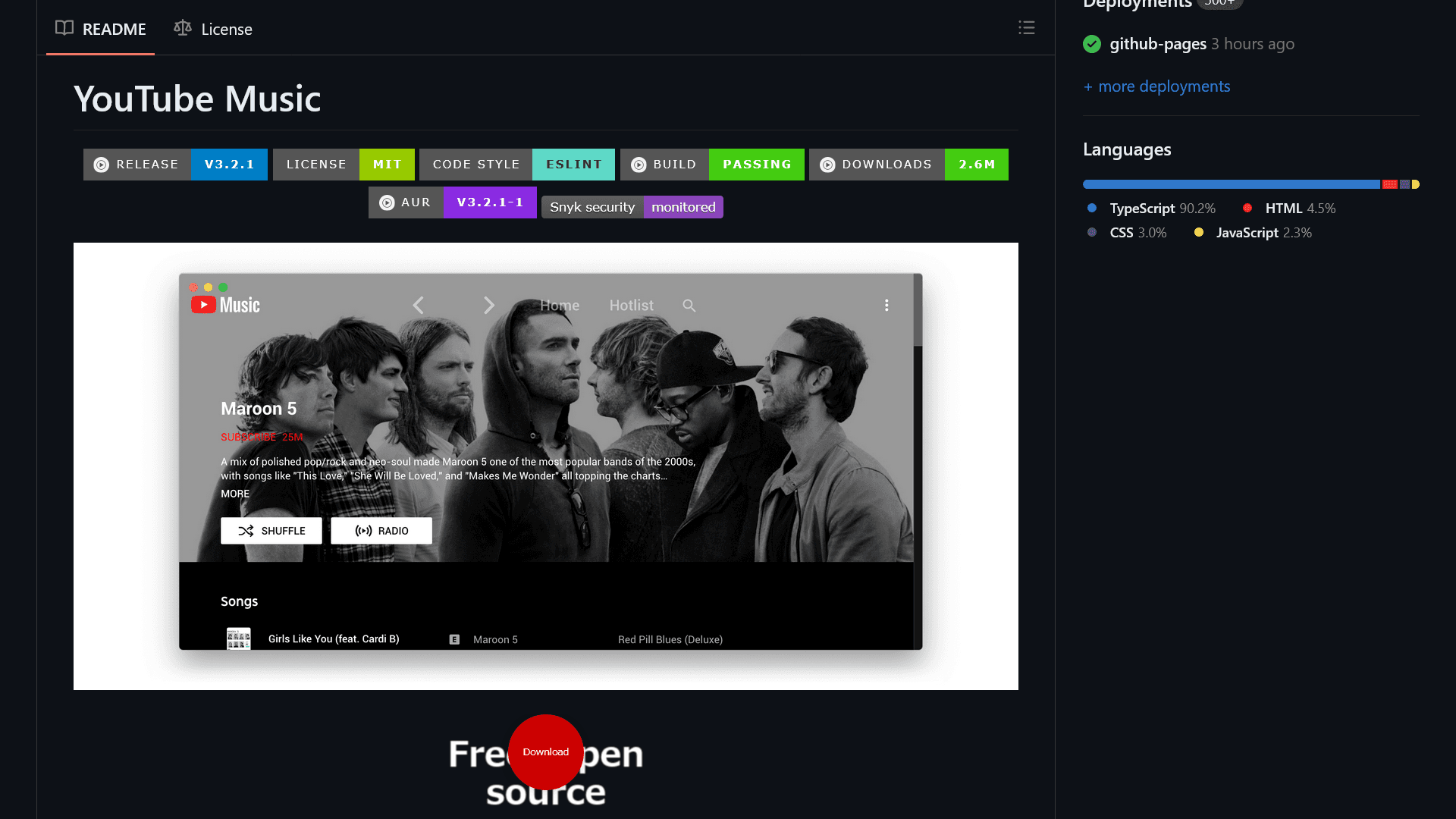
Discord provides a system called Rich Presence, which lets you show information such as the game you are playing or the music you are listening to on your profile. Among major music services, Spotify includes Rich Presence support by default, while the unofficial YouTube Music desktop client offers it through a built-in plugin.
Amazon Music does not support Rich Presence. I had wanted a way to show the song I was playing on Amazon Music in Discord.
While looking for a tool that could add Discord Rich Presence support to Amazon Music, I found Amazon Music RPC.
After trying it, I ran into several issues.
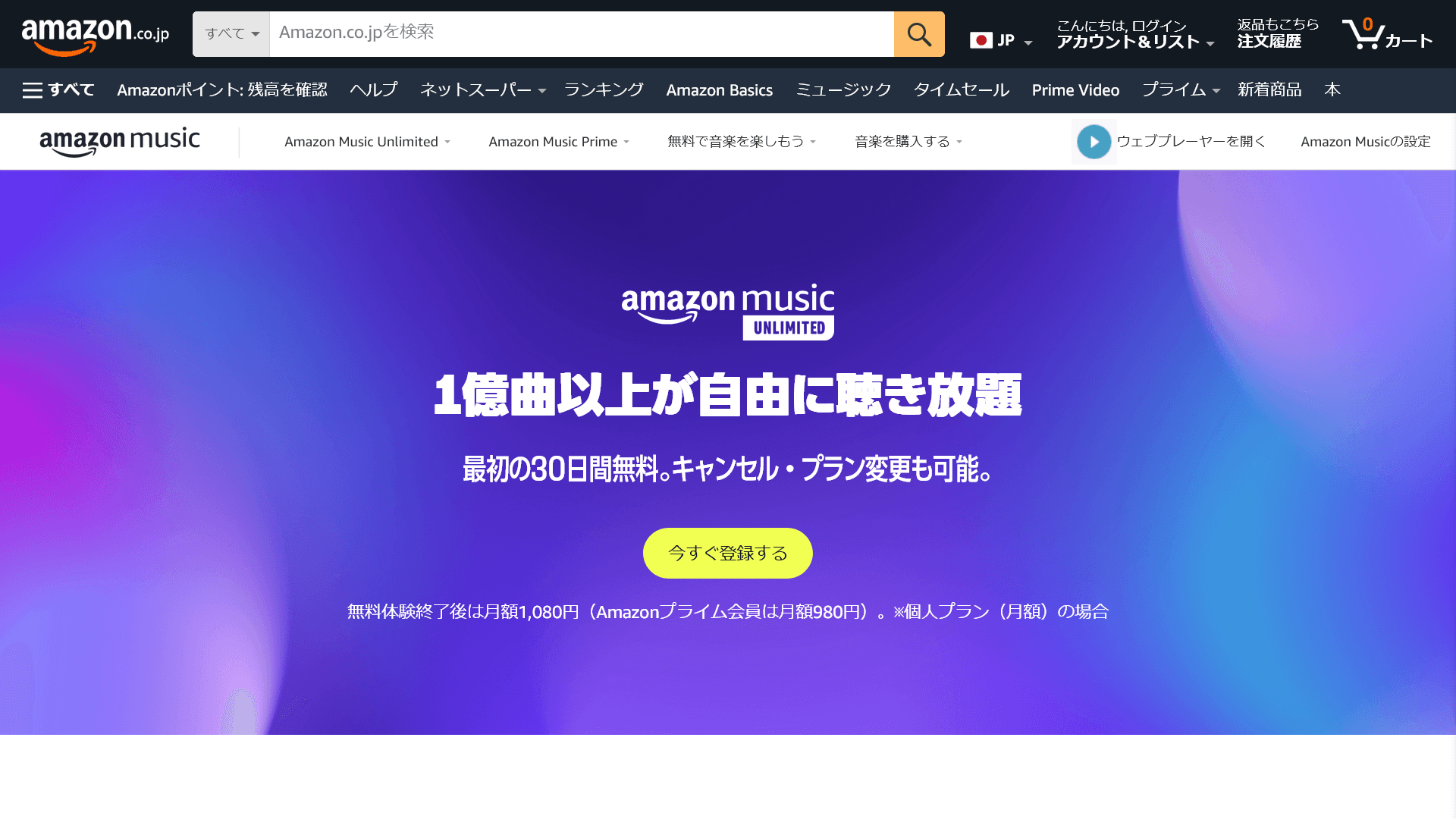
I only wanted to show information about the song I was playing in Discord, but Amazon Music RPC includes a large number of settings that I did not need. I also found that Amazon Music RPC fails with the non-Microsoft Store version of Amazon Music and can break its UI.
Amazon offers two versions of its Amazon Music desktop client: one from the Microsoft Store and one from Amazon's website. The Microsoft Store version cannot minimize to the system tray for background playback, so I use the version from Amazon's website. Amazon Music RPC recommends the Microsoft Store version.
For those reasons, I used Amazon Music RPC's approach as a reference and built a simpler tool for the non-Microsoft Store version of Amazon Music.
Amazon Music Rich Presence features
I based the underlying approach on Amazon Music RPC, but I wrote Amazon Music Rich Presence from scratch. It provides these main features:
- Shows the current Amazon Music track and playback position as Rich Presence on your Discord profile
- Works with the non-Microsoft Store version of the Amazon Music desktop client
- Uses a simple UI with a minimal feature set
- Lets you minimize the app to the system tray
- Provides automatic updates and launch-at-startup support when you enable those options in Settings
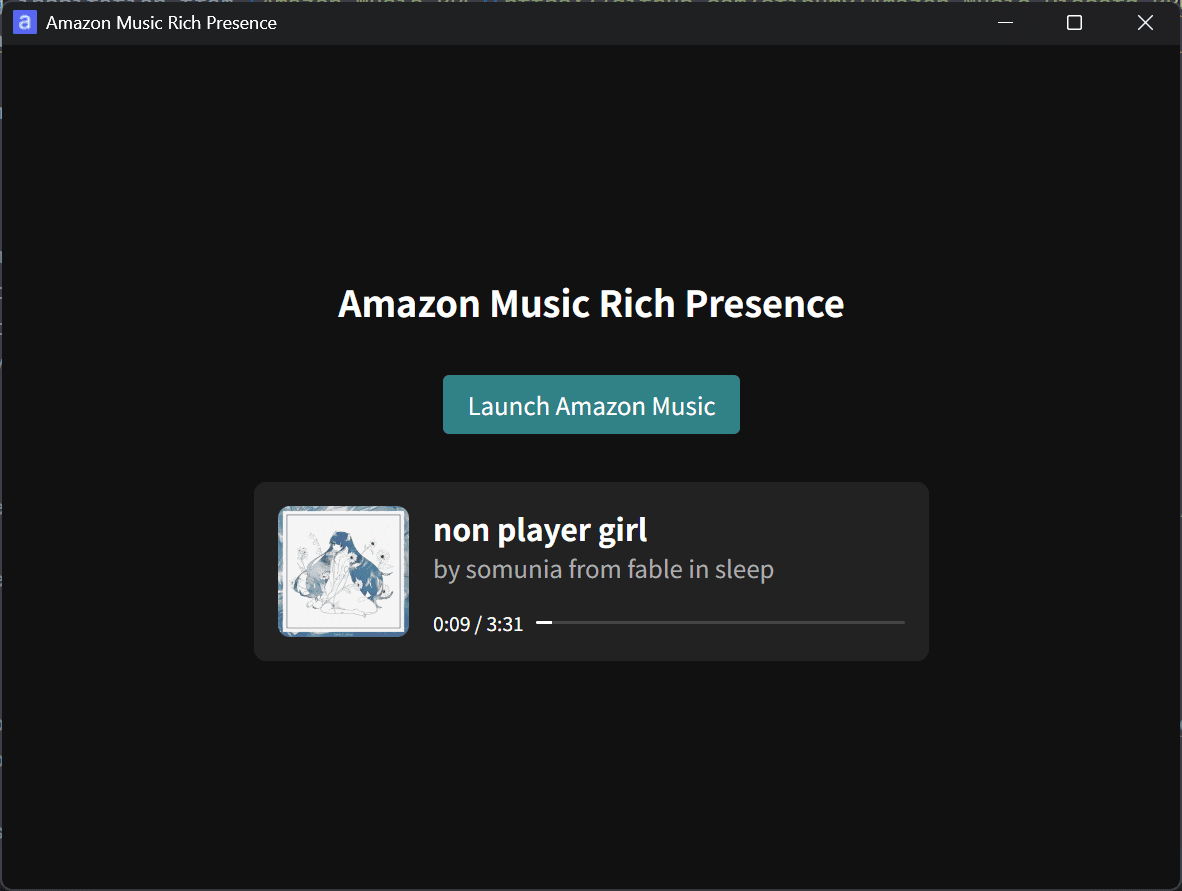
Amazon Music Rich Presence uses a simple UI like this:
Your Discord profile shows the song you are playing like this:
![Screenshot showing [Playing Amazon Music Rich Presence]](/_next/image/?url=%2Fapi%2Fmedia%2Ffile%2Famazon-music-rech-presence-discord.png&w=1080&q=75)
Amazon Music Rich Presence can show the song title, artist, album, and playback position. You will not see it when viewing your own profile, but other users will see a [Listen on Amazon Music] button.
How to use Amazon Music Rich Presence
To use Amazon Music Rich Presence, download and run the installer from the GitHub releases page. At the time of writing, you can use it on x64 Windows 11 systems.
After you install and launch Amazon Music Rich Presence, click [Launch Amazon Music] in the center of the window. Amazon Music will open. Start playing music, and Discord will show the song information on your profile.
You can click the song title in your Discord profile or the music-player-style UI in Amazon Music Rich Presence to open the song in the web version of Amazon Music.
Because of a technical limitation, you need to launch Amazon Music from the [Launch Amazon Music] button in Amazon Music Rich Presence. If you launch Amazon Music without going through Amazon Music Rich Presence, the tool cannot retrieve information about the song you are playing.
Technical details
Amazon built its Amazon Music desktop client with Electron. If you launch the client with Chrome DevTools Protocol (CDP) enabled, you can retrieve information about the song it is playing. Amazon Music disables CDP by default, which is why you need to launch Amazon Music through Amazon Music Rich Presence.
I used Electrobun to build Amazon Music Rich Presence. Electrobun is a framework that lets developers build desktop apps with web technologies, much like Electron. Unlike Electron, Electrobun uses the system WebView, which reduces bundle size, and it supports delta updates.
After using Electrobun for this project, I found it useful for building simple tools, but its missing features and bugs became more noticeable when I tried to refine smaller details. In March this year, Electrobun lacked high-DPI display support and did not support dark mode for title bars. Its developers have since addressed those issues, and I expect them to keep improving the framework.
As an aside, Amazon appears to have built the web version of Amazon Music with Web Components and the desktop client with Vue 2. Amazon also introduced small behavioral differences between the Microsoft Store and non-Microsoft Store versions of the desktop client, which suggests that the company maintains three distinct clients for PCs.
Redirecting users to Amazon Music for their region
Amazon separates its services by user region. For example, Amazon uses amazon.com in the United States and amazon.co.jp in Japan. Amazon Music follows the same model: users in the United States use music.amazon.com, while users in Japan use music.amazon.co.jp, and accounts do not work across those regions.
Amazon Music Rich Presence can identify the region of the person running the client. When you put a song link in a Discord profile, however, you have no way to know the region of the person who will click it.
I asked ChatGPT to analyze URLs Amazon uses for advertising and found that URLs in the following format can redirect users to the Amazon Music site for their region:
https://musicapp.amazon.com/albums/<album ID>?trackAsin=<track ID>When you open a URL in this format on a desktop computer, Amazon redirects you to the Amazon Music site for your region. On a smartphone, the link opens the Amazon Music app if you have it installed. If you do not, it opens the app store.
If you want users without the app to open the web version of Amazon Music instead of the app store, you can use a URL in a format like this:
https://am.app.link/?$deeplink_path=tracks/<track ID>&$fallback_url=https://music.amazon.com/tracks/<track ID>&$fallback_url_jp=https://music.amazon.co.jp/tracks/<track ID>Amazon appears to use a URL-shortening service called Branch, and am.app.link accepts Branch parameters.
Parameters such as $fallback_url and $fallback_url_jp let you specify fallback destinations for users who do not have the app installed on their phones. Branch lets you set a fallback for each user region, but you must configure each region one at a time. $fallback_url_jp provides the fallback for users in Japan. $fallback_url handles users who do not match any of the configured regional fallbacks.
For links that Amazon Music Rich Presence shows in Discord, I configured fallbacks for the five regions with the largest Amazon Music user bases. Users outside those regions go to music.amazon.com.
Conclusion
I released Amazon Music Rich Presence, a tool that shows information about the song you are playing on Amazon Music in your Discord profile.
The tool works with the non-Microsoft Store version of Amazon Music on Windows, which limits who can use it, but I designed it around simplicity. If that setup matches yours, give it a try.
You can view all of the source code on GitHub.

Share this article
Follow us for updates
Adding us to your preferred sources on Google makes it easier to find our articles on Google. Also, be sure to follow us on X and our RSS feed.


-1.png&w=1080&q=75)
I've been using JavaScript more than my native language since birth. I am nowhere and everywhere on the internet.
I build web apps and browser extensions in TypeScript as a web frontend programmer. I released Shadowban Scanner, a tool that detects shadowbans on X, and Restore Link Card, a tool that brings back link cards. Media outlets in Japan and abroad covered both tools. For iGEM 2023, I built the Wiki for Team Japan-United and helped the team win the Grand Prize. On my blog, I cover news about X and social media, test and troubleshoot bugs, and share frontend development insights.




![Screenshot of Discord's settings page, with the [Show my message content from discoverable channels on web pages] option highlighted by a red border in the [Data & Privacy] section.](/_next/image/?url=%2Fapi%2Fmedia%2Ffile%2Fdiscord-message-visibility-setting-english.png&w=3840&q=75)