How to fix touchpad scrolling that speeds up at the edge in Windows 11
I ran into an issue with my Windows 11 touchpad (trackpad) where scrolling speeds up when my fingers reach the edge of the touchpad.
The issue comes from a feature introduced in the September 22, 2026 Windows update. You can restore the previous scrolling behavior by disabling Automatic scrolling at edge in Settings.
Table of Contents
Details
In Windows 11, you can scroll by sliding two fingers across the touchpad.
However, after a recent update, scrolling has become erratic whenever either of my fingers reaches the edge of the touchpad. The scrolling speed seems to jump when a finger reaches the edge, making it difficult to scroll to the intended position, especially on laptops with small touchpads.
Cause and solution
The issue comes from a feature called Automatic scrolling at edge, which Microsoft introduced in the Windows update released on September 22.
With Automatic scrolling at edge enabled, the scrolling speed increases as your fingers approach the edge of the touchpad. This might be useful in some situations, but the speed becomes so high near the edge that you have to avoid a substantial portion of the touchpad to maintain control.
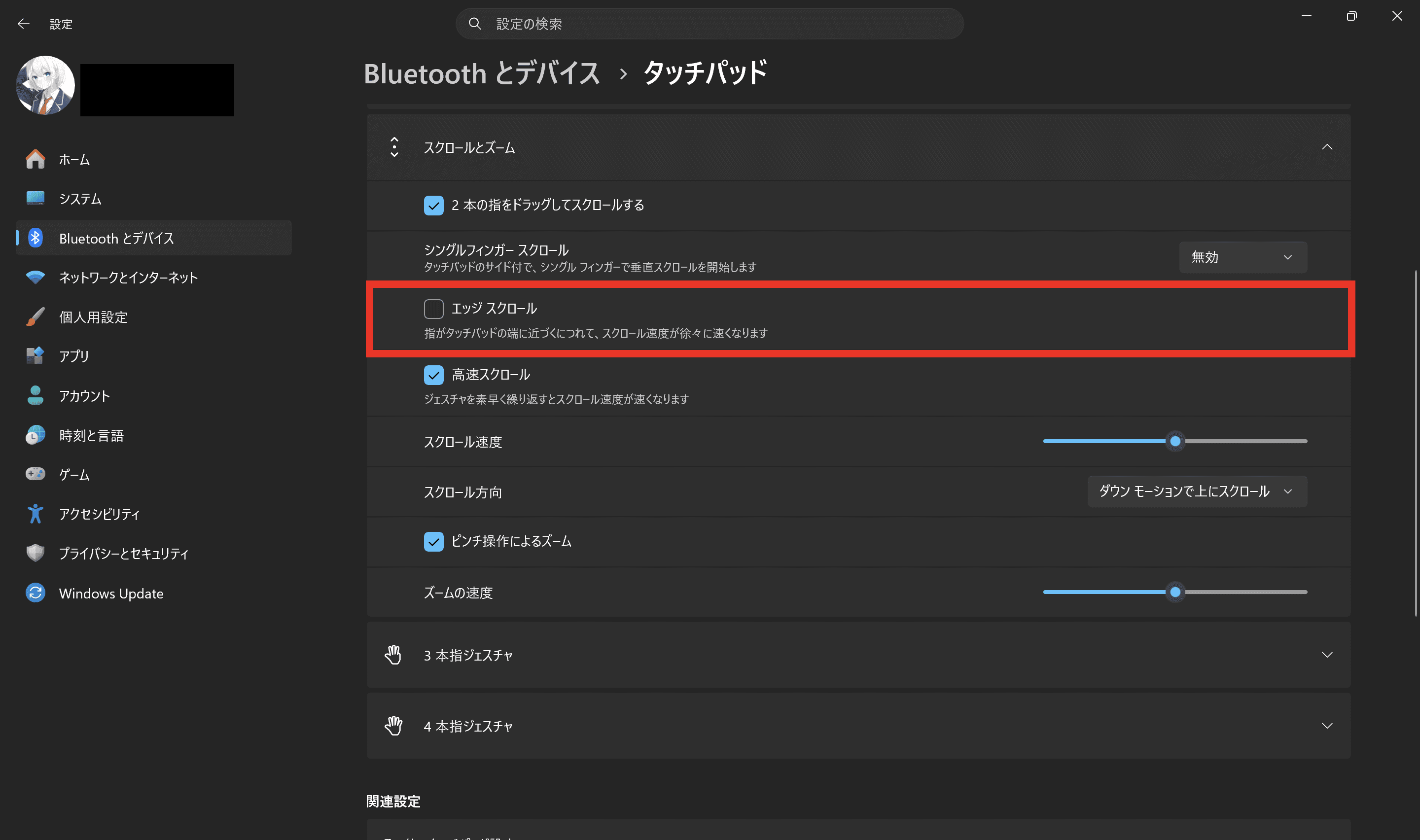
You can turn off Automatic scrolling at edge by following these steps. Once disabled, scrolling returns to its previous behavior, with a consistent speed regardless of where your fingers are on the touchpad.
Open Windows Settings
Go to [Bluetooth & devices] > [Touchpad]
Under [Scroll & zoom], turn off [Automatic scrolling at edge]
After disabling the feature, you should no longer experience erratic scrolling when your fingers approach the edge of the touchpad.
Verification details and sources
Verification environment
- OS: Windows 11 25H2 (build 26200.9711)
Verification details
I reproduced the behavior described in this article on my ASUS laptop and confirmed that disabling Automatic scrolling at edge restored the previous scrolling behavior.
Last verification date
Reference links
Share this article
Follow us for updates
Adding us to your preferred sources on Google makes it easier to find our articles on Google. Also, be sure to follow us on X and our RSS feed.


-1.png&w=1080&q=75)
I've been using JavaScript more than my native language since birth. I am nowhere and everywhere on the internet.
I build web apps and browser extensions in TypeScript as a web frontend programmer. I released Shadowban Scanner, a tool that detects shadowbans on X, and Restore Link Card, a tool that brings back link cards. Media outlets in Japan and abroad covered both tools. For iGEM 2023, I built the Wiki for Team Japan-United and helped the team win the Grand Prize. On my blog, I cover news about X and social media, test and troubleshoot bugs, and share frontend development insights.
![G HUBのウィンドウの中央に「G」ロゴが表示されており、その下にはプログレスバーと[ローカライゼーションを読み込み中]というテキストが表示されている](/_next/image/?url=%2Fapi%2Fmedia%2Ffile%2Fg-hub-loading-localizations-screen.png&w=3840&q=75)

![Screenshot of a Chrome window with an [Ask Gemini] button and a context menu below it showing an [Unpin] option](/_next/image/?url=%2Fapi%2Fmedia%2Ffile%2Fchrome-gemini-unpin-english.png&w=1080&q=75)
![[新しいXチャットへようこそ]というテキストが画面に大きく表示されており、その下には次の3つの説明が表示されている。[エンドツーエンドの暗号化:メッセージは、端末にかかわらずエンドツーエンドで暗号化されています。][最先端のプライバシー:Xを含め、他の人がメッセージを読むことはできません。][パスコードを設定:メッセージを保護するため、4桁のパスコードを設定してください。]これらの説明の下には、[パスコードを作成]という大きなボタンが配置されている](/_next/image/?url=%2Fapi%2Fmedia%2Ffile%2Fwelcome-to-new-chat.png&w=1920&q=75)
![Xのプロフィールで[Videos]タブの下にドロップダウンメニューが表示されている画像](/_next/image/?url=%2Fapi%2Fmedia%2Ffile%2Fx-lite-videos-tab-dropdown-thumbnail.png&w=3840&q=75)