Is X’s Media tab missing? Where did it go? What to do when it changes to the Videos tab
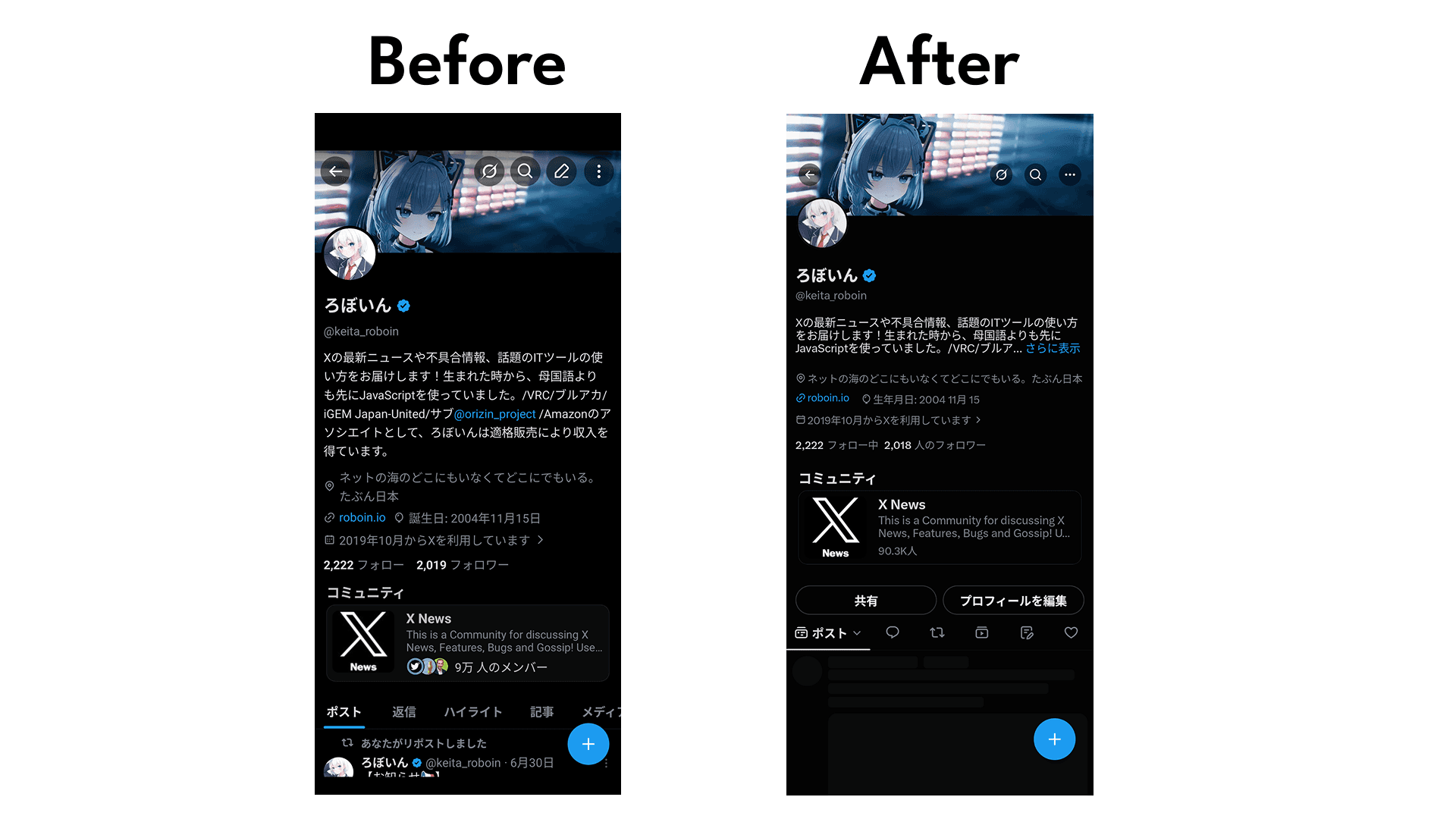
In some environments, the [Media] tab that used to appear when opening an account profile in the X app no longer appears.
This article explains what to do when only a Videos tab is shown on a profile instead of the Media tab.
Table of Contents
The Media tab has changed to [Videos]
When you open an account profile on X, there is a [Media] tab. Switching to it lets you view the photos and videos posted by that account in one place.
However, after a recent update to the X app, [Media] has disappeared from the profile screen in some environments and is now shown as [Videos] instead.
In my testing, I confirmed that the Media tab had been replaced with [Videos] in X Lite for Android.
As the name suggests, the [Videos] tab shows only videos. Images are not displayed.
How to view images
Even if only the [Videos] tab is displayed, uploaded images have not been deleted.
When the [Videos] tab is open, tapping [Videos] again displays [Photos], allowing you to view images.
In other words, the old Media tab has been split into a videos tab and a photos tab, with videos shown by default.
You can display the [Photos] tab by following these steps.
Open the profile of the account whose images you want to view in the X app
Tap the [Videos] tab to open it
![Xのアプリでプロフィールを表示したようすのスクリーンショット。[Videos]タブが選択された状態になっている](/_next/image/?url=%2Fapi%2Fmedia%2Ffile%2Fx-lite-videos-tab.png&w=1920&q=75)
Tap [Videos] again, then select [Photos] from the dropdown menu that opens
![Xのアプリで[Videos]タブを選択したようすのスクリーンショット。[Videos]タブのすぐ下にドロップダウンメニューが表示されており、[Video][Photos]が選択できるようになっている](/_next/image/?url=%2Fapi%2Fmedia%2Ffile%2Fx-lite-videos-tab-dropdown.png&w=3840&q=75)
The images posted by that account will be displayed
If the [Photos] tab does not appear
In my environment, after switching to the [Videos] tab, tapping [Videos] again allowed me to switch to the [Photos] tab from the dropdown menu. However, in some environments, it appears that this method may not work.
Here are the workarounds by case.
On Android
In my environment, X Lite (the official app rebuilt from scratch) allowed me to display the [Photos] tab using the method described above. However, when I enabled [New X Android] in the regular X for Android app, the [Photos] tab did not appear.
![画面中央上部に金属風に輝くXのロゴが配置されており、その下に大きく[新しいX Androidのご案内]というテキストが配置されている。さらにその下には[新しいX for Androidをお試しください。より快適にご利用いただけるよう、Xアプリがバージョンアップされました。][メニューからいつでも元に戻せます。まれなケースですが、アプリの再インストールが必要になることがあります。]と書かれている。画面下部には[今すぐ試す][キャンセル]という2つのボタンが表示されている](/_next/image/?url=%2Fapi%2Fmedia%2Ffile%2Fintroducing-new-x-android.png&w=1920&q=75)
[New X Android] is essentially supposed to be the same as X Lite, but the [Photos] tab may not yet be implemented, or some bug may be preventing users from switching to the [Photos] tab.
If you are using the regular X for Android app rather than X Lite, you can view the Media tab by checking it from the web, as described later, or by switching back to the original X.
You can switch from [New X Android] back to the original X by following these steps.
Open the X app
Open the sidebar, then tap [Original X]
![Screenshot of the sidebar in the X app showing an item labeled [Original X]](/_next/image/?url=%2Fapi%2Fmedia%2Ffile%2Fx-android-switch-to-original-x-english.png&w=1920&q=75)
Tap [Switch Anyway]
![Screenshot showing a dialog in the X app. The dialog says, [Before you switch...] [We'd love to know why you're switching back. Share your feedback to help us improve the new X.]](/_next/image/?url=%2Fapi%2Fmedia%2Ffile%2Fx-android-switch-to-original-x-dialog-english.png&w=1920&q=75)
The Media tab on profiles will reappear
If you want to view videos and photos together
In X Lite, the previous Media tab has been split into the [Videos] tab and the [Photos] tab.
If you want to view videos and photos together as you could in the old Media tab, there are three options.
- Use the regular X for Android app instead of X Lite
- Open the web version
- Use search
If you have not enabled [New X Android] in the regular X app, you can continue using the Media tab.
At the time of writing, the Media tab is also still available on the web version.
If the app opens when you try to open the web version, see this article.
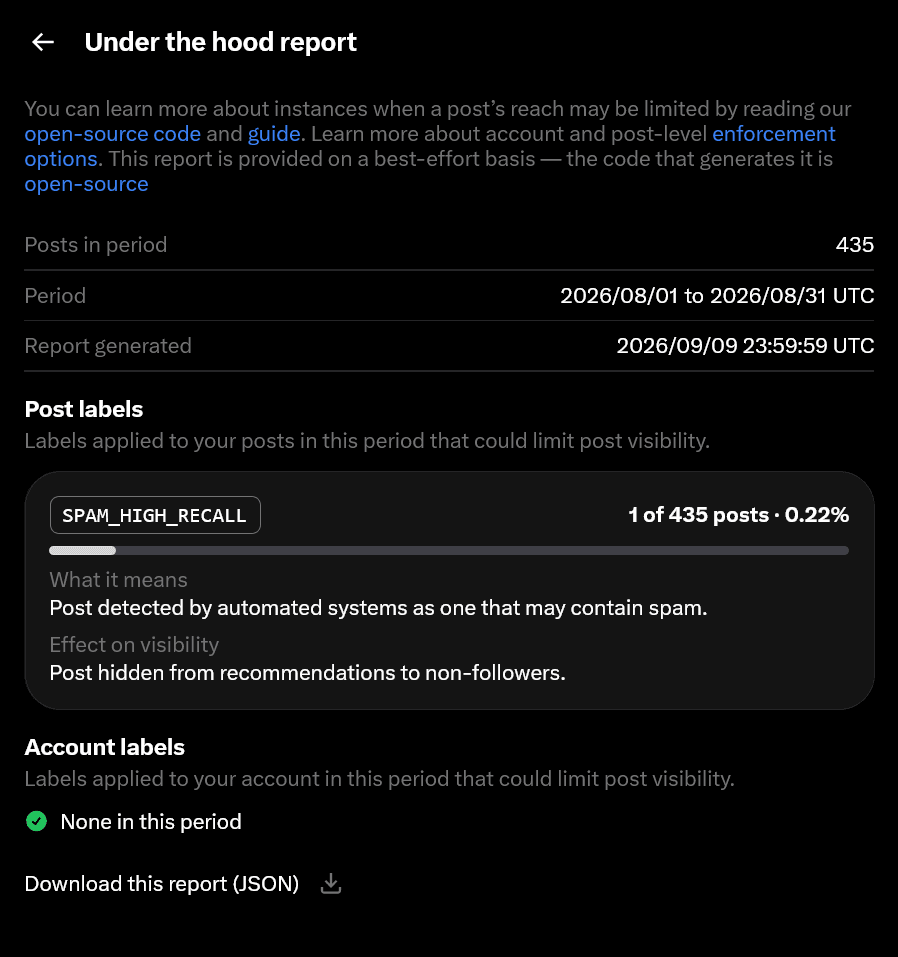
Another option is to use search. Posts from shadowbanned accounts and posts flagged as sensitive may not appear, but you can use the following steps to view media from a specific account via search.
Open the profile of the account whose media you want to view
Tap the search icon in the upper right
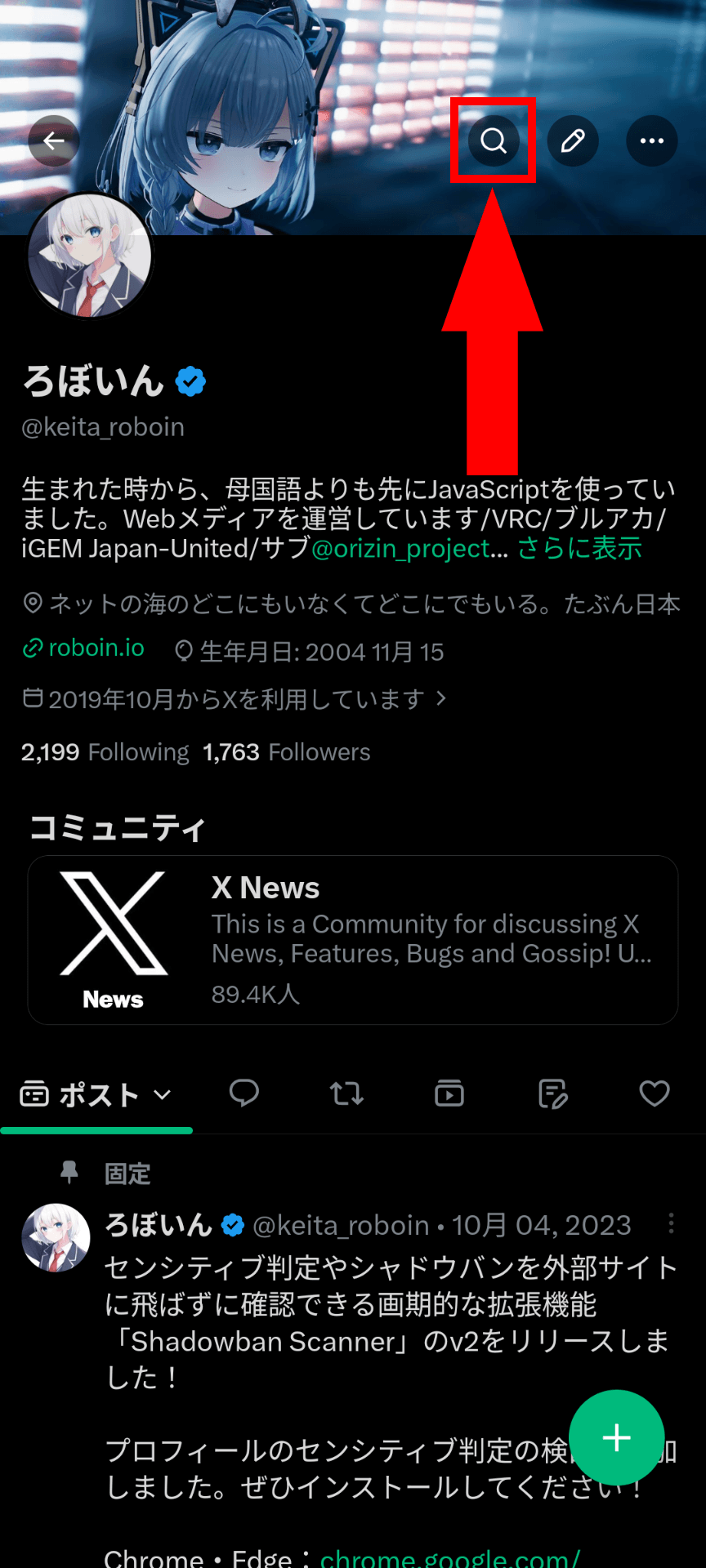
Search results for that account’s posts will appear, so switch to the [Media] tab
![Xの検索結果をアプリで表示したようすのスクリーンショット。[メディア]タブが表示されている](/_next/image/?url=%2Fapi%2Fmedia%2Ffile%2Fx-lite-profile-search-media.png&w=1920&q=75)
Media such as videos and images posted by that account will be displayed
Conclusion
In some environments, the Media tab has disappeared from the X app and only the [Videos] tab is displayed.
If you are using X Lite, switch to the [Videos] tab once, then tap the tab again to select [Photos] from the dropdown menu.
If you are using the regular X for Android app rather than X Lite, you can view images by switching back to the original X app instead of New X Android, or by using the web version or search feature.
Share this article
Follow us for updates
Adding us to your preferred sources on Google makes it easier to find our articles on Google. Also, be sure to follow us on X and our RSS feed.


Related articles
- [Android] Can you no longer hide images on X? How to reduce image data usage with the new settings
- Did the font change in the X app for Android? How to change the text size
- [Android] Why X images do not change when you tap and hold and how to fix it
- Why reposts and replies do not appear on X and how to find them in the new Android and iOS profiles
- X for Android bug prevents replies and saves them as drafts: How to fix it
-1.png&w=1080&q=75)
I've been using JavaScript more than my native language since birth. I am nowhere and everywhere on the internet.
I build web apps and browser extensions in TypeScript as a web frontend programmer. I released Shadowban Scanner, a tool that detects shadowbans on X, and Restore Link Card, a tool that brings back link cards. Media outlets in Japan and abroad covered both tools. For iGEM 2023, I built the Wiki for Team Japan-United and helped the team win the Grand Prize. On my blog, I cover news about X and social media, test and troubleshoot bugs, and share frontend development insights.

![Screenshot of [Accessibility, display, and languages] > [Display] > [Font size] in the X settings](/_next/image/?url=%2Fapi%2Fmedia%2Ffile%2Fx-android-font-size-settings-english.png&w=3840&q=75)
![Screenshot of X’s settings screen showing the options under [Accessibility, display, and languages] > [Data usage]](/_next/image/?url=%2Fapi%2Fmedia%2Ffile%2Fx-data-saver-high-resolusion-image-settings-english.png&w=3840&q=75)
![Xアプリの上部に[ポストを送信できません][View draft]と表示されているようす](/_next/image/?url=%2Fapi%2Fmedia%2Ffile%2Fnew-x-android-unable-to-send-post.png&w=3840&q=75)

![[新しいXチャットへようこそ]というテキストが画面に大きく表示されており、その下には次の3つの説明が表示されている。[エンドツーエンドの暗号化:メッセージは、端末にかかわらずエンドツーエンドで暗号化されています。][最先端のプライバシー:Xを含め、他の人がメッセージを読むことはできません。][パスコードを設定:メッセージを保護するため、4桁のパスコードを設定してください。]これらの説明の下には、[パスコードを作成]という大きなボタンが配置されている](/_next/image/?url=%2Fapi%2Fmedia%2Ffile%2Fwelcome-to-new-chat.png&w=1920&q=75)