[Android] Can you no longer hide images on X? How to reduce image data usage with the new settings
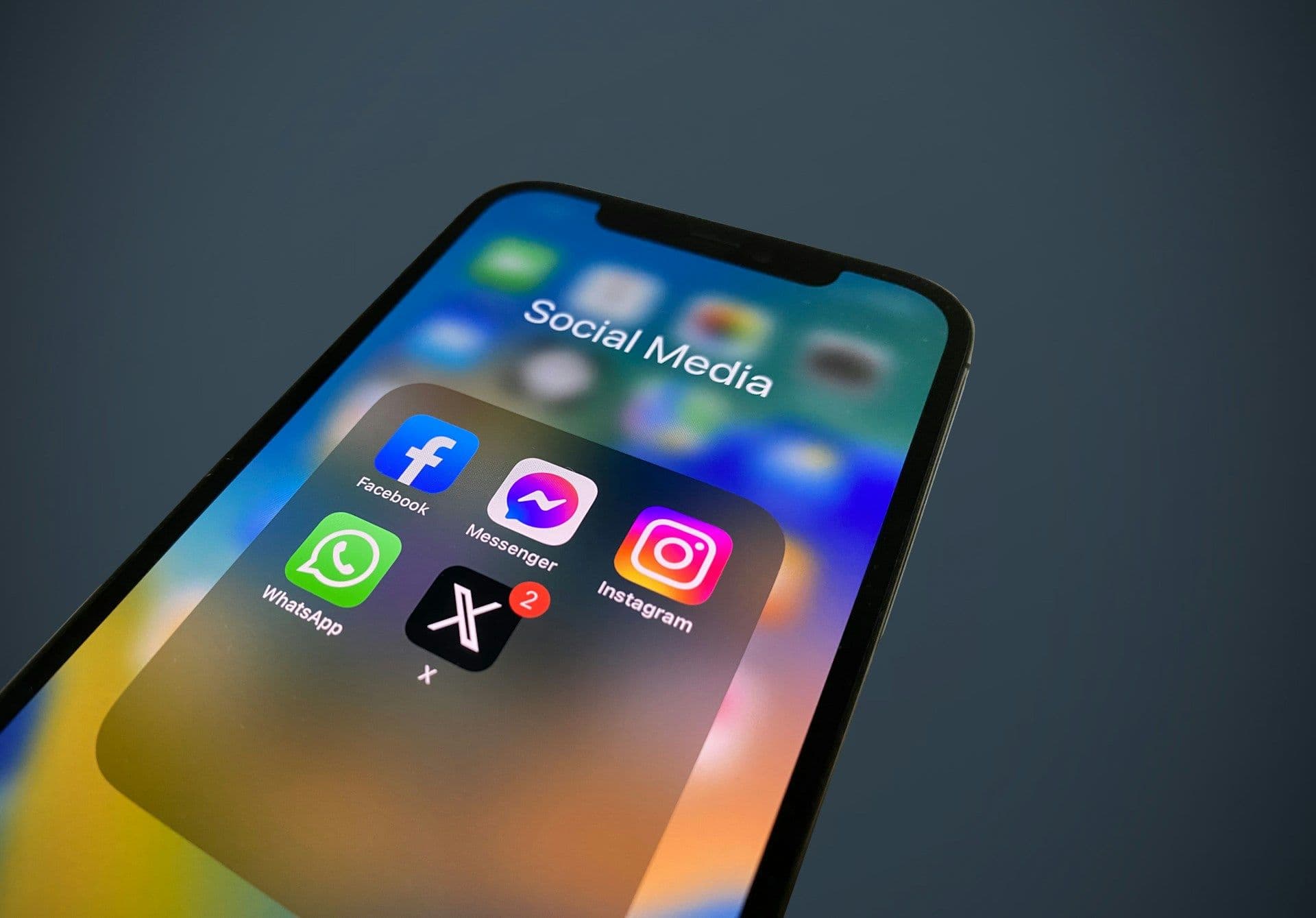
X has released a rebuilt version of its Android app, but the Media previews setting that let you hide images from the timeline has disappeared.
The new Android app no longer lets you turn off media previews and hide images from the timeline. You can still reduce data usage by loading lower-resolution images.
Table of Contents
Why is the Media previews setting missing from the new Android app?
X has released a new Android app that its developers rebuilt from scratch over more than a year.
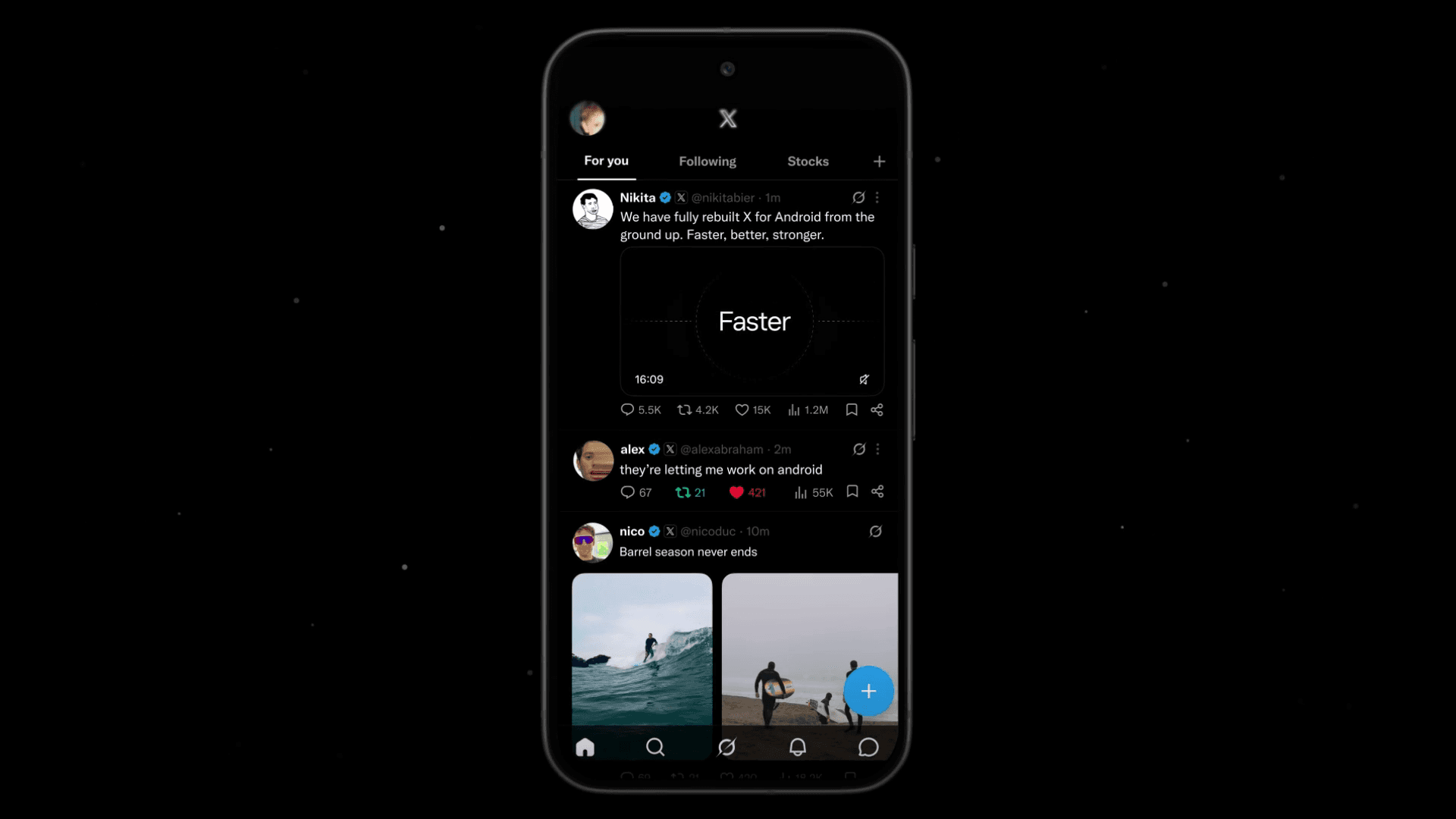
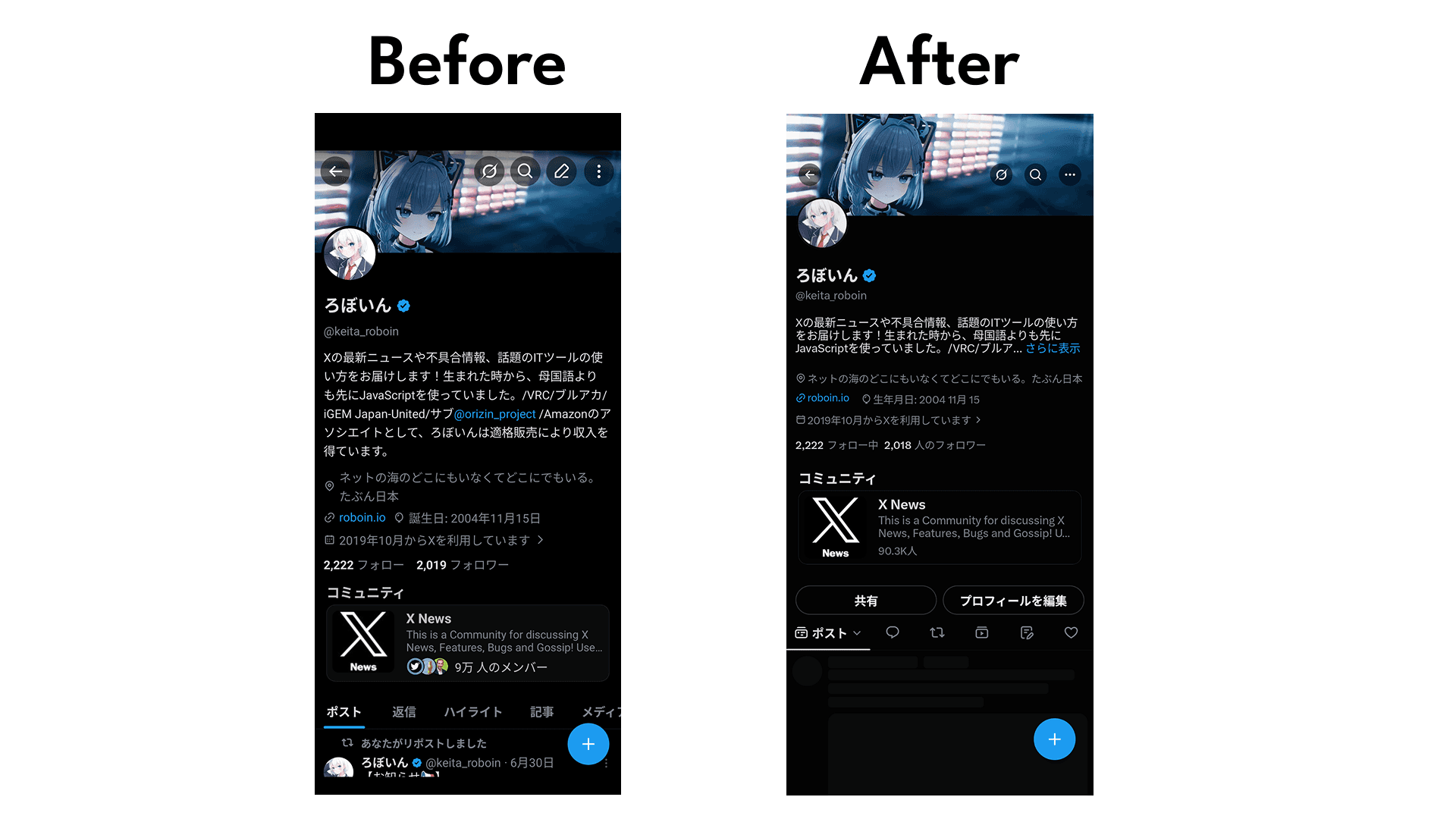
Users have mixed opinions about the new app, but it has a more modern design and uses fewer system resources than the previous version. The new profile design on X, which drew attention from users, also comes from this rebuilt Android app.
X added several features to the new app and removed others. The update brings the Android and iOS versions closer together: Android now includes features it previously lacked, while features that X removed from iOS have also disappeared from Android.
For example, the new Android app adds the accent color setting that X already offered in its iOS app and web version.
X also removed the Media previews setting from the new Android app. The previous app let you turn off media previews in Settings to prevent images from appearing in your timeline. X had already removed this option from its iOS app, and the Android update now removes it there as well.
How can you change the setting now?
The new Android app does not include an option to turn off media previews, but it still offers a Data saver setting.
X provides no alternative for users who want to hide every image from the timeline to save screen space.
Users who turned off media previews to reduce data usage can enable Data saver instead. With Data saver enabled, X loads lower-resolution images in the timeline by default, which reduces mobile data usage.
Follow these steps to enable Data saver in the new Android app:
Open [Settings and privacy] in the X app
Open [Accessibility, display, and languages] > [Data usage]
Turn on [Data saver]
![Screenshot of [Settings and privacy] > [Accessibility, display, and languages] > [Data usage] > [Data saver] in the X app](/_next/image/?url=%2Fapi%2Fmedia%2Ffile%2Fx-android-data-saver-settings-english.png&w=3840&q=75)
Conclusion
X has removed the setting that let Android users turn off media previews. When X rebuilt its Android app from scratch, it also removed the Media previews setting that had already disappeared from the iOS app.
X provides no alternative for users who want to hide images from the timeline to save screen space. Users who want to reduce data usage can enable Data saver, which loads timeline images at a lower resolution and uses less data.
Verification details
Verification environment
- OS: Android 17
- Device: Google Pixel 8
- Apps: X version 12.12.0-alpha.1 and X Lite version 12.11.2-release.01
Verification details
I confirmed that the Data saver setting in X lowers the default resolution of images displayed in the timeline. I also confirmed that the new Android app does not include a setting equivalent to Media previews.
Last verification date
Share this article
Follow us for updates
Adding us to your preferred sources on Google makes it easier to find our articles on Google. Also, be sure to follow us on X and our RSS feed.


-1.png&w=1080&q=75)
I've been using JavaScript more than my native language since birth. I am nowhere and everywhere on the internet.
I build web apps and browser extensions in TypeScript as a web frontend programmer. I released Shadowban Scanner, a tool that detects shadowbans on X, and Restore Link Card, a tool that brings back link cards. Media outlets in Japan and abroad covered both tools. For iGEM 2023, I built the Wiki for Team Japan-United and helped the team win the Grand Prize. On my blog, I cover news about X and social media, test and troubleshoot bugs, and share frontend development insights.
![Screenshot of [Accessibility, display, and languages] > [Display] > [Font size] in the X settings](/_next/image/?url=%2Fapi%2Fmedia%2Ffile%2Fx-android-font-size-settings-english.png&w=3840&q=75)
![Screenshot of X’s settings screen showing the options under [Accessibility, display, and languages] > [Data usage]](/_next/image/?url=%2Fapi%2Fmedia%2Ffile%2Fx-data-saver-high-resolusion-image-settings-english.png&w=3840&q=75)
![Xアプリの上部に[ポストを送信できません][View draft]と表示されているようす](/_next/image/?url=%2Fapi%2Fmedia%2Ffile%2Fnew-x-android-unable-to-send-post.png&w=3840&q=75)
![スマートフォンのホーム画面の[Social]フォルダーを表示した写真。フォルダー内にはFacebook、Instagram、Threads、X、LinkedIn、TikTok、YouTubeのアイコンが配置されている](/_next/image/?url=%2Fapi%2Fmedia%2Ffile%2Ffacebook-instagram-threads-x-twitter-linkedin-tiktok-youtube-mobile-app-unsplash.jpg&w=3840&q=75)