Did the font change in the X app for Android? How to change the text size
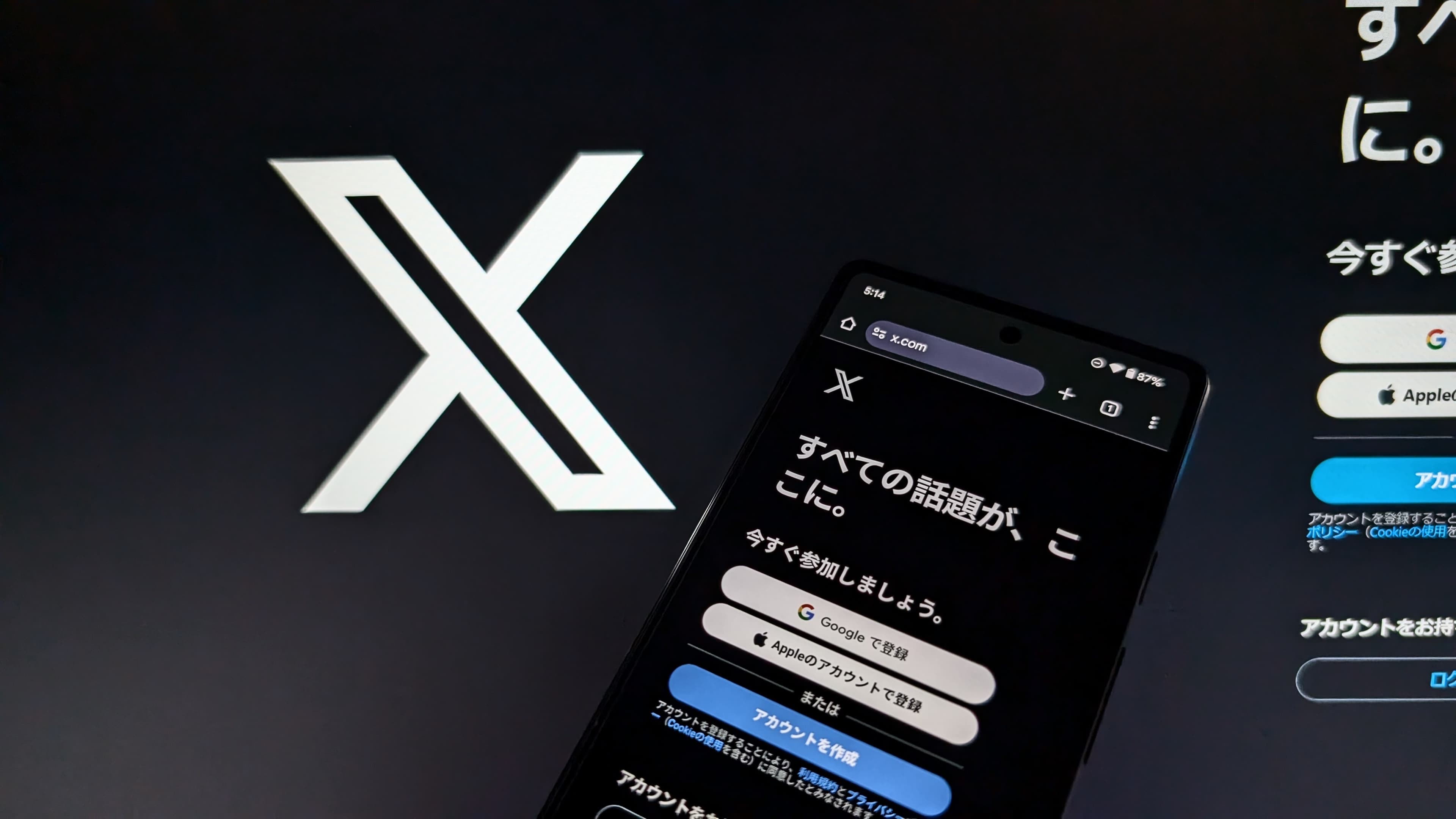
X has replaced its Android app with a new version that the company rebuilt from scratch. Since the update, many users have reported that the text looks smaller.
The previous Android app matched the device’s font size setting. The new app uses an in-app font size control, which can make the text look smaller after the update. I explain how to change the text size in the new Android app.
Table of Contents
Why the font size changed in X for Android
X changed how its Android app handles font size by adding an in-app setting.
X has released a new Android app that its developers rebuilt from scratch over more than a year.
I have used this new Android app since X began testing it with a small group of paid users more than a year ago.
During early development, the new Android app ran slowly and lacked many features. The release version runs faster and includes most features. X added several features from the iOS app and web version that the previous Android app lacked.
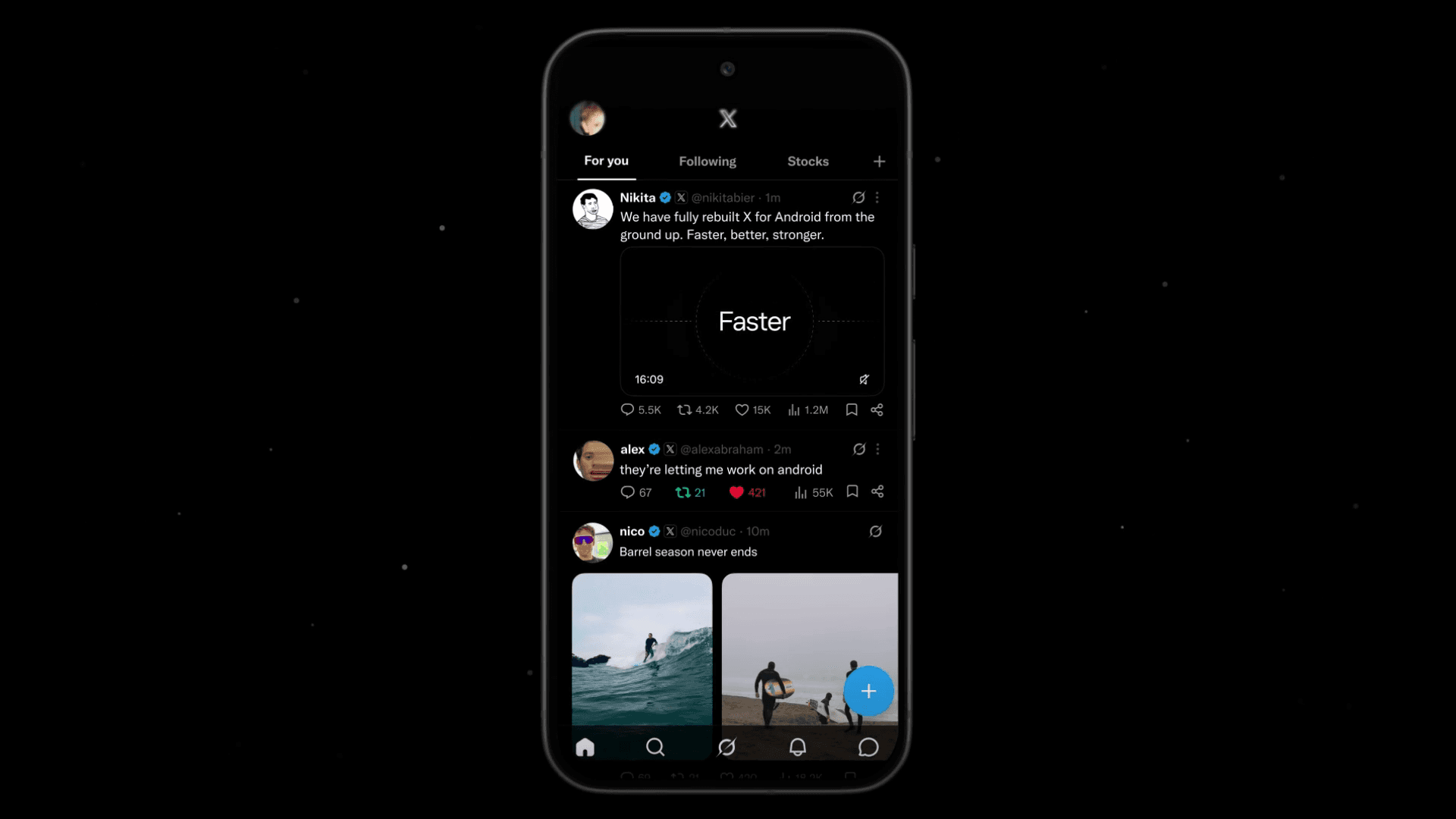
X already let users adjust font size on the web but did not provide the option in the previous Android app. The company added it to the rebuilt app.
With the previous app, you had to use the font size set in Android, so you could not adjust the text size for X alone. In the rebuilt app, X added a font size control that works independently of Android’s system setting.
X gives you more control because you can change the font size in the app without affecting the rest of Android. However, X no longer applies Android’s font size setting in the app. As a result, users with some system font settings may see a different text size after updating X.
How to change the font size
Follow these steps to change the font size in the new Android app.
Open [Settings and privacy] in the X app
Go to [Accessibility, display, and languages] > [Display]
Use the [Font size] slider to adjust the text size
![Screenshot of [Accessibility, display, and languages] > [Display] > [Font size] in the X settings](/_next/image/?url=%2Fapi%2Fmedia%2Ffile%2Fx-android-font-size-settings-english.png&w=3840&q=75)
Conclusion
I explained how to adjust the font size if the X app for Android changed it after an update.
The previous X app displayed text using Android’s system font size setting. In the rebuilt Android app, X added an in-app font size control and separated it from Android’s setting.
You can change the app’s text size from the font size setting in X.
Verification details
Verification environment
- OS: Android 17
- Device: Google Pixel 8
- App: X app version 12.11.0-beta.0 and X Lite app version 12.9.7-release.01
Verification details
I confirmed that the method in this article changes the font size setting in the X app.
Last verification date
Share this article
Follow us for updates
Adding us to your preferred sources on Google makes it easier to find our articles on Google. Also, be sure to follow us on X and our RSS feed.


Related articles
- [Android] Can you no longer hide images on X? How to reduce image data usage with the new settings
- [Android] Why X images do not change when you tap and hold and how to fix it
- Why reposts and replies do not appear on X and how to find them in the new Android and iOS profiles
- X for Android bug prevents replies and saves them as drafts: How to fix it
- Why birthday balloons do not appear on X and how to fix the issue
-1.png&w=1080&q=75)
I've been using JavaScript more than my native language since birth. I am nowhere and everywhere on the internet.
I build web apps and browser extensions in TypeScript as a web frontend programmer. I released Shadowban Scanner, a tool that detects shadowbans on X, and Restore Link Card, a tool that brings back link cards. Media outlets in Japan and abroad covered both tools. For iGEM 2023, I built the Wiki for Team Japan-United and helped the team win the Grand Prize. On my blog, I cover news about X and social media, test and troubleshoot bugs, and share frontend development insights.
![Screenshot of X’s settings screen showing the options under [Accessibility, display, and languages] > [Data usage]](/_next/image/?url=%2Fapi%2Fmedia%2Ffile%2Fx-data-saver-high-resolusion-image-settings-english.png&w=3840&q=75)
![Xアプリの上部に[ポストを送信できません][View draft]と表示されているようす](/_next/image/?url=%2Fapi%2Fmedia%2Ffile%2Fnew-x-android-unable-to-send-post.png&w=3840&q=75)