How to hide the NBA tab automatically added to your X timeline
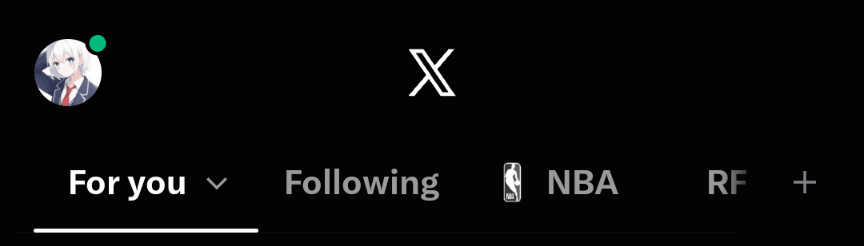
X has added an "NBA" tab to timelines on its website and mobile app. When you open this tab, you can browse NBA-related posts and game information in one place.
If you don't want the NBA tab, you can hide it by tapping the plus icon on your X timeline and removing it from your pinned tabs.
Table of Contents
What is the NBA tab on X?
X has started adding an "NBA" tab to users' timelines. When you open it, you can find NBA-related posts, game information, and other basketball content in one place. If you follow the NBA, you may find it useful.
However, X places the NBA tab alongside your regular timeline and lists, making it easy to tap by mistake. I don't follow the NBA, and I switch between multiple lists and custom timelines throughout the day. Having an unwanted tab in the same row makes it frustrating when I tap it by accident.
How to hide the NBA tab
You can hide the NBA tab from your X timeline by following these steps.
Open the X app or website.
Tap the plus icon at the right end of the timeline tab bar.
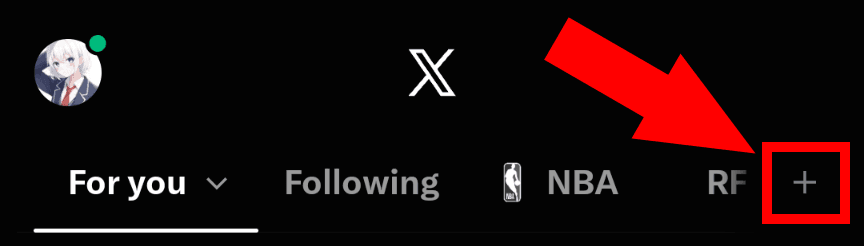
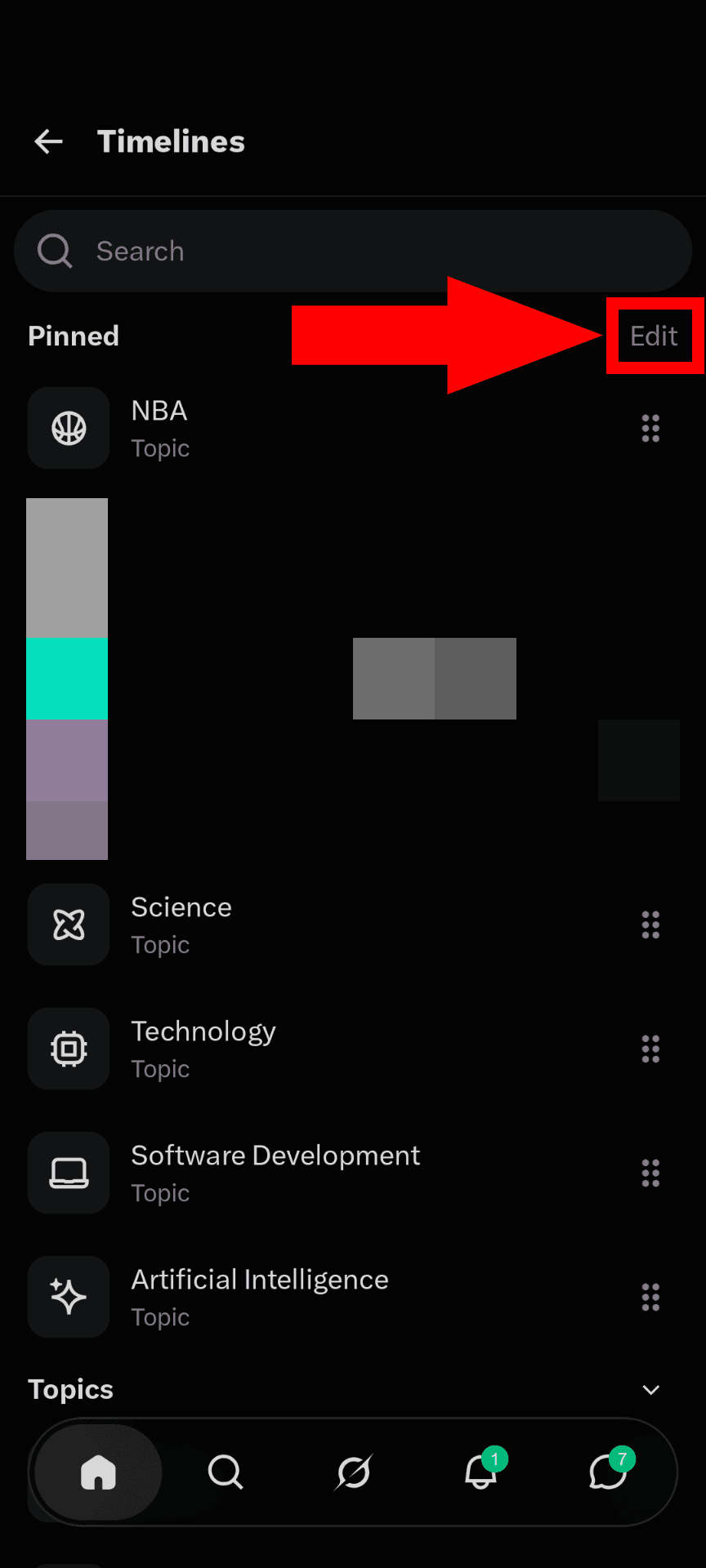
X will show a list of timelines. Tap [Edit] next to [Pinned].
Tap the remove button next to [NBA], then tap [Done].
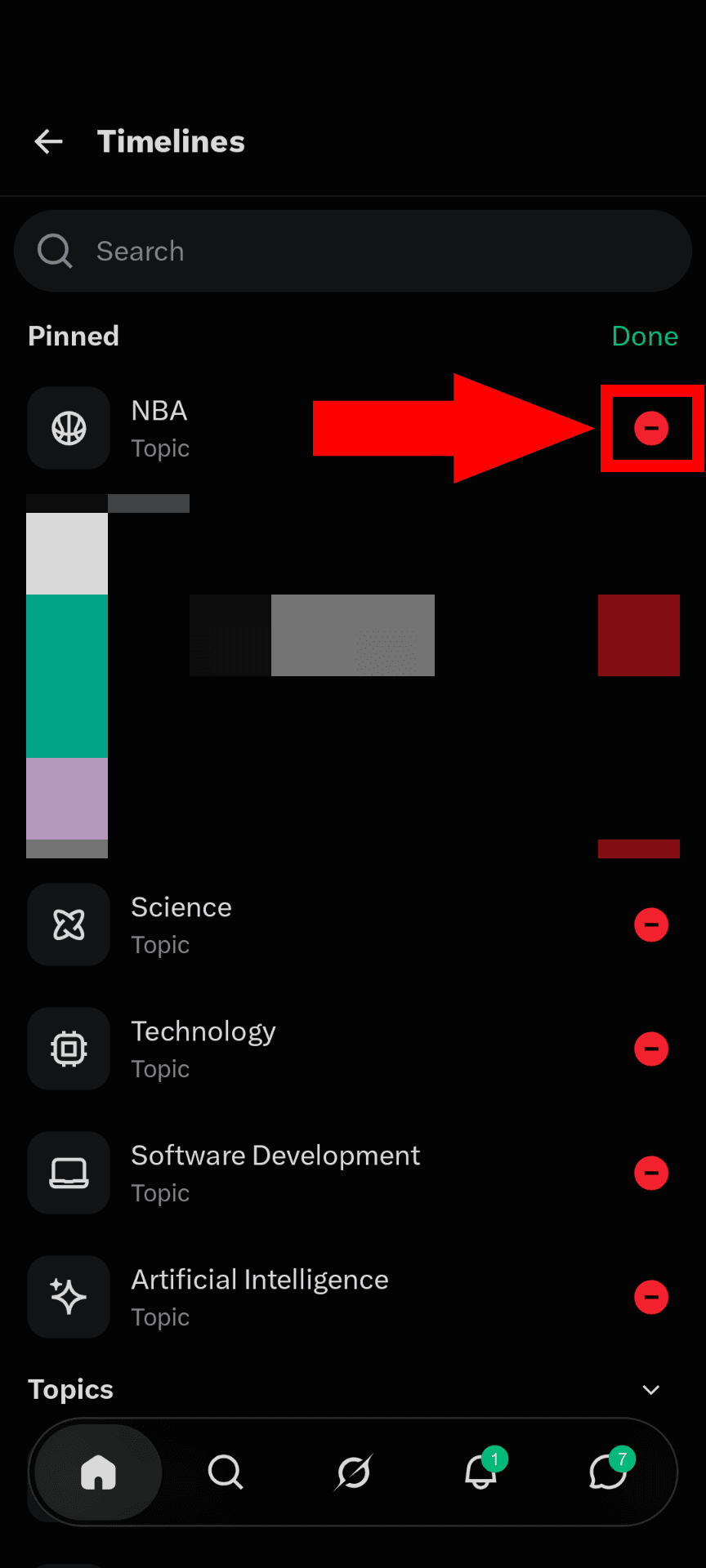
The NBA tab will disappear from your timeline.
How to restore the NBA tab
Hiding the NBA tab using this method doesn't delete it. You can add it back whenever you want.
Open the X app or website.
Tap the plus icon at the right end of the timeline tab bar.
Enter "NBA" in the search bar at the top of the screen.
Tap the plus icon next to [NBA] in the [Topics] section.
X will add the NBA timeline to the [Pinned] section. If you want to change its position, press and hold the button on the right to reorder it.
How to prevent similar sports tabs from appearing on your timeline
X has been adding dedicated timelines for major sporting events around the world, so you may see new tabs for other events even after hiding the NBA tab.
To access sports settings, open the NBA tab, tap the menu in the upper-right corner, and select [Configure]. You can also open the Search tab in the X app, tap the settings button in the upper-right corner, and select [Sports].
At the time of writing, I could only find these settings in the mobile app. They were not available on the web version.
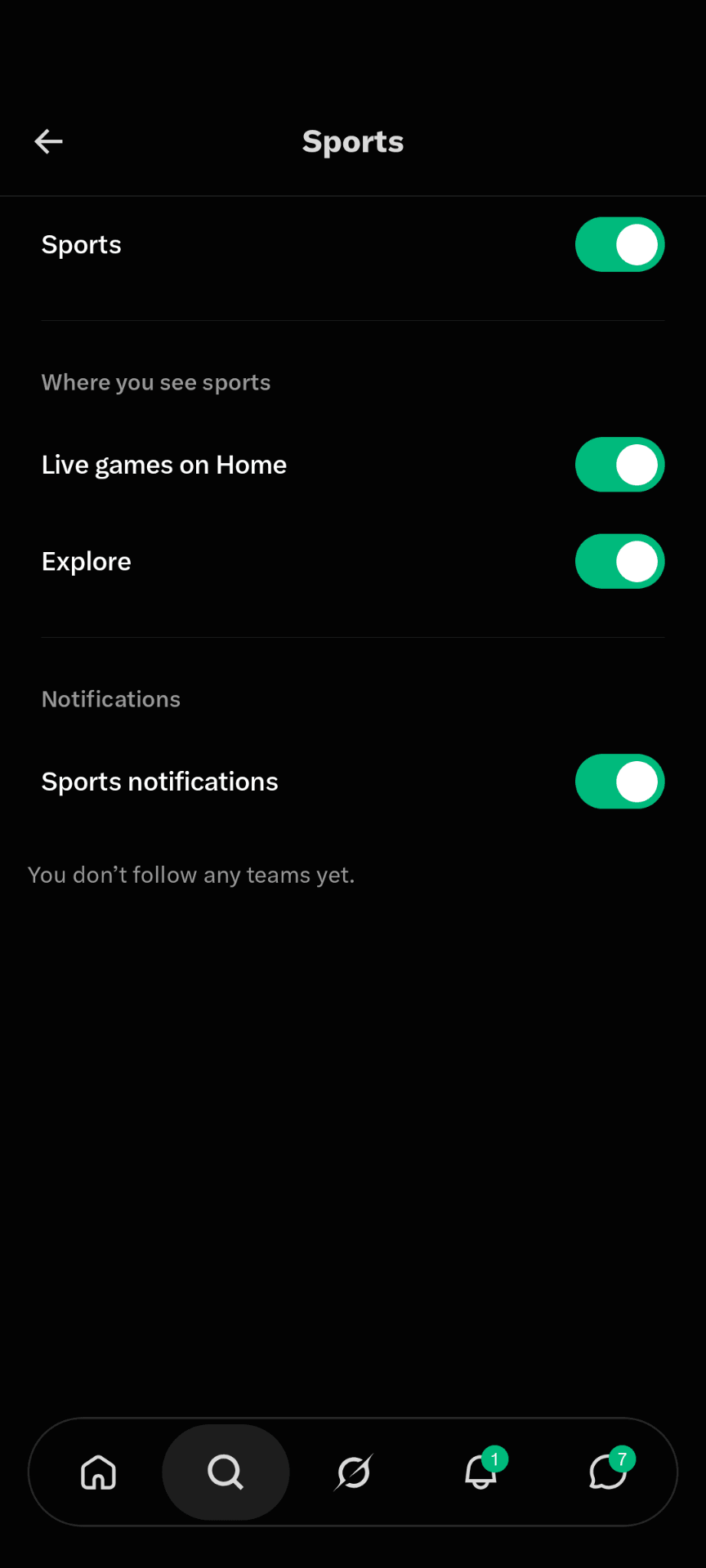
The [Sports] settings let you turn sports-related features on or off as a group or control the following options individually:
- Where you see sports
- Live games on Home
- Explore
- Notifications
- Sports notifications
When I tested these settings at the time of writing, changing them didn't seem to have any effect. Since the web version doesn't support these settings yet, X may still be working on the feature.
I also inspected the X app's code and found logic that sends these settings to the server, but I couldn't find any code that changes what the app displays based on them.
Still, turning these options off may help prevent X from adding sports content to your timeline in the future. If you don't want sports-related content, you may want to disable them. The main [Sports] toggle at the top appears to control all sports-related features at once.
If you turn it off, you can enable it again at any time by opening the Search tab in the X app, tapping the settings button in the upper-right corner, and selecting [Sports].
Verification details
Verification environment
PC:
- OS: Windows 11
- Browser: Zen Browser version 1.24.1b
Smartphone:
- OS: Android 17
- Device: Google Pixel 8
- App: X app version 12.45.0-alpha.03
Verification details
I tested the steps described in this article on both my PC and smartphone and confirmed that I could unpin and hide the [NBA] tab from X's timeline on both devices. I also examined the code of the X Android app to investigate how the [Sports] setting is implemented.
Last verification date
Changelog
- November 19, 2026, 11:27 p.m.: Initial publication
Share this article
Follow us for updates
Adding us to your preferred sources on Google makes it easier to find our articles on Google. Also, be sure to follow us on X and our RSS feed.


Related articles
- [Android] Can you no longer hide images on X? How to reduce image data usage with the new settings
- Did the font change in the X app for Android? How to change the text size
- [Android] Why X images do not change when you tap and hold and how to fix it
- Why reposts and replies do not appear on X and how to find them in the new Android and iOS profiles

I've been using JavaScript more than my native language since birth. I am nowhere and everywhere on the internet.
I build web apps and browser extensions in TypeScript as a web frontend programmer. I released Shadowban Scanner, a tool that detects shadowbans on X, and Restore Link Card, a tool that brings back link cards. Media outlets in Japan and abroad covered both tools. For iGEM 2023, I built the Wiki for Team Japan-United and helped the team win the Grand Prize. On my blog, I cover news about X and social media, test and troubleshoot bugs, and share frontend development insights.