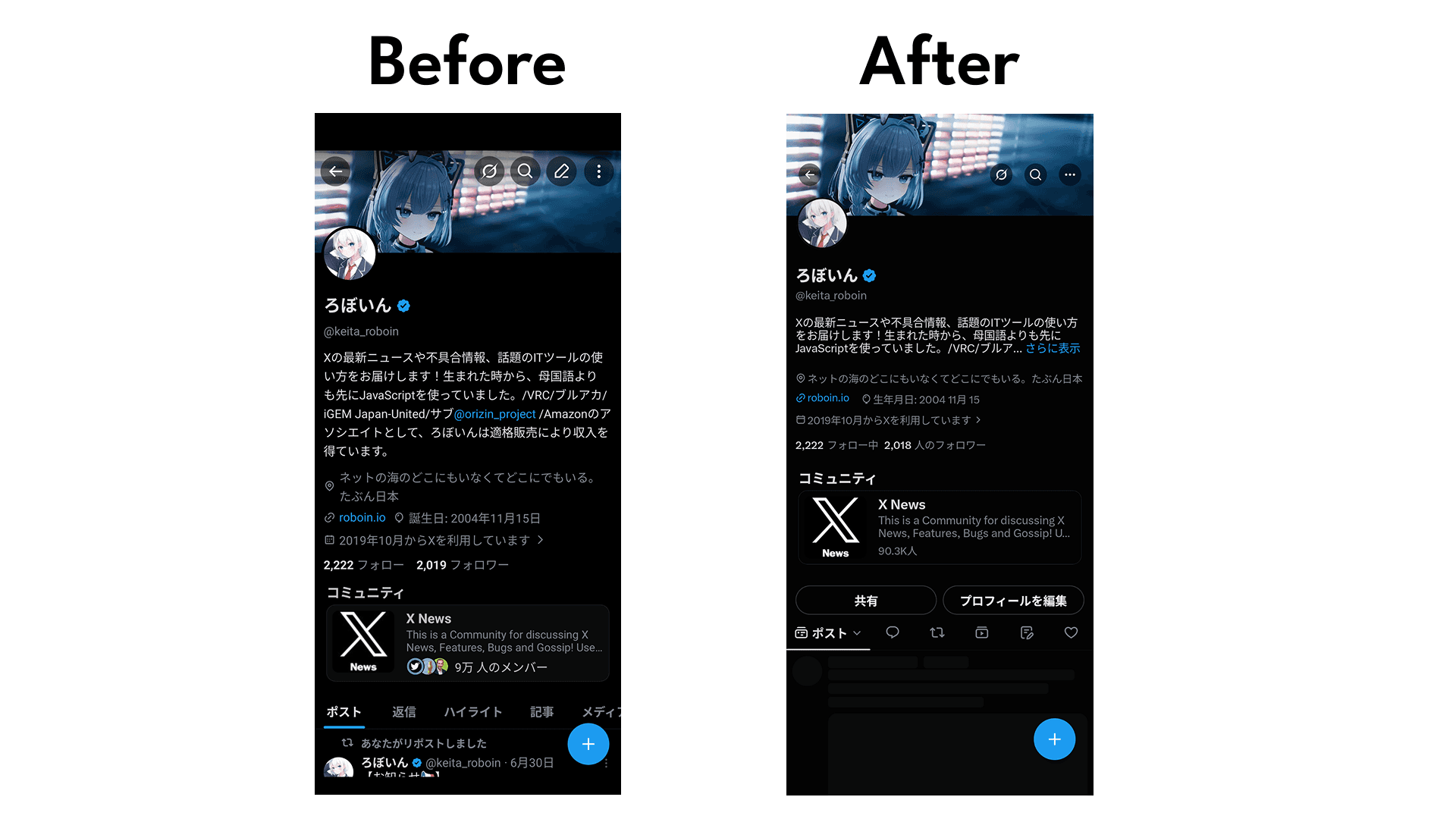
How to set the "Paid partnership" label on X posts: explained separately for before and after posting
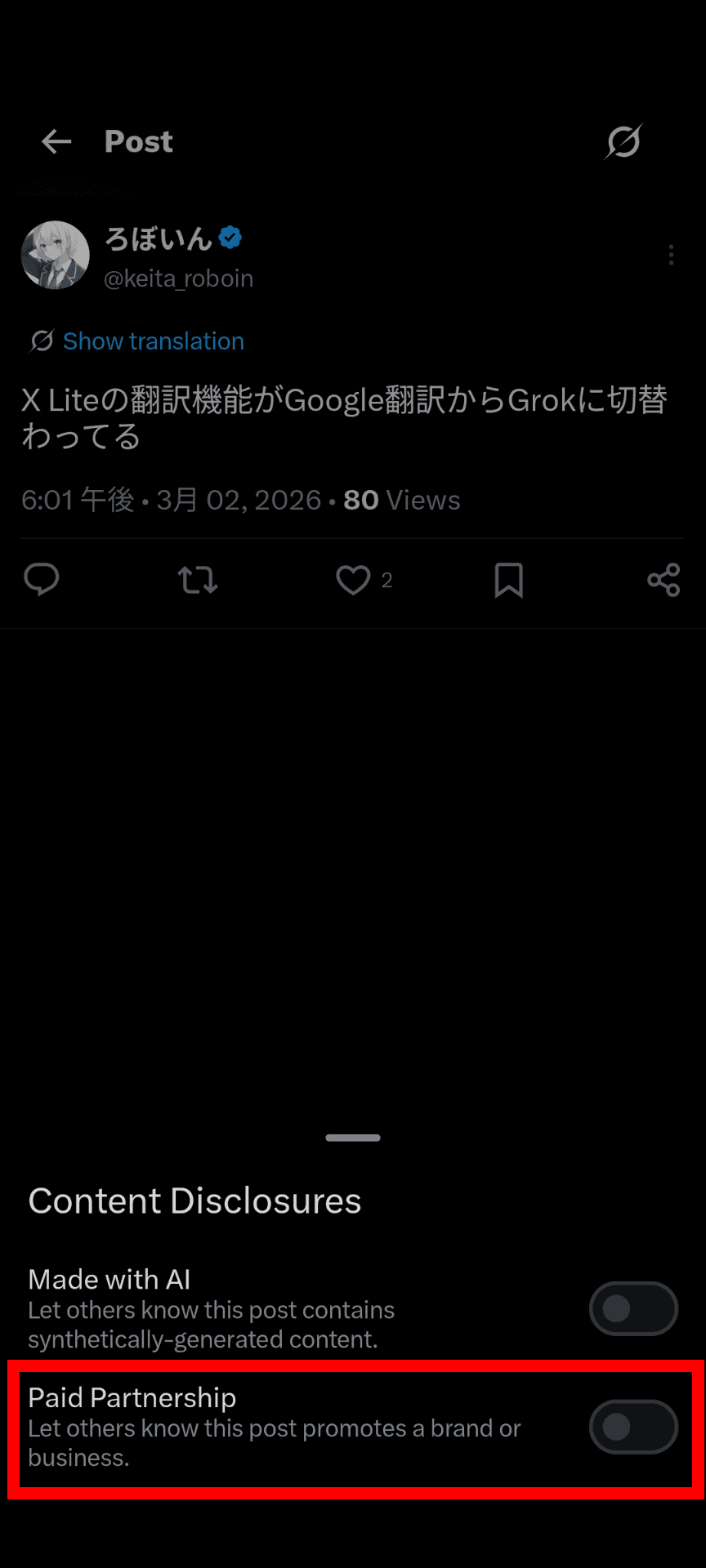
![Xのポストの投稿画面に[Paid partnership]というラベルが表示されているスクリーンショット](/_next/image/?url=%2Fapi%2Fmedia%2Ffile%2Fx-paid-partnership-label.png&w=1920&q=75)
X (Twitter) has implemented a "Paid partnership" label to indicate that a post (tweet) contains paid promotions such as affiliate links.
In this article, we clearly explain how to set the "Paid partnership" label both before and after posting.
Table of Contents
When should you set the "Paid partnership" label?
The "Paid partnership" label shown under posts on X is a label indicating that the post was created in exchange for incentives such as money, or that it contains affiliate links.

The Paid Partnerships Policy on X states that if you promote products or services in exchange for compensation or incentives, you must turn on the "Paid partnership" label.
Posts that are part of a Paid Partnership published as an organic Post must have the “Paid Partnership” disclosure on. You can access this in the Content Disclosure settings when creating your post.
—— "Paid Partnerships Policy | X Help Center"
In Japan and some other countries, there are regulations that require content involving such paid partnerships to clearly disclose that fact.
You need to set the "Paid partnership" label in cases such as when you receive products from a company, when you post in exchange for incentives such as money from a company, or when your post includes affiliate links.
How to set the "Paid partnership" label
You can set the "Paid partnership" label either before or after posting by following the steps below.
How to set it before posting
Before posting, you can set the "Paid partnership" label using the following steps.
Open the post composition screen
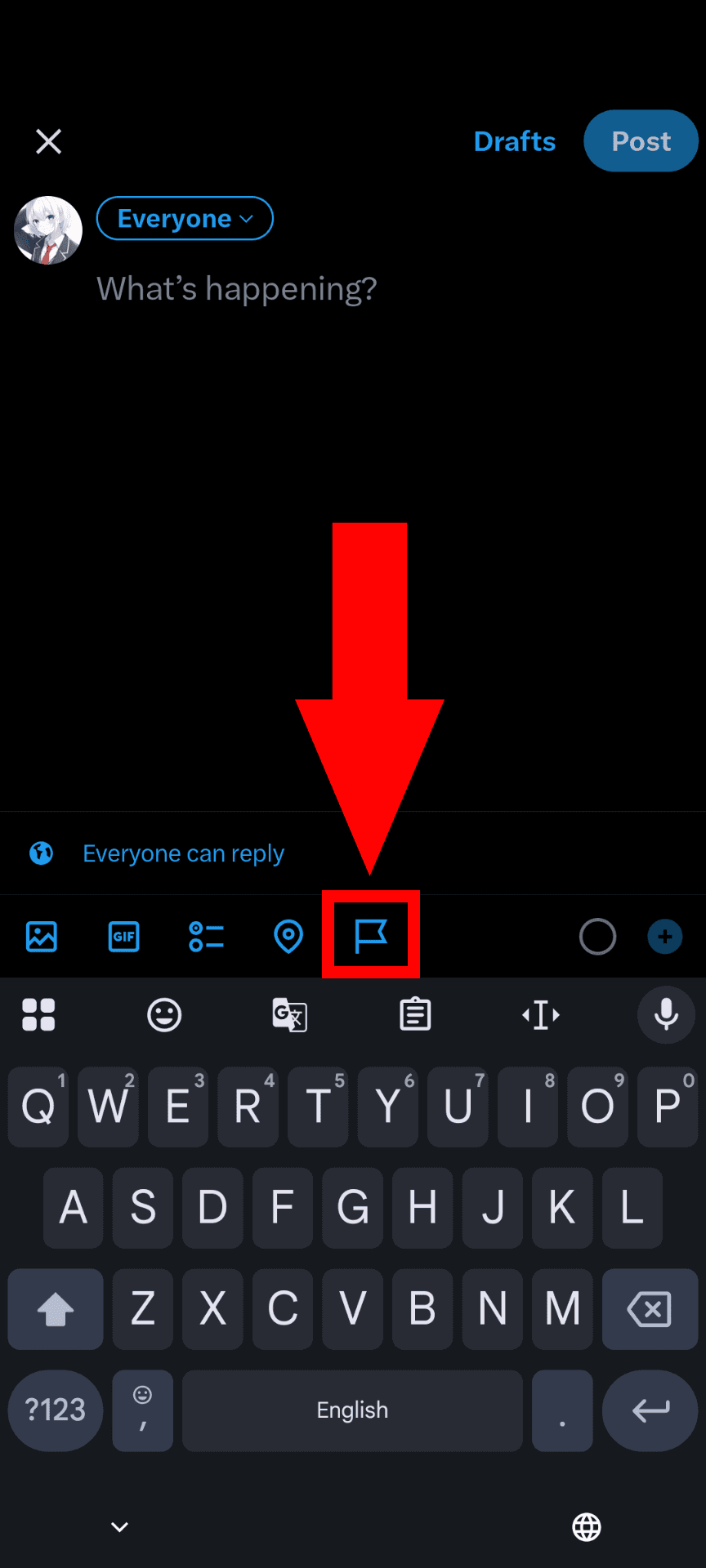
Click the flag icon shown at the bottom of the composition screen
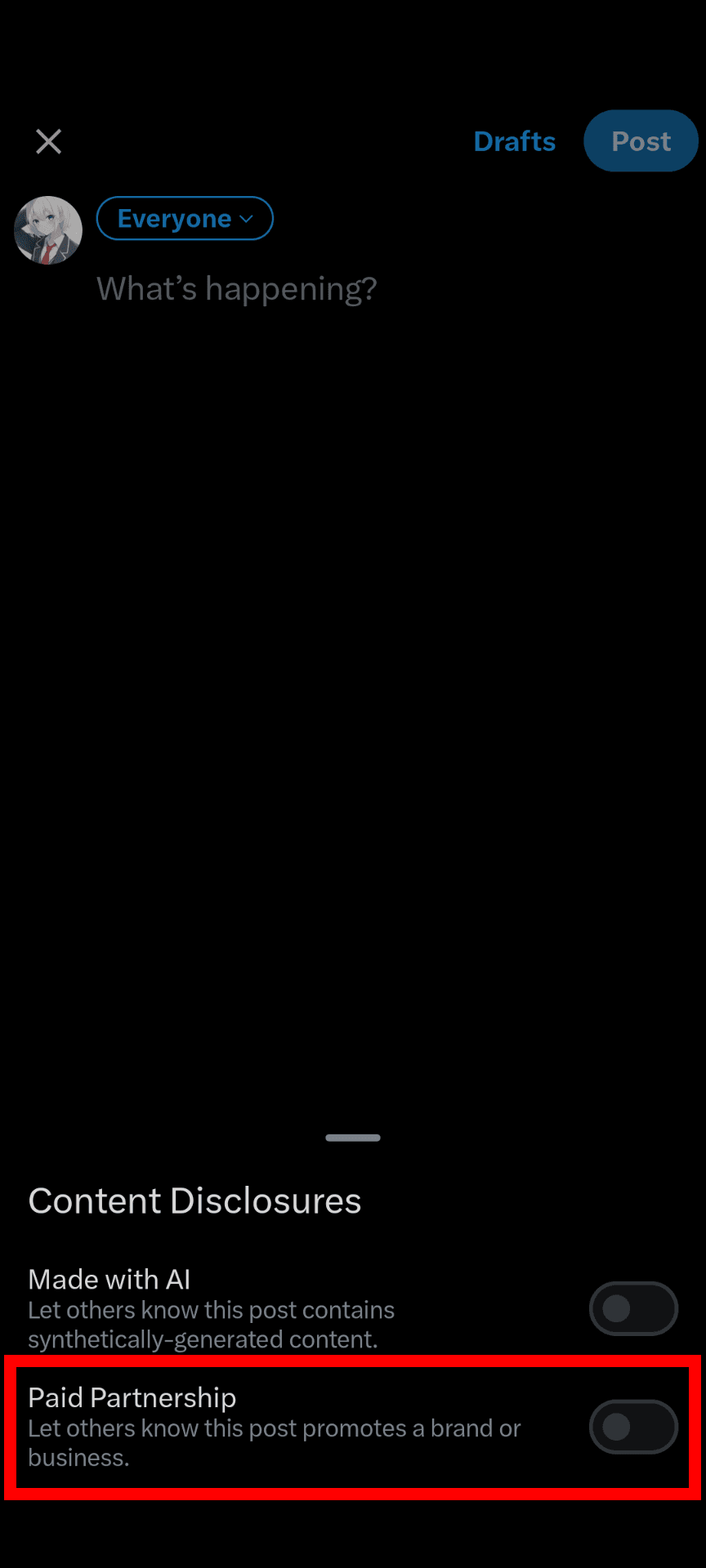
Turn on the toggle switch for [Disclose paid promotion] or [Paid partnership]
Post it
How to set it after posting
After posting, you can set the "Paid partnership" label using the following steps.
Open the post you want to label
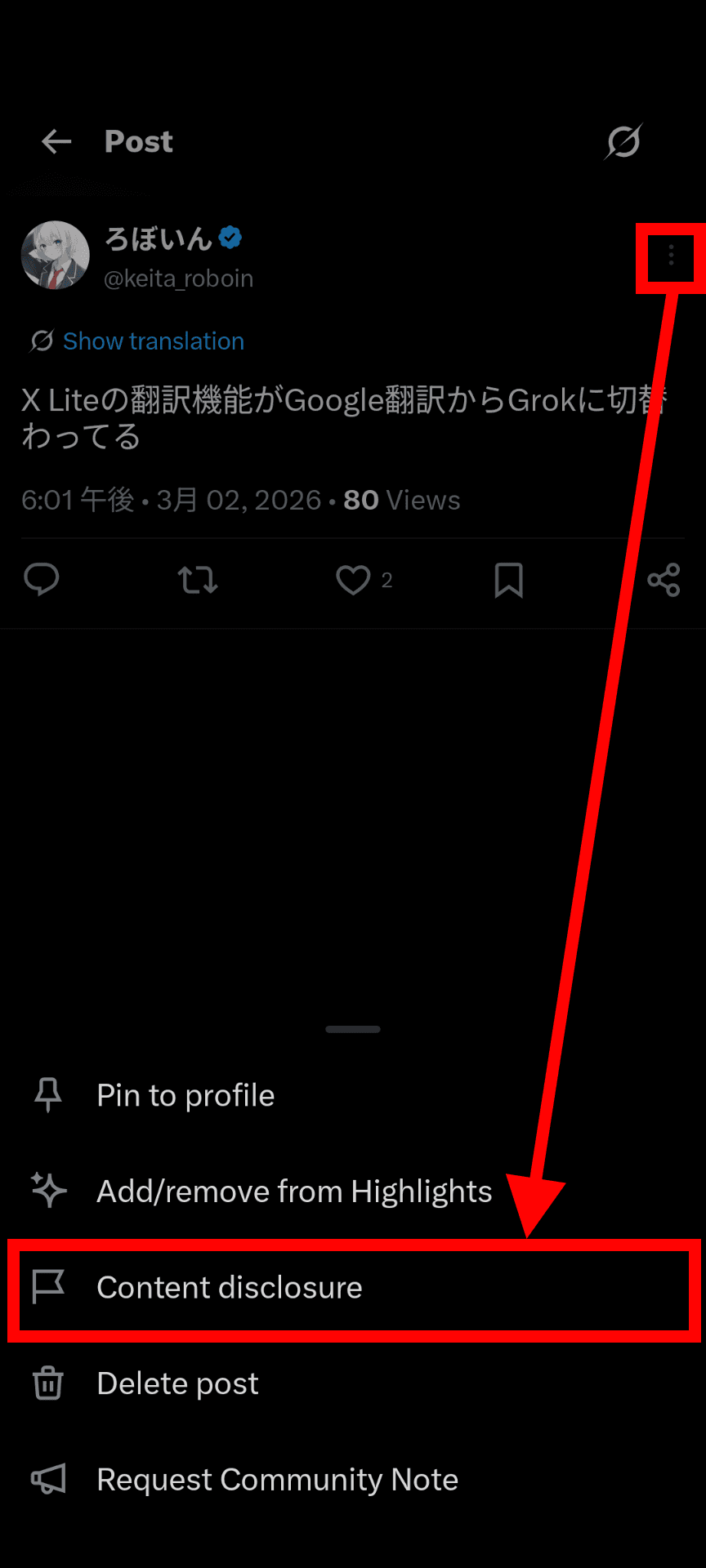
Click the menu button at the top right of the post
Select [Add/remove content disclosure] or [Content disclosure]
Turn on the toggle switch for [Disclose paid promotion] or [Paid partnership]
What to do when you can't set the "Paid partnership" label
If the flag icon does not appear on the post composition screen, or the relevant item does not appear in the menu after posting, the following causes may be possible.
The app version is outdated
Because the "Paid partnership" label is a feature that was only recently added, the button may not appear if your app version is old.
Check your app version and try updating it if necessary.
The menu is cut off in the app
If there are many items in the menu shown under the post composition screen, some items may be cut off.
If you scroll the menu shown under the composition screen horizontally, the button with the flag icon may appear.
Conclusion
We explained how to set the "Paid partnership" label on X, which indicates that a post contains a paid promotion.
You can set the paid partnership label not only when posting but also after posting.
Share this article
Follow us for updates
Adding us to your preferred sources on Google makes it easier to find our articles on Google. Also, be sure to follow us on X and our RSS feed.


-1.png&w=1080&q=75)
I've been using JavaScript more than my native language since birth. I am nowhere and everywhere on the internet.
I build web apps and browser extensions in TypeScript as a web frontend programmer. I released Shadowban Scanner, a tool that detects shadowbans on X, and Restore Link Card, a tool that brings back link cards. Media outlets in Japan and abroad covered both tools. For iGEM 2023, I built the Wiki for Team Japan-United and helped the team win the Grand Prize. On my blog, I cover news about X and social media, test and troubleshoot bugs, and share frontend development insights.
![Xのブックマーク画面に複数のフォルダーが表示されている画像。フォルダーの名前はそれぞれ[すべてのブックマーク][イラスト][面白い投稿]となっている](/_next/image/?url=%2Fapi%2Fmedia%2Ffile%2Fimage-1378.png&w=1920&q=75)


![Screenshot of [Accessibility, display, and languages] > [Display] > [Font size] in the X settings](/_next/image/?url=%2Fapi%2Fmedia%2Ffile%2Fx-android-font-size-settings-english.png&w=3840&q=75)
![Screenshot of X’s settings screen showing the options under [Accessibility, display, and languages] > [Data usage]](/_next/image/?url=%2Fapi%2Fmedia%2Ffile%2Fx-data-saver-high-resolusion-image-settings-english.png&w=3840&q=75)