How to restore VS Code’s previous UI design
Microsoft is testing a new UI design for VS Code, so you may see a new interface that differs from the previous design depending on your environment. The new UI places each element inside a rounded container. I like the design, but it has divided opinion among users.
Microsoft still considers the new VS Code design experimental, so you can turn it on or off in the settings.
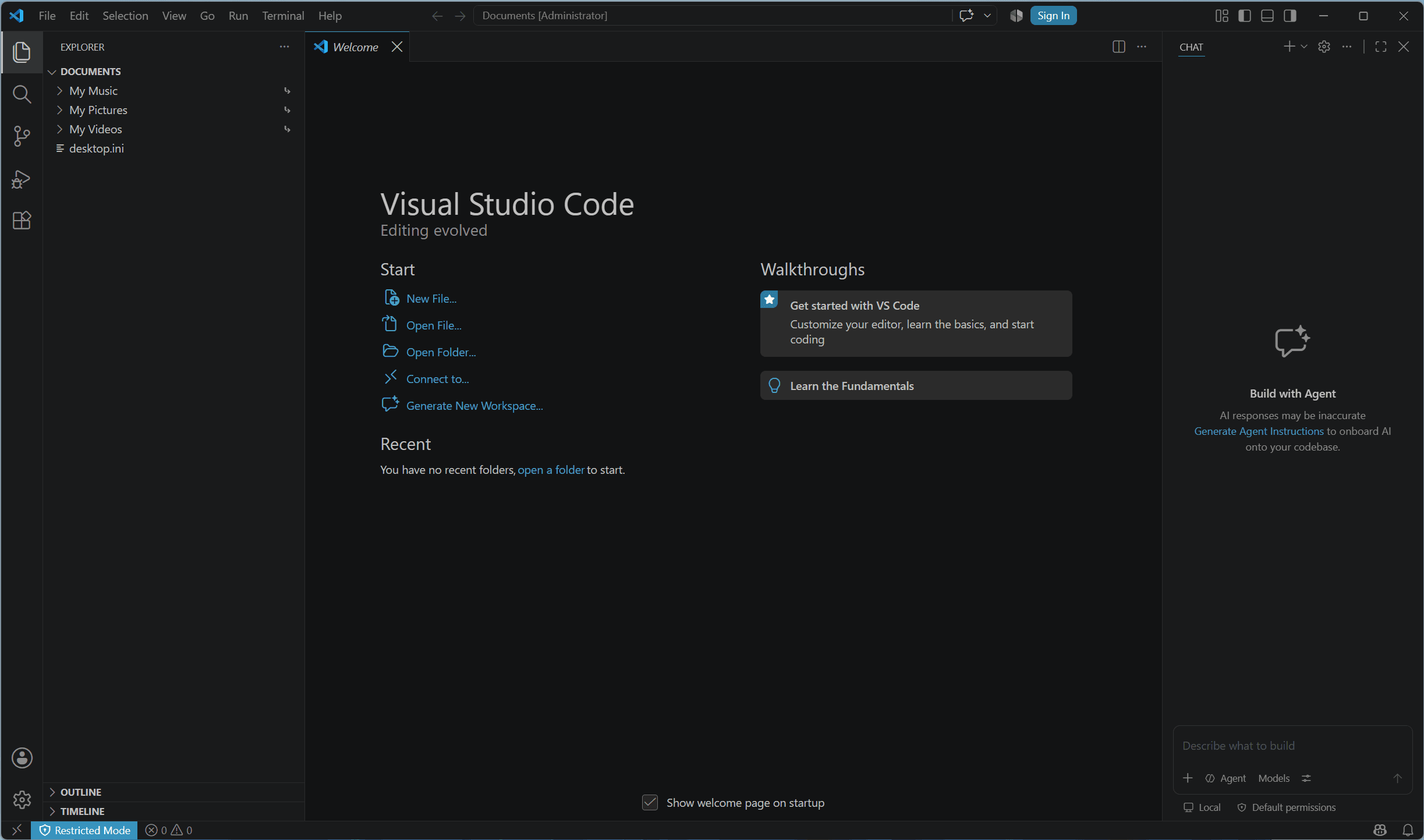
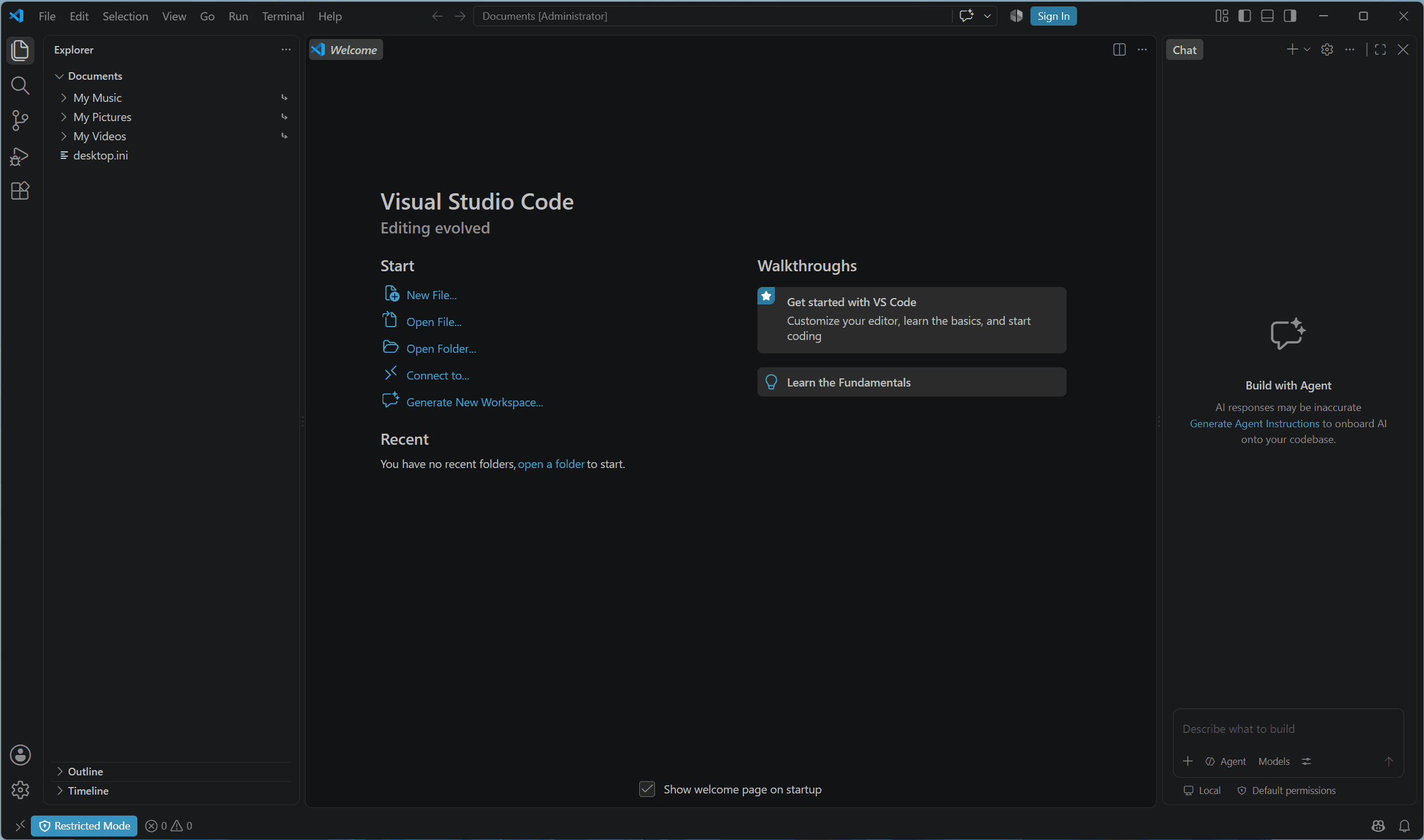
VS Code describes the new design in its settings as follows:
the side bars and bottom panel are shown as floating cards with rounded corners and gaps, and a set of refreshed workbench styles is applied, matching the Agents window design.
How to restore the previous VS Code design
Microsoft has not rolled out the new VS Code design to all users, so you may see either the old or new design depending on your environment.
If Microsoft has rolled out the new design to your environment, you can restore the previous design by setting workbench.experimental.modernUI to false.
Change the setting from the GUI
Open the VS Code settings
Enter "modern" in the settings search bar, then turn off [Workbench > Experimental: Modern UI]
![Screenshot of the VS Code settings screen with [Workbench > Experimental: Modern UI] highlighted by a red border](/_next/image/?url=%2Fapi%2Fmedia%2Ffile%2Fvs-code-experimental-modern-ui-setting.png&w=3840&q=75)
You’ll see the previous UI design again
Change the setting in settings.json
Open the VS Code
settings.jsonfileSet
workbench.experimental.modernUItofalse.settings.json {// ...existing settings"workbench.experimental.modernUI": false}You’ll see the previous UI design again
Share this article
Follow us for updates
Adding us to your preferred sources on Google makes it easier to find our articles on Google. Also, be sure to follow us on X and our RSS feed.


-1.png&w=1080&q=75)
I've been using JavaScript more than my native language since birth. I am nowhere and everywhere on the internet.
I build web apps and browser extensions in TypeScript as a web frontend programmer. I released Shadowban Scanner, a tool that detects shadowbans on X, and Restore Link Card, a tool that brings back link cards. Media outlets in Japan and abroad covered both tools. For iGEM 2023, I built the Wiki for Team Japan-United and helped the team win the Grand Prize. On my blog, I cover news about X and social media, test and troubleshoot bugs, and share frontend development insights.
![[新しいXチャットへようこそ]というテキストが画面に大きく表示されており、その下には次の3つの説明が表示されている。[エンドツーエンドの暗号化:メッセージは、端末にかかわらずエンドツーエンドで暗号化されています。][最先端のプライバシー:Xを含め、他の人がメッセージを読むことはできません。][パスコードを設定:メッセージを保護するため、4桁のパスコードを設定してください。]これらの説明の下には、[パスコードを作成]という大きなボタンが配置されている](/_next/image/?url=%2Fapi%2Fmedia%2Ffile%2Fwelcome-to-new-chat.png&w=1920&q=75)

![[アカウント権限の付与]の設定ページ](/_next/image/?url=%2Fapi%2Fmedia%2Ffile%2Fimage-1820.png&w=1920&q=75)