How to install Bun on Windows
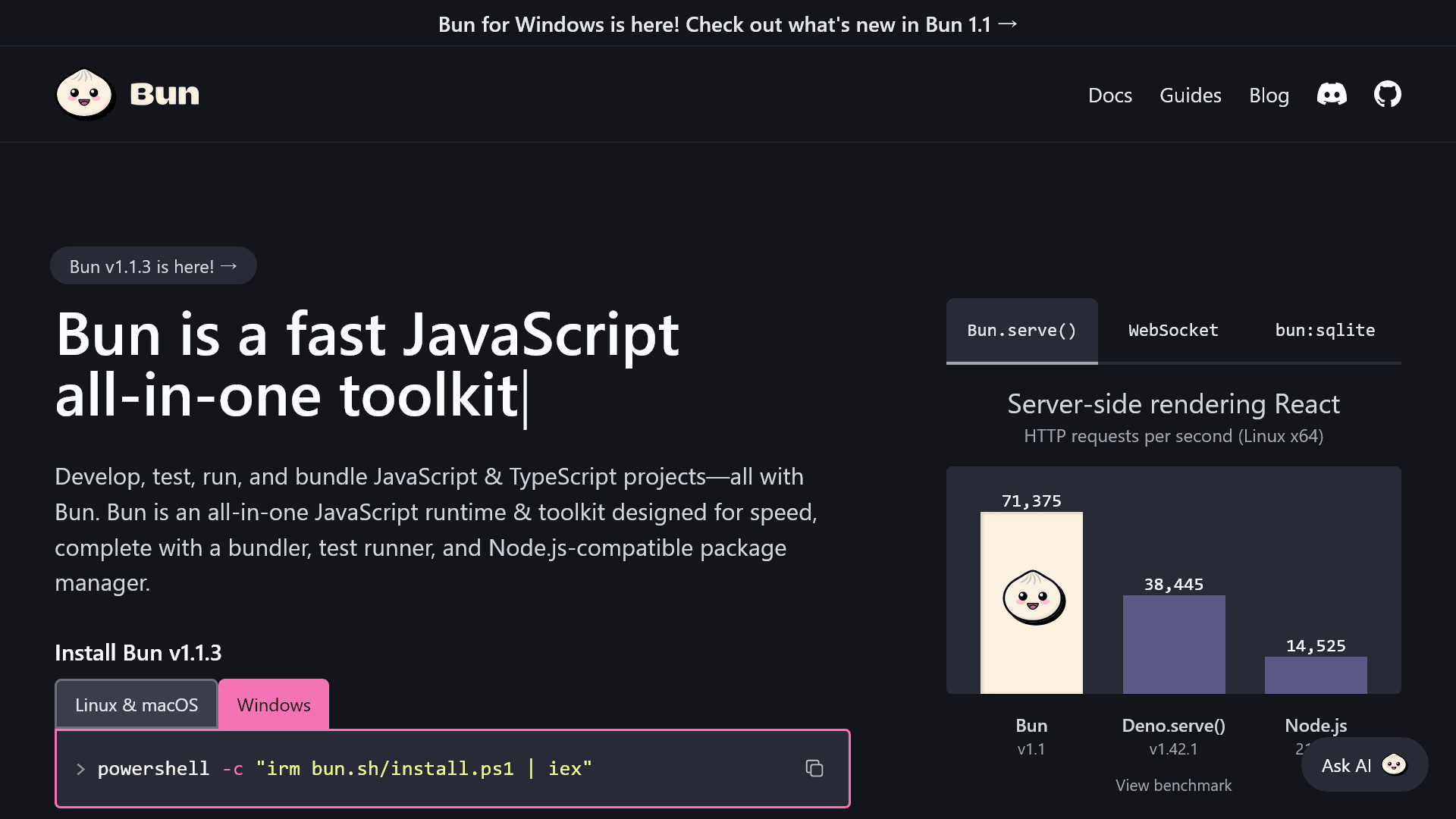
Table of Contents
On April 1, 2024, Bun 1.1 with support for Windows was released. This article explains how to install Bun on Windows.
How to install Bun
To install Bun on Windows, run one of the following commands.
# For PowerShellpowershell -c "irm bun.sh/install.ps1|iex"
# Using npmnpm install -g bun
# Using Scoopscoop install bun
After the installation is complete, you can check the Bun version with the following command. If the version number is displayed, it has been installed successfully.
bun --versionWhat is Bun?
Bun is an all-in-one tool that can run, build, and test JavaScript and TypeScript.
It is compatible with npm, the package manager for Node.js, and runs faster than Node.js and npm.
When comparing the speed of the bun install command on Windows with other major package managers, you can see that Bun is the fastest.
The following image compares the speed of the bun install command on Windows with other major package managers (yarn, pnpm, npm).

Image: "Bun 1.1 | Bun Blog"
Bun also comes with many features, such as the --watch option for fast hot reloading and high-speed APIs compatible with Node.js.
In addition, it includes a dedicated shell language called Bun Shell, which absorbs differences between operating systems.
Conclusion
In this article, we introduced how to install Bun on Windows.
Bun is fast and easy to use, enabling efficient development of JavaScript and TypeScript projects. Be sure to give Bun a try.
References
Share this article
Follow us for updates
Adding us to your preferred sources on Google makes it easier to find our articles on Google. Also, be sure to follow us on X and our RSS feed.


-1.png&w=1080&q=75)
I've been using JavaScript more than my native language since birth. I am nowhere and everywhere on the internet.
I build web apps and browser extensions in TypeScript as a web frontend programmer. I released Shadowban Scanner, a tool that detects shadowbans on X, and Restore Link Card, a tool that brings back link cards. Media outlets in Japan and abroad covered both tools. For iGEM 2023, I built the Wiki for Team Japan-United and helped the team win the Grand Prize. On my blog, I cover news about X and social media, test and troubleshoot bugs, and share frontend development insights.