How to create group chats and invite links in X DMs (XChat)

X Chat (formerly X DMs) lets you create group chats for conversations with multiple people, along with invite links for those chats.
This article explains how to create a group chat in X Chat and generate an invite link for it.
Table of Contents
How to create a group chat
You can create a group chat by following these steps.
Open X Chat
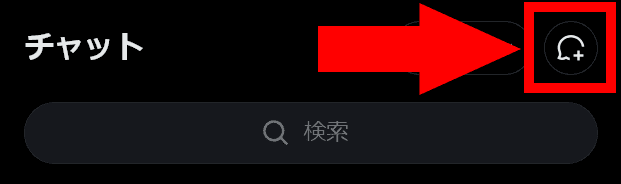
Click the add button at the top
When the [New message] dialog appears, click [Create a group]
![[新しいメッセージ]というタイトルのダイアログのスクリーンショット。[名前またはユーザー名を検索]という検索バーと[グループを作成]というボタンがあり、その下には検索条件に一致するアカウントが表示されている](/_next/image/?url=%2Fapi%2Fmedia%2Ffile%2Fxchat-new-message-dialog.png&w=1920&q=75)
Select the users you want to add to the group chat, then click [Next]
![[グループを作成 参加者を追加]というダイアログのスクリーンショット。[名前またはユーザー名を検索]という検索バーと検索条件に一致するアカウントが表示されており、[次へ]というボタンが配置されている](/_next/image/?url=%2Fapi%2Fmedia%2Ffile%2Fxchat-group-member-selection.png&w=1920&q=75)
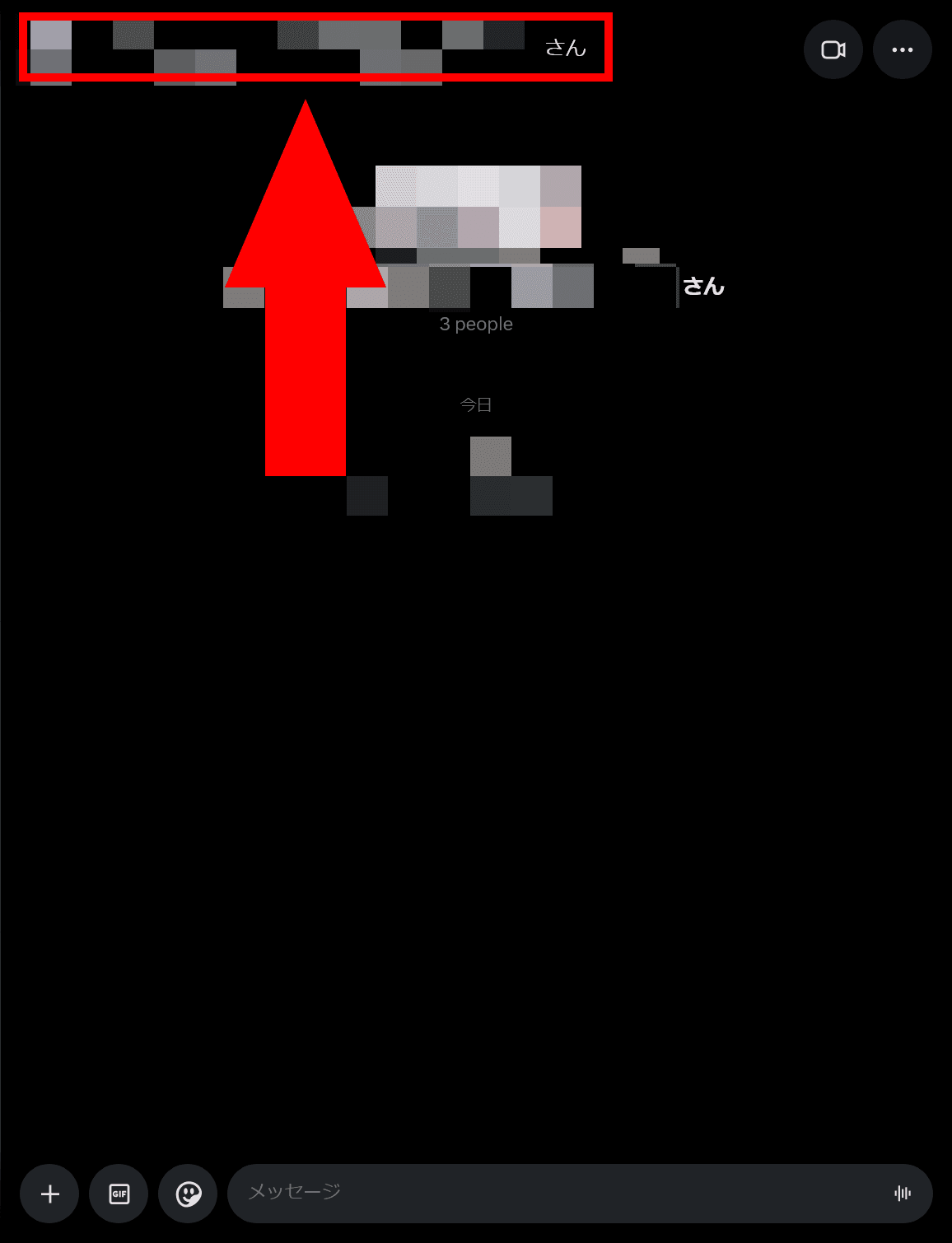
Once the group has been created, click the group name shown at the top
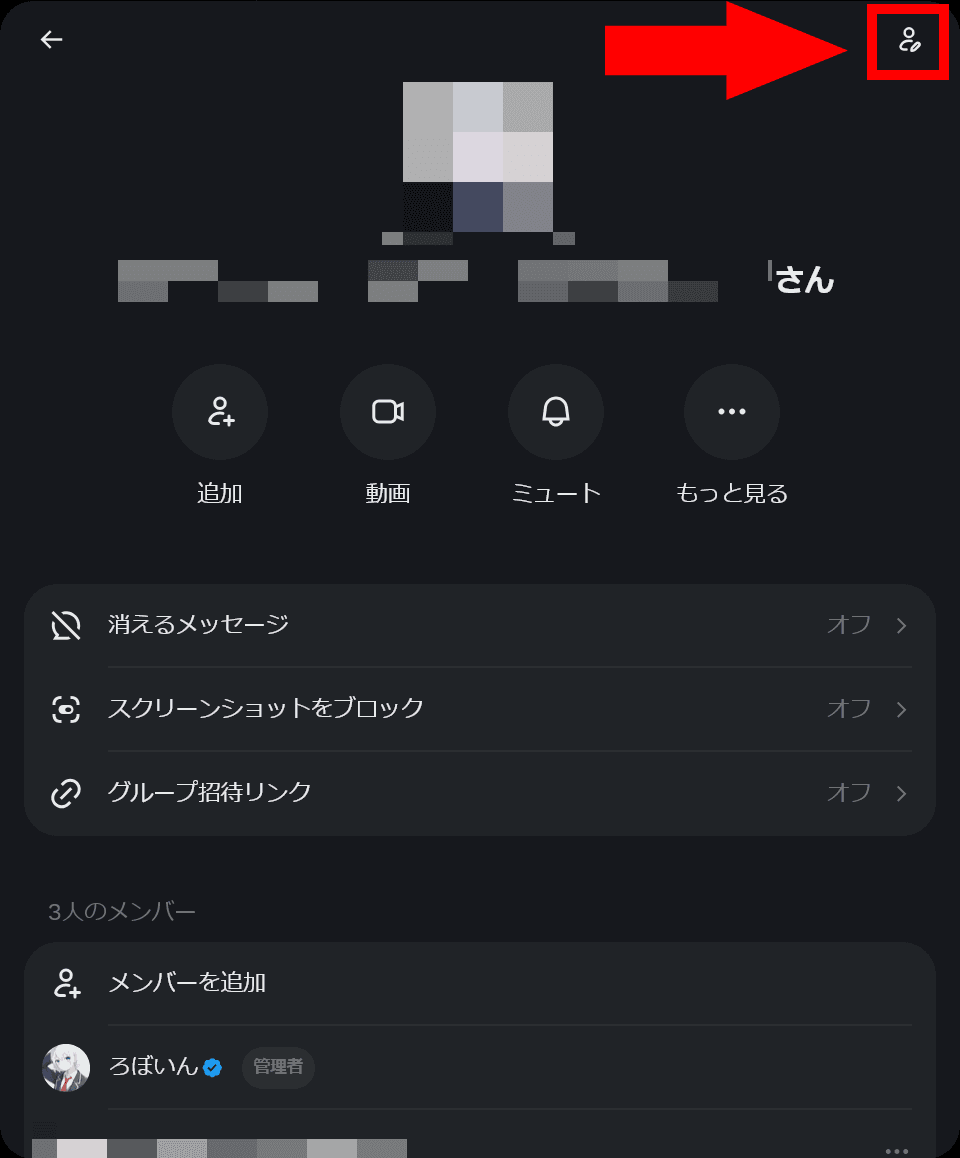
When the group information appears, click the edit button in the top-right corner and change the group name to whatever you like
That is all you need to do to create a group chat.
How to create an invite link
In a group chat, you can not only add specific accounts individually, but also create an invite link for the group.
Anyone with the invite link can see the group name, participant icons, and the number of participants, and can send a request to join the group, so keep that in mind.
Open the group chat
Click the group name at the top
When the group information appears, click [Group invite link]
![Xチャットのグループの情報が表示されたダイアログのスクリーンショット。メニューの中に[グループ招待リンク]という項目がある](/_next/image/?url=%2Fapi%2Fmedia%2Ffile%2Fxchat-group-details-invitation-link.png&w=1920&q=75)
Turn on the [Group link] toggle, then share the displayed link with the people you want to invite to the group
![[グループ招待リンク]というタイトルのダイアログのスクリーンショット。[グループリンク 外部ユーザーにグループへの参加リクエストを許可する]というトグルスイッチと、その下に招待リンクが表示されている](/_next/image/?url=%2Fapi%2Fmedia%2Ffile%2Fxchat-group-invitation-link-settings.png&w=1920&q=75)
You have now created an invite link for the group chat.
Note that the invite link does not automatically add users to the group. It only lets them send a request to join, so you will need to approve those requests using the method described below.
How to approve requests to join the group
Open the group chat
Click the group name at the top
When the group information appears, click [Group invite link]
![Xチャットのグループの情報が表示されたダイアログのスクリーンショット。メニューの中に[グループ招待リンク]という項目がある](/_next/image/?url=%2Fapi%2Fmedia%2Ffile%2Fxchat-group-details-invitation-link-with-request.png&w=1920&q=75)
When the list of join requests appears, click ⛔ to reject a request, or click [Accept] to approve it
![[グループ招待リンク]というタイトルのダイアログのスクリーンショット。参加をリクエストしているアカウントの一覧が表示されている](/_next/image/?url=%2Fapi%2Fmedia%2Ffile%2Fxchat-group-join-request.png&w=1920&q=75)
Conclusion
This article covered how to create a group chat in X Chat and how to create an invite link for it.
Use this guide as a reference and make the most of group chats.
Share this article
Follow us for updates
Adding us to your preferred sources on Google makes it easier to find our articles on Google. Also, be sure to follow us on X and our RSS feed.


Related articles
- How to continue using or revert to the traditional DM instead of XChat on X (Twitter)
- How to deal with a bug where messages disappear after you allow DM requests in XChat
- Why X group chat invites fail and how to fix the problem
- Bug in X DMs (X Chat) showing "Unable to communicate with server" Causes of the error and how to fix it when an error occurs even after entering the passcode
- What does “This conversation is now end-to-end encrypted” mean in X Chat (DMs)? Explanation
-1.png&w=1080&q=75)
I've been using JavaScript more than my native language since birth. I am nowhere and everywhere on the internet.
I build web apps and browser extensions in TypeScript as a web frontend programmer. I released Shadowban Scanner, a tool that detects shadowbans on X, and Restore Link Card, a tool that brings back link cards. Media outlets in Japan and abroad covered both tools. For iGEM 2023, I built the Wiki for Team Japan-United and helped the team win the Grand Prize. On my blog, I cover news about X and social media, test and troubleshoot bugs, and share frontend development insights.