What the key icon in the Android status bar means and how to remove it
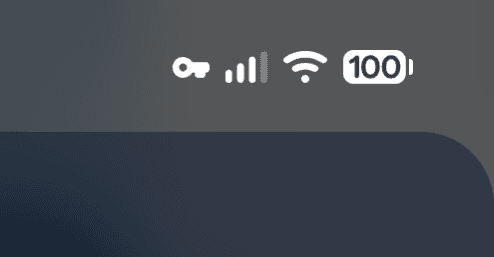
You may notice a key icon in your Android phone's status bar, like the one shown in the screenshot at the beginning of this article.
The key icon means your phone has an active VPN connection. VPNs can protect your internet traffic or filter network requests. You can remove the key icon by turning off the VPN.
Table of Contents
What does the key icon in the Android status bar mean?
The key icon in your Android phone's status bar indicates that a VPN (Virtual Private Network) is active. You can use a VPN to encrypt your internet traffic, block ads, or perform other types of network filtering.
Google includes a VPN service called VPN by Google on Pixel 7 and newer Pixel phones. Once you agree to use the service and enable it for the first time, VPN by Google connects automatically whenever your phone connects to a network.
How to remove the key icon
Follow these steps to turn off your VPN and remove the key icon from the status bar on most Android phones.
Open the Android Settings app.
Go to [Network and Internet] > [VPN].
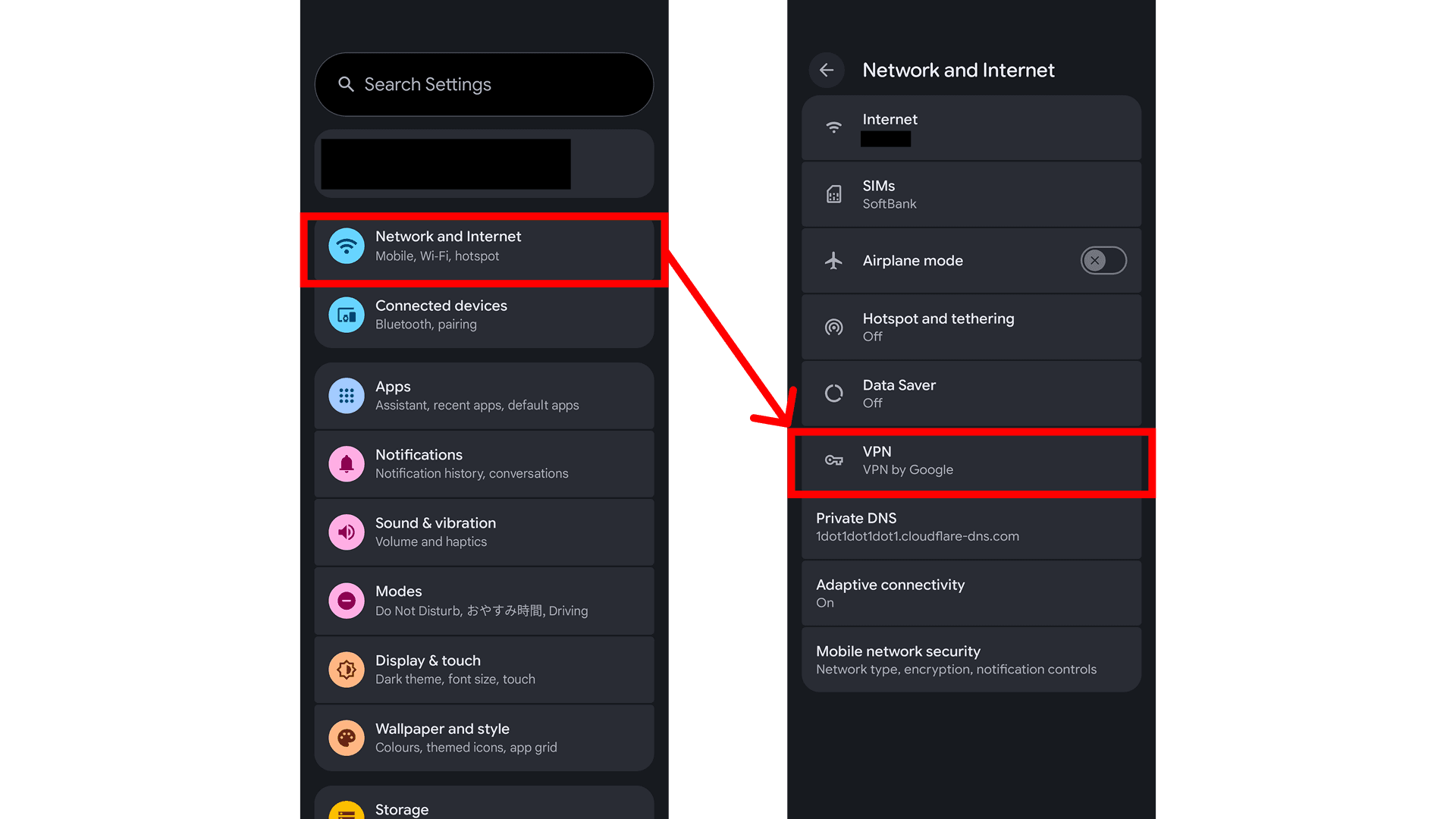
You'll see a list of VPN apps installed on your phone. Tap the name of the VPN app that shows Connected.
Your phone will open either a dialog for disconnecting the VPN or the VPN app's settings. Turn off the VPN.
How to stop a VPN from turning back on
Depending on your Android settings, your VPN may reconnect automatically after you turn it off. This can happen when you have a setting called [Always-on VPN] enabled.
To check whether Always-on VPN is enabled, follow these steps.
Open the Android Settings app.
Go to [Network and nternet] > [VPN].
Tap the settings icon next to the VPN that keeps turning back on.
If [Always-on VPN] is enabled, turn it off.
What if you can't find the option to turn off your VPN?
Android settings vary by device manufacturer. If you can't find the VPN settings using the steps above, open the Settings app and search for "VPN" using the search bar at the top.
If you can access the VPN settings but can't find an option to turn off your VPN, make sure you're tapping the VPN app's name rather than the settings icon next to it.
Google's official Android Help page instructs users to tap the settings icon next to a VPN's name to turn it off. However, I tested these instructions on an Android phone and found them to be inaccurate. Instead, tap the VPN app's name to open it, then turn off the VPN.
Conclusion
The key icon in the Android status bar indicates that your phone has an active VPN connection. To remove the icon, open the Android Settings app and turn off the VPN.
Verification details and sources
Verification environment
- OS: Android 17
- Device: Google Pixel 8
Verification details
I tested the VPN settings on a Google Pixel 8 running Android 17 and confirmed that turning off the VPN removes the key icon from the status bar. I also verified that VPN by Google requires different steps to disable and updated the instructions accordingly.
Last verification date
Changelog
- June 6, 2024, 4:43 PM: Initial publication
- November 18, 2026, 2:23 AM: Updated the article with the latest information and added screenshots. Also added troubleshooting instructions for VPNs that turn back on automatically and cases where users can't find the VPN settings.
Reference links
Share this article
Follow us for updates
Adding us to your preferred sources on Google makes it easier to find our articles on Google. Also, be sure to follow us on X and our RSS feed.


Related articles

I've been using JavaScript more than my native language since birth. I am nowhere and everywhere on the internet.
I build web apps and browser extensions in TypeScript as a web frontend programmer. I released Shadowban Scanner, a tool that detects shadowbans on X, and Restore Link Card, a tool that brings back link cards. Media outlets in Japan and abroad covered both tools. For iGEM 2023, I built the Wiki for Team Japan-United and helped the team win the Grand Prize. On my blog, I cover news about X and social media, test and troubleshoot bugs, and share frontend development insights.