What is ALT on X? How to add, view, and copy ALT text on desktop and mobile

Have you come across phrases like "Details in ALT," "ALT text," or "alternative text" while using X? Some users put text in an image's ALT field when they run out of space in a post, but its intended purpose is to describe images for people with visual impairments.
In this article, I'll explain what ALT text is on X, how to write and view it, and how to copy it.
Table of Contents
What is ALT text?
On X, "ALT" refers to alternative text, or ALT text, which describes the content of an image. It helps people with visual impairments understand images and provides a text alternative when an image fails to load.
People with visual impairments often use screen readers to navigate websites and apps. Screen readers read information on the screen aloud, including any ALT text attached to images.
By adding ALT text, you can help people understand the content of an image even if they cannot see it or the image fails to load.
What does "Details in ALT" mean?
You may come across posts that say "Details in ALT" or something similar. This means the author has put additional text in an image's ALT field, either because it wouldn't fit in the post itself or because they want to hide it from the timeline until someone chooses to view it.
On X, regular posts have a 280-character limit, while users with paid subscriptions can write posts of up to 25,000 characters. ALT text, meanwhile, supports up to 1,000 characters. You also have to tap or click a button to view it.
Some users take advantage of these features to put long passages or spoilers in ALT text. That's what "Details in ALT" refers to.
However, you should avoid using ALT text this way, as it goes against its intended purpose.
People often compare putting unrelated content in ALT text to placing an object on tactile paving designed for people with visual impairments.
The 1,000-character limit and hidden-by-default presentation may make ALT text seem like a convenient place to put long passages or spoilers. But if someone uses a screen reader, it may read that text aloud without warning, including any spoilers.
Use ALT text for its intended purpose: describing the image.
For longer text, consider writing a thread of replies. If you want to share spoilers, you can use an external service such as Fusetter.
How to add ALT text on X
You can add ALT text through both the X mobile app and the web version. Follow the steps below for your platform.
On the mobile app
Select the image you want to upload.
Tap the [+ALT] button in the bottom-right corner of the image.
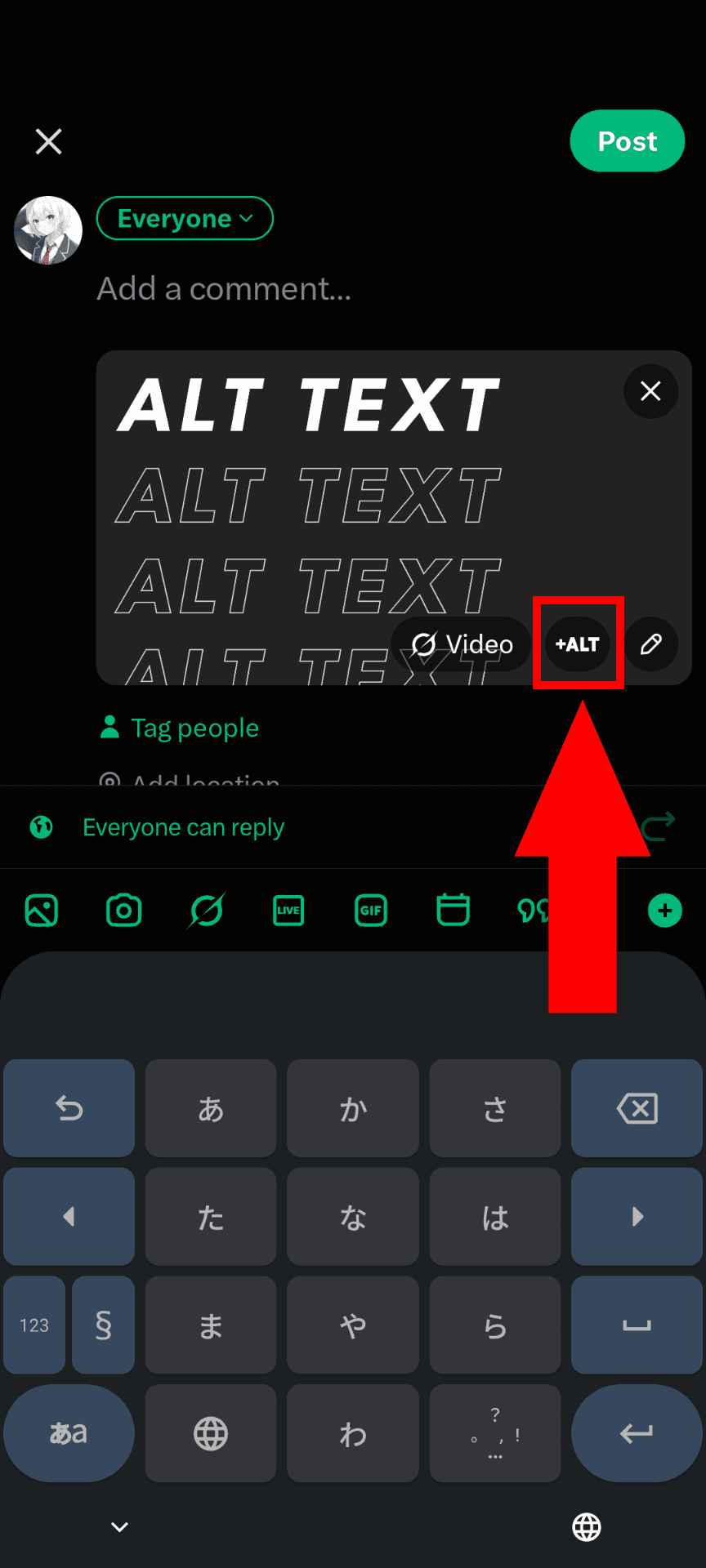
Enter your ALT text in the text box.
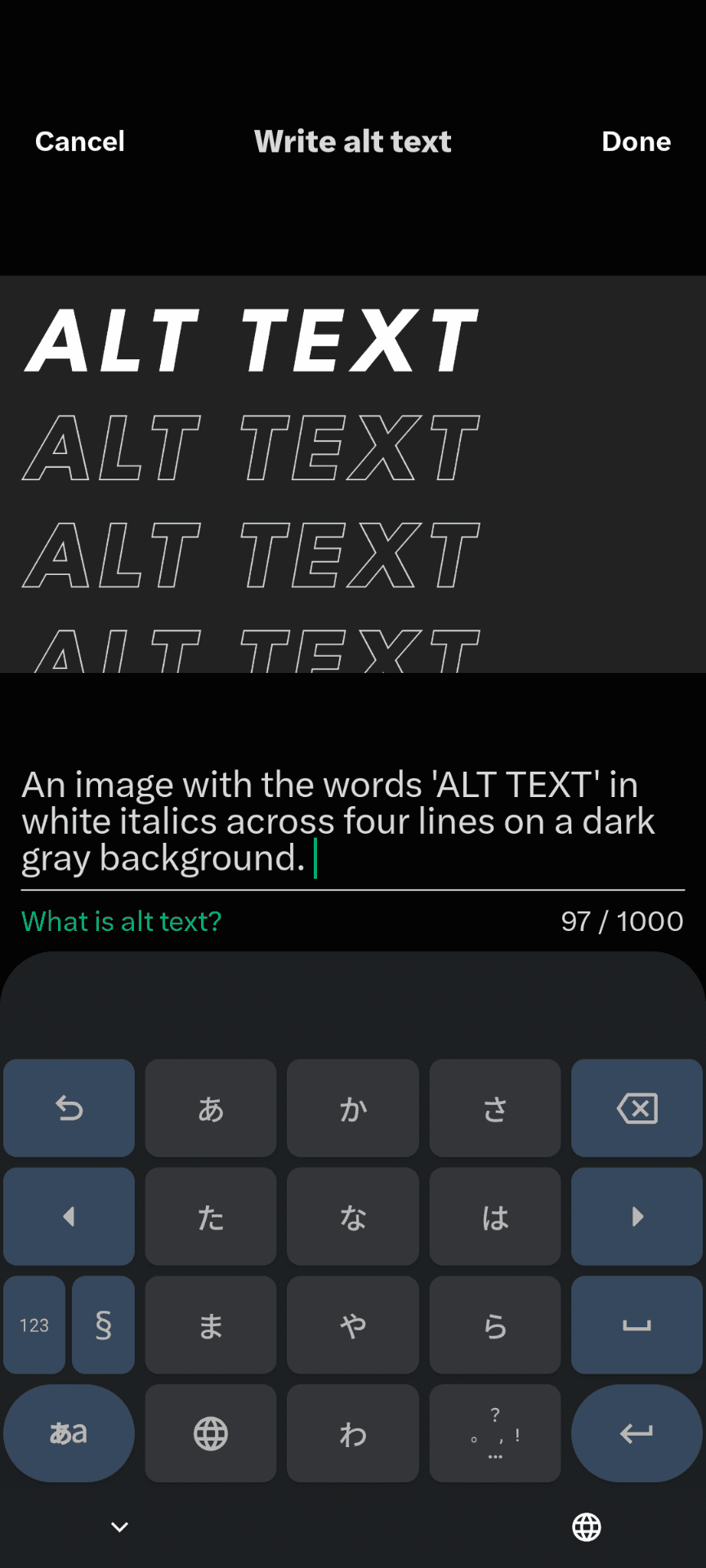
Once you've finished, tap [Done] in the top-right corner.
On the web
Upload an image.
Click [Add description].
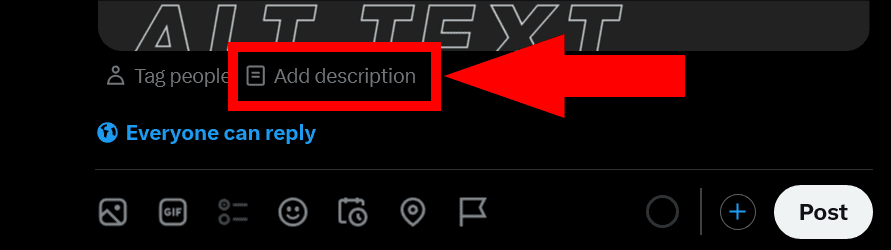
Enter your ALT text in the text box labeled [Description].
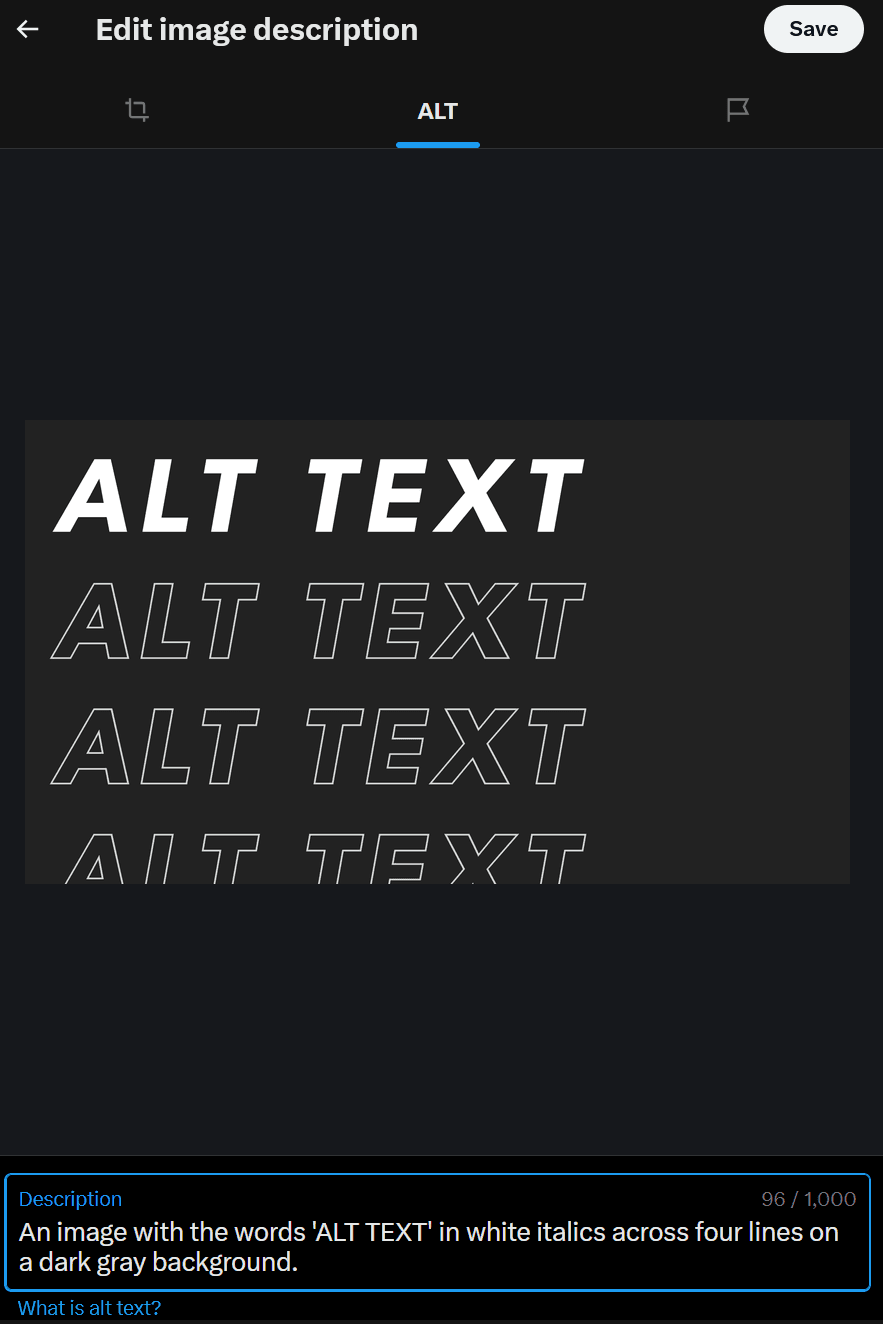
After entering your ALT text, click [Save] in the top-right corner.
How to view ALT text on X
You can view the ALT text attached to an image by following these steps.
Open a post containing an image with ALT text.
Click or tap the [ALT] button in the bottom-left corner of the image. Depending on your language settings, the button may display a translated label.

You can now view the ALT text.
How to fix ALT text not showing on X
If you can't find the ALT button on an image, try the following solutions. If none of them work, the image may not have ALT text.
Open the post
On the X website, you need to open a post in its expanded view to see the ALT button. If the button doesn't appear on an image in your timeline, click the post to open it.
When I tested the X website, the ALT button didn't appear on images in the timeline. It appeared once I opened the posts in their expanded view. I also checked the HTML and found that the images had an alt attribute in both views. I couldn't determine why X hides the button in the timeline.
Check for bugs in the X app
Some iOS users previously encountered a bug where the ALT button disappeared from posts containing multiple images.
Bugs like this can cause the ALT button to disappear from the X app.
If you know an image has ALT text but can't find the button even after opening the post, try viewing it on the X website or in the app on a different operating system.
What should you write in ALT text?
MDN Web Docs provides the following guidance on ALT text:
images should include an
altattribute providing alternative text describing the image in a way that is helpful to users who can read the rest of the content but can't see the image. Think about how you would describe the image to someone who can't load your image: that's the information you should include as the value of thealtattribute.—— What HTML features promote accessibility? - Learn web development | MDN
When you add ALT text on X for the first time, a tooltip also provides the following guidance:
You can add a description, sometimes called alt-text, to your photos so they’re accessible to even more people, including people who are blind or have low vision. Good descriptions are concise, but present what’s in your photos accurately enough to understand their context.
ALT text helps people with visual impairments understand images and provides an alternative when images fail to load.
For example, if an image consists mainly of text, you can include that text in its ALT description. If the text is too long, you can summarize it instead. For photos and illustrations, write a concise description of what the image shows.
|
Image type |
Insufficient ALT text |
Good ALT text |
|---|---|---|
|
Photo |
A photo of a cat |
An orange tabby cat curled up asleep on a cushion by a window |
|
Screenshot |
X settings screen |
X's accessibility settings screen with the "Image description reminder" option turned on |
How to copy and paste ALT text on X
In the X mobile app, ALT text appears differently from regular post text, so you can't copy it through the usual text selection method.
To copy ALT text, use the X website instead.
As explained above, the ALT button doesn't appear on posts in the web timeline. Open the post, click the ALT button to view the text, and then select and copy it.
Conclusion
ALT on X stands for alternative text. It helps people with visual impairments understand images and provides a text description when images fail to load.
Some users put long passages or spoilers in ALT text when they run out of space in their posts, but this goes against its intended purpose. Use ALT text to provide concise descriptions of images.
Verification details
Verification environment
PC:
- OS: Windows 11
- Browser: Zen Browser version 1.24.3b
Smartphone:
- OS: Android 17
- Device: Google Pixel 8
- App: X version 12.46.0-alpha.03
Verification details
I tested how to add and view ALT text in both the X mobile app and the web version on actual devices. I also confirmed that the ALT button on the X website only appears after opening a post in its expanded view.
Last verification date
Changelog
- August 31, 2024, 2:07 am: Initial publication
- November 23, 2026, 3:17 am: Updated the article with the latest information and expanded its coverage
Share this article
Follow us for updates
Adding us to your preferred sources on Google makes it easier to find our articles on Google. Also, be sure to follow us on X and our RSS feed.

Related articles
- Causes and fixes when you can't change your name on X (Twitter) due to error 131
- What is the [Priority] tab for X (Twitter) notifications? Under what conditions is it shown?
- How to hide the NBA tab automatically added to your X timeline
- [Android] Can you no longer hide images on X? How to reduce image data usage with the new settings

I've been using JavaScript more than my native language since birth. I am nowhere and everywhere on the internet.
I build web apps and browser extensions in TypeScript as a web frontend programmer. I released Shadowban Scanner, a tool that detects shadowbans on X, and Restore Link Card, a tool that brings back link cards. Media outlets in Japan and abroad covered both tools. For iGEM 2023, I built the Wiki for Team Japan-United and helped the team win the Grand Prize. On my blog, I cover news about X and social media, test and troubleshoot bugs, and share frontend development insights.