Has the dark mode setting disappeared from X's iOS app? Explaining how to turn a black background on and off

More and more people are saying that in the iPhone app for X (Twitter), they can no longer find the setting to switch dark mode on and off within the app, or that it seems stuck in either dark mode or light mode.
In this article, we will explain in detail whether dark mode and light mode have disappeared from X, and how you can switch the background color.
Table of Contents
The setting to switch dark mode has been removed
Until now, the iOS version of the X app included a setting that allowed users to freely switch between dark mode (white text on a black background) and light mode (black text on a white background).
However, a recent update removed the setting for switching the screen color scheme.
Regarding this, X's head of product, Nikita Bier, explained that because the dark theme is now controlled at the OS level rather than the app level, turning on the device's dark theme will also make X use the dark theme.
In other words, while the feature that allowed X's color scheme to be changed independently within the app regardless of the OS color setting has been removed, dark mode and light mode now switch automatically according to the OS setting.
In the post mentioned above, Bier also stated that app-level color scheme controls had been causing problems throughout the app.
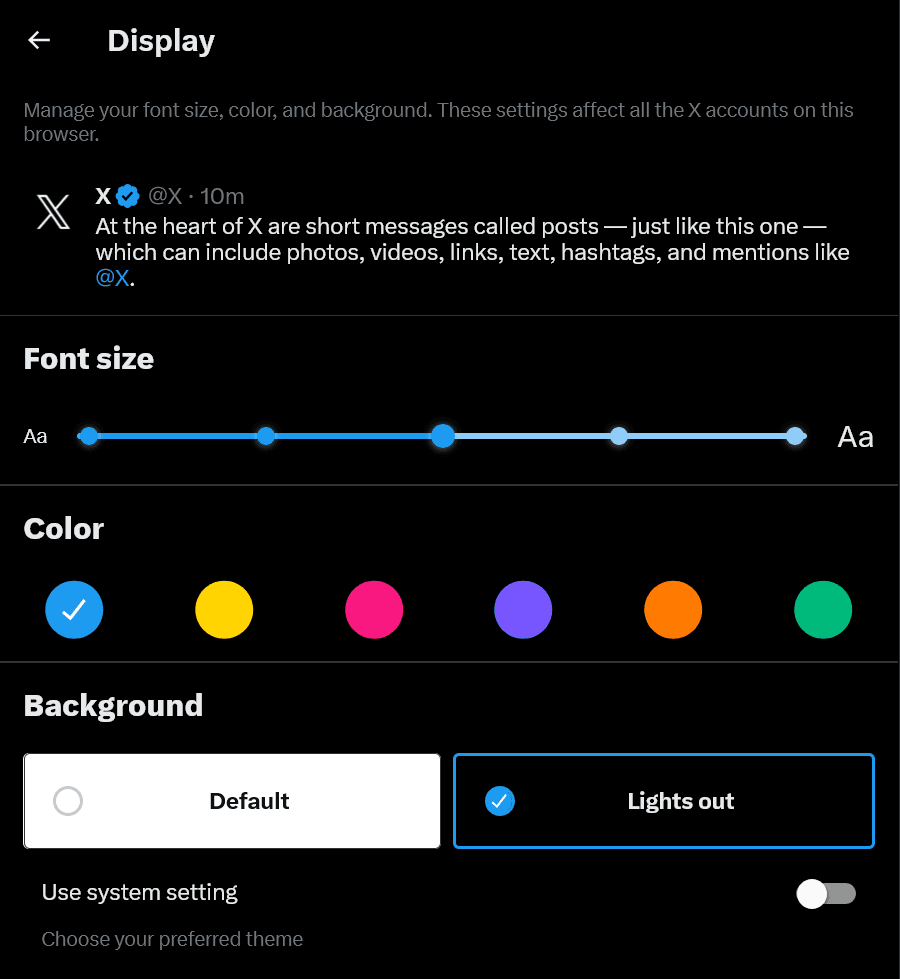
Recently, X has also been moving to reduce the number of available color scheme options, and in the web client of X, Dim theme was removed from the three available themes: Default, Dim, and Lights out.
Regarding this matter, Bier explained that at the moment they do not have the capacity to support more than two colors, suggesting that X is reducing color scheme settings due to a lack of internal development resources.
How to change the dark theme setting
Although the color scheme setting has been removed from the iOS version of the X app, as mentioned above it now follows the OS setting, so you can change X's color scheme by changing the OS color scheme setting.
Open Settings on your iPhone
Open [Display & Brightness]
Under [Appearance mode], select [Light] or [Dark]
Conclusion
The setting to change the color scheme has been removed from X's iOS app.
X's head of product, Nikita Bier, explained that app-level color scheme controls had been causing problems throughout the app, and that this has now been changed to OS-level color scheme control.
To change X's color scheme, you now need to change the device color scheme setting in iOS Settings.
Recently, X had also removed the Dim theme from the web client, citing a lack of development resources.
Share this article
Follow us for updates
Adding us to your preferred sources on Google makes it easier to find our articles on Google. Also, be sure to follow us on X and our RSS feed.


-1.png&w=1080&q=75)
I've been using JavaScript more than my native language since birth. I am nowhere and everywhere on the internet.
I build web apps and browser extensions in TypeScript as a web frontend programmer. I released Shadowban Scanner, a tool that detects shadowbans on X, and Restore Link Card, a tool that brings back link cards. Media outlets in Japan and abroad covered both tools. For iGEM 2023, I built the Wiki for Team Japan-United and helped the team win the Grand Prize. On my blog, I cover news about X and social media, test and troubleshoot bugs, and share frontend development insights.


![A screenshot of X's post, showing a [Relevant] dropdown menu and a [View activity] button below the reply, repost, and other buttons.](/_next/image/?url=%2Fapi%2Fmedia%2Ffile%2Fx-web-view-activity-button-english.png&w=1920&q=75)


![[新しいXチャットへようこそ]というテキストが画面に大きく表示されており、その下には次の3つの説明が表示されている。[エンドツーエンドの暗号化:メッセージは、端末にかかわらずエンドツーエンドで暗号化されています。][最先端のプライバシー:Xを含め、他の人がメッセージを読むことはできません。][パスコードを設定:メッセージを保護するため、4桁のパスコードを設定してください。]これらの説明の下には、[パスコードを作成]という大きなボタンが配置されている](/_next/image/?url=%2Fapi%2Fmedia%2Ffile%2Fwelcome-to-new-chat.png&w=1920&q=75)