How to use X bookmark folders: Create, organize, and delete folders
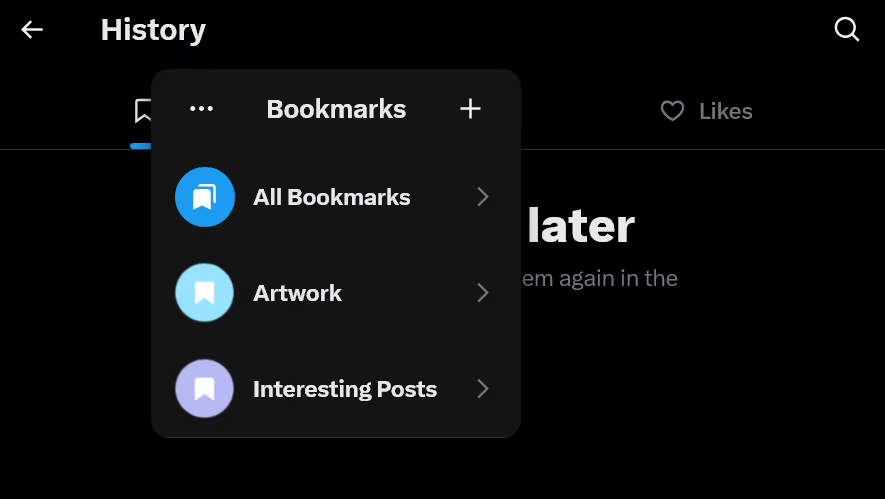
X lets you save posts as bookmarks so you can revisit them later. You can also organize your saved posts into folders to make them easier to find.
Bookmark folders are available only to users who subscribe to X's paid subscription service, X Premium or X Subscription.
Table of Contents
What are X bookmark folders?
X's bookmark folder feature lets you organize bookmarked posts into separate folders. You can use folders to group your saved posts by topic or purpose.
I tend to bookmark a lot of posts, which can make it difficult to find specific posts later. If you're like me, bookmark folders can make managing your saved posts much easier.
Bookmark folders require a paid subscription
X's bookmark folder feature is available only to paid subscribers. Users with free accounts cannot access it.
X offers a paid subscription service called X Subscription (formerly X Premium). Once you subscribe and link your subscription to your X account, you can use bookmark folders as part of your subscription benefits. X Subscription offers several paid tiers, all of which include the bookmark folder feature.
How to create a bookmark folder
To organize your bookmarks into folders, you first need to create a bookmark folder. Follow these steps:
Open the [History] tab from the sidebar.
Make sure the Bookmarks tab is open, then click the [Bookmarks] tab name.
In the menu that appears, click the plus icon in the upper-right corner on desktop, or select [Create new folder] in the mobile app.
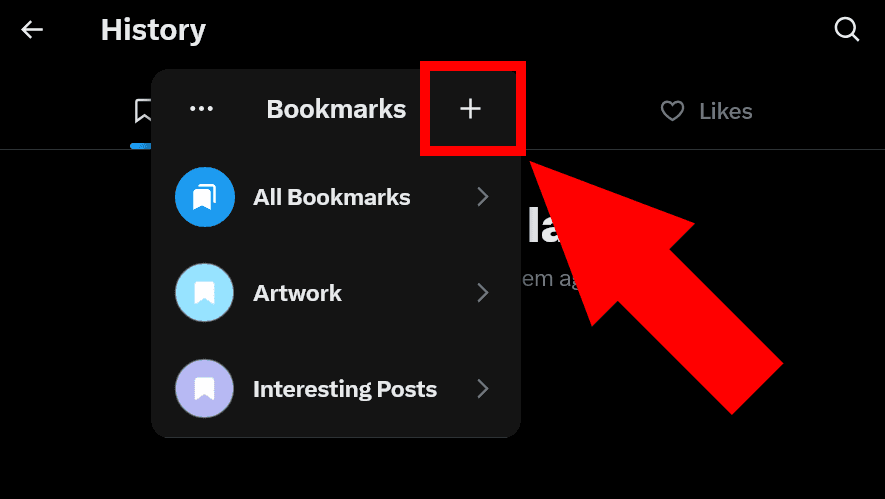
On desktop (web version) 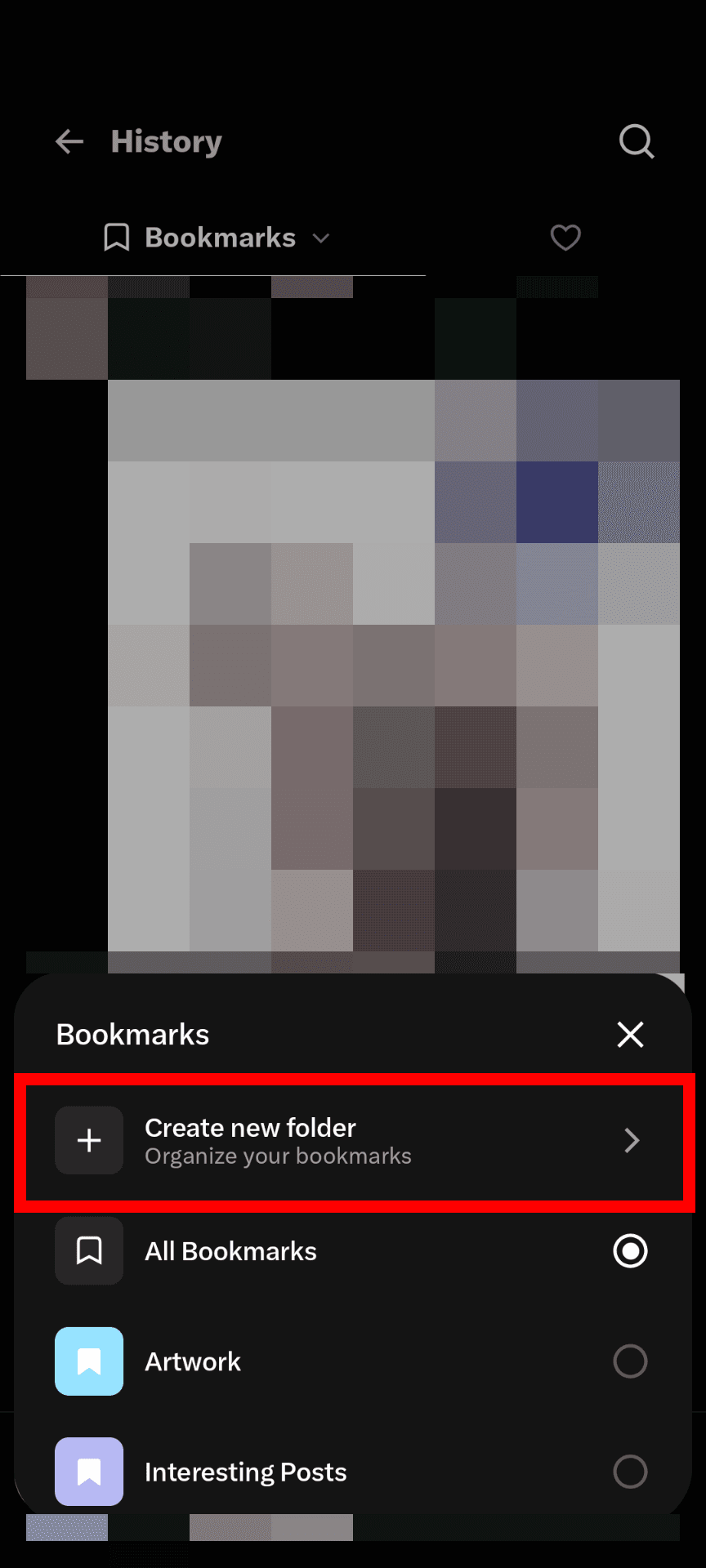
On the mobile app Enter a name for your folder, then click [Create] or [Create Folder].
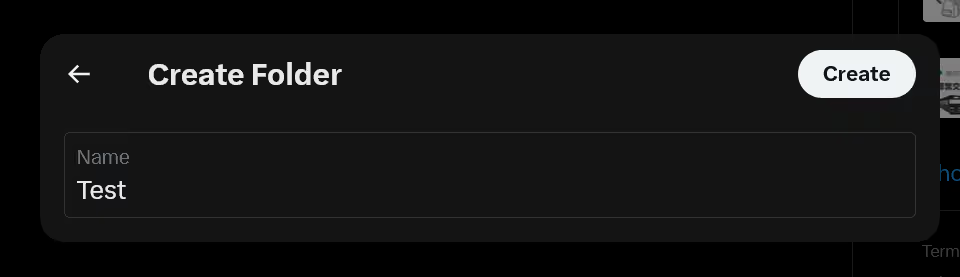
On desktop (web version) ![Screenshot of the Bookmarks page in the X Android app showing a drawer titled [New folder]. The description reads [Create a new folder to organize your bookmarks, you can edit this later." Below the description is a text field containing "Test," followed by a [Create Folder] button.](/_next/image/?url=%2Fapi%2Fmedia%2Ffile%2Fx-bookmark-folder-name-mobile-english.png&w=1920&q=75)
On the mobile app
How to add posts to a bookmark folder
You can save posts to a bookmark folder you've created by following these steps:
Open the post you want to bookmark.
Tap the bookmark icon in the lower-right corner of the post to save it to your bookmarks.
Click [Add to folder] in the confirmation message that appears after you bookmark the post.
Select the folder where you want to save the post.
How to organize posts you've already bookmarked
You can also add posts you've previously bookmarked to folders.
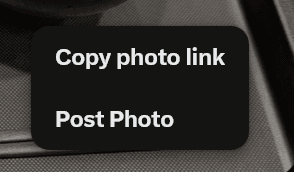
On the web version of X, click the share button on the post you want to organize, select [Bookmark to Folder], and choose the destination folder.
In the X mobile app, long-press the bookmark icon and select the folder you want to add the post to.
To remove a post from a folder, follow the same steps and select the folder name again. Removing a post from a folder leaves it in [All Bookmarks].
You can also add a single post to multiple folders. During my testing, I found that the process differs between the web and mobile versions of X.
In the mobile app, you can select multiple folders from the screen that appears when you long-press the bookmark icon. On the web version, you can select only one folder at a time. To add a post to multiple folders, you need to add it to one folder, then open the share menu and select [Bookmark to Folder] again.
I found the process of adding posts to multiple folders on the web version confusing and unnecessarily cumbersome. For this reason, I recommend using the mobile app when organizing your bookmarks.
How to delete a bookmark folder
You can delete a bookmark folder you've created by following these steps:
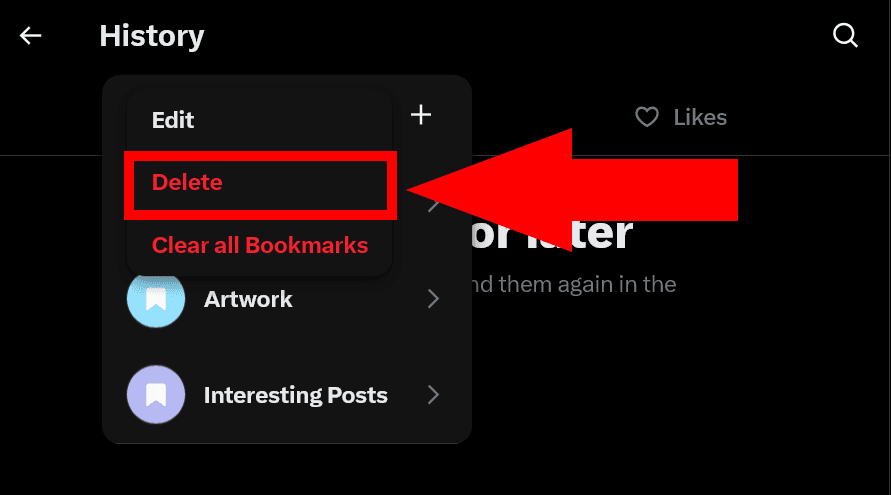
On the web version
Open the bookmark folder you want to delete.
Click the bookmark folder name at the top of the screen.
In the menu that appears, click the menu button in the upper-left corner, then select [Delete].
On the mobile app
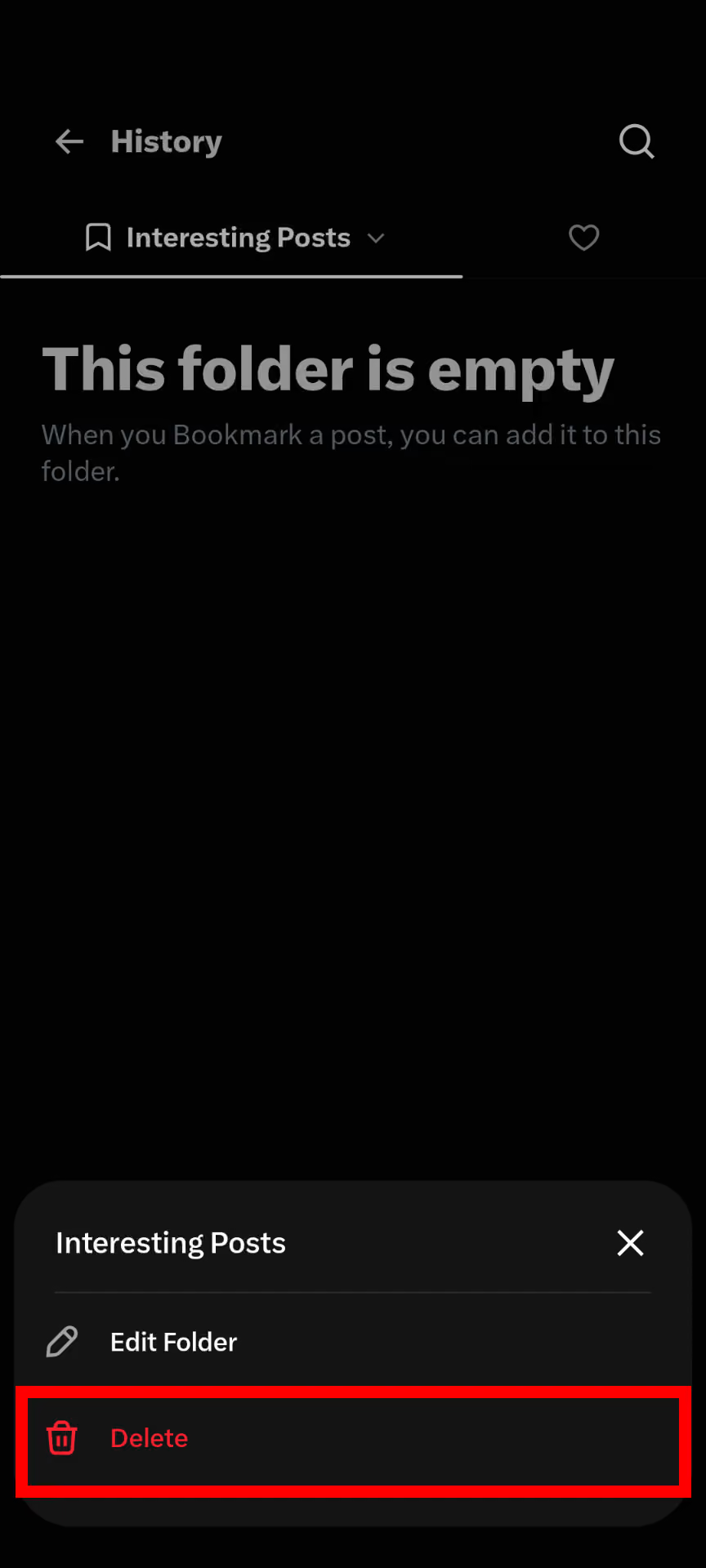
Open the bookmark folder you want to delete.
Long-press the bookmark folder name at the top of the screen.
In the drawer that appears, tap [Delete].
Conclusion
X's bookmark folders let you organize saved posts by topic or purpose. The feature is available only to users with a paid X subscription.
If you're a paid subscriber, try using bookmark folders to keep your saved posts organized.
Verification details
Verification environment
PC:
- OS: Windows 11
- Browser: Zen Browser version 1.24.1b
Smartphone:
- OS: Android 17
- Device: Google Pixel 8
- App: X version 12.45.0-alpha.02
Verification details
I tested the bookmark folder feature using my X account with an active X Subscription Plus plan. I confirmed that I could create, organize, and delete bookmark folders on both the web and Android versions of X using the steps described in this article.
Last verification date
Changelog
- September 10, 2024, 1:22 a.m.: Initial publication
- May 28, 2025, 2:52 p.m.: Updated with the latest information
- November 19, 2026, 2:30 a.m.: Updated with the latest information and added detailed instructions for organizing previously bookmarked posts and deleting bookmark folders
Share this article
Follow us for updates
Adding us to your preferred sources on Google makes it easier to find our articles on Google. Also, be sure to follow us on X and our RSS feed.


Related articles

I've been using JavaScript more than my native language since birth. I am nowhere and everywhere on the internet.
I build web apps and browser extensions in TypeScript as a web frontend programmer. I released Shadowban Scanner, a tool that detects shadowbans on X, and Restore Link Card, a tool that brings back link cards. Media outlets in Japan and abroad covered both tools. For iGEM 2023, I built the Wiki for Team Japan-United and helped the team win the Grand Prize. On my blog, I cover news about X and social media, test and troubleshoot bugs, and share frontend development insights.