X's "Suspicious login alert": Did someone log in to your account? What to do
You may receive a "Suspicious login alert" notification on X. X sends this alert when it detects unusual activity associated with a new login to your account.
If you receive this notification, I recommend verifying that it's genuine and changing your password.
Table of Contents
What does the [We noticed an attempt to log in to your account that seems suspicious] notification mean?
If someone gains unauthorized access to your X account, you may see a notification saying, "We noticed an attempt to log in to your account that seems suspicious." X sends this alert when it detects unusual activity associated with a new login.
If you receive this notification after logging in on a new device yourself, it's a false positive and you can ignore it.
However, if you haven't logged in on a new device, someone may have gained unauthorized access to your account.
When you receive a "Suspicious login alert," you can tap the notification to view details about the suspicious login, including the device, location, and time. X estimates the location based on information such as the IP address used for the login, so treat it as an approximation.
The screenshot below shows a notification that a friend of mine received. It advises users to change their password if they don't recognize the login.

What causes unauthorized logins?
If you receive a "Suspicious login alert" and someone has gained unauthorized access to your account, several factors could be responsible:
- Using a password that's easy to guess or reusing the same password across multiple accounts
- Having malware (such as a virus) on your device
- Installing a malicious browser extension
- Entering your login credentials on a phishing website
If you use an easy-to-guess password, attackers may be able to gain access to your account through a method known as a brute-force attack. Reusing the same password across multiple websites also puts your X account at risk if another website suffers a data breach that exposes your password.
Most websites, including X, limit how often someone can attempt to log in. Unless you use a weak or reused password, the risk of someone breaking into your account through a brute-force attack is low.
Malware on your device or browser can also lead to unauthorized access. If malware infects your device or you install a browser extension containing malicious code, attackers may be able to steal your login credentials.
Browser extensions pose a particular risk because developers can introduce malicious code through updates, even if an extension was safe when you first installed it.

Phishing websites are another possible cause of unauthorized access.
A phishing website is a fraudulent website designed to imitate a legitimate login page. If you enter your password or other credentials on one of these sites, attackers can steal that information.
You may encounter links to phishing websites in emails or spam direct messages (DMs).
As you can see, several factors can lead to unauthorized access to your account.
However, third-party app connections are an unlikely cause of unauthorized logins. When you authorize a third-party app to access your X account, you grant it permission to use certain account features without sharing your password or other login credentials.
A connected app may change your profile or send DMs and posts without your permission, making it appear as though someone has taken over your account. However, authorizing an app alone does not allow it to log in to your account.
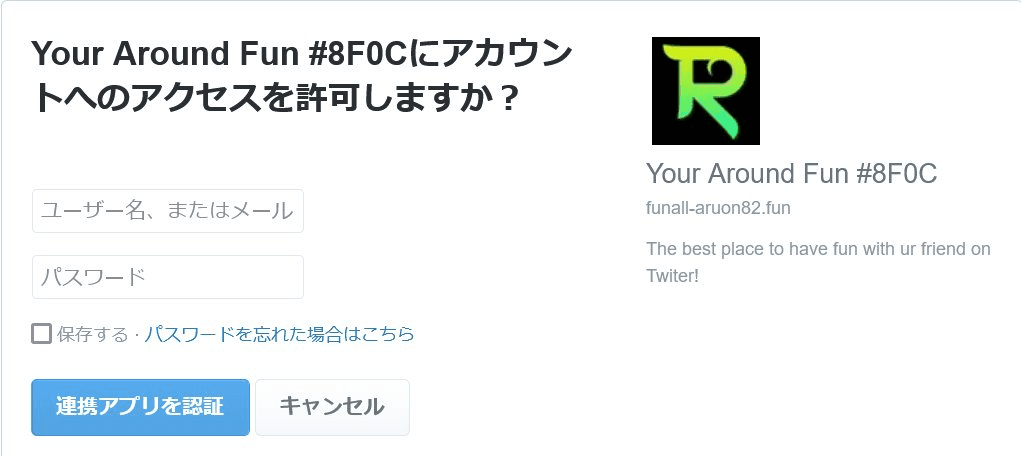
For example, "My Twitter Family" and "My Twitter Interaction Circle" are spam websites that use X's third-party app authorization system. Criminal organizations are believed to be involved in operating these sites.
If you authorize one of these websites, it may follow unfamiliar accounts or publish posts without your permission. However, the risk of unauthorized logins through these connections is considered low.
What to do if someone logs in to your account
If you receive a suspicious login alert, first verify that it came from X. Attackers could send fake security notifications containing links to phishing websites designed to steal your password.
One way to check whether the notification is genuine is to open the Notifications tab in the X mobile app. A malicious browser extension could insert fake notifications into the web version of X, but a notification that appears in the official mobile app is more likely to be legitimate.
If the suspicious login alert is genuine, change your account password right away. You can use the password change link in the notification within the X mobile app or navigate to your account settings yourself.
To change your X password, go to [Settings and privacy] > [Your account] > [Change your password].
You'll need your current password to make the change. Changing your password also forces your account to log out of all other devices.
If you continue receiving suspicious login alerts after changing your password, your device may be infected with malware, or you may have installed a browser extension containing malicious code.
Enable two-factor authentication or a passkey
To strengthen your account security, I recommend enabling two-factor authentication (2FA) or setting up a passkey.
Two-factor authentication adds an extra step to the login process. In addition to your email address (or username or phone number) and password, you enter a one-time password that changes every 30 seconds.
With two-factor authentication enabled, someone who steals your password cannot log in without access to your smartphone or another device that generates the one-time codes.
X also supports passkeys, which I recommend as an alternative. Passkeys offer phishing-resistant authentication and let you log in by unlocking your device using biometric authentication, such as your fingerprint or face.
How to set up two-factor authentication
To use app-based two-factor authentication on X, you'll need to install an authenticator app. Two popular options are Microsoft Authenticator and Google Authenticator.
After installing and setting up an authenticator app, open X and go to [Settings and privacy] > [Security and account access] > [Security] > [Two-factor authentication] > [Authentication app].
If you lose access to your authenticator app, you may be unable to log in to your account. I recommend saving the backup code shown during setup or configuring a passkey as an alternative login method.
If you lose access to your authenticator app, you can still log in using a backup code or passkey. I once lost access to a work-related account because I hadn't saved the backup code or set up a passkey.
How to set up a passkey
Most modern browsers and operating systems have built-in passkey support, so you generally won't need to install any additional apps.
To configure a passkey on X, go to [Settings and privacy] > [Security and account access] > [Security] > [Passkey].
Conclusion
X sends the "Suspicious login alert" notification when it detects unusual activity associated with a new login to your account.
If you don't recognize the login, change your password right away. I also recommend enabling two-factor authentication or setting up a passkey to improve your account security.
Verification details and sources
Last check date
Changelog
- July 20, 2025, 3:17 AM: Initial publication
- November 14, 2026, 6:00 AM: Updated the article with the latest information
Share this article
Follow us for updates
Adding us to your preferred sources on Google makes it easier to find our articles on Google. Also, be sure to follow us on X and our RSS feed.

I've been using JavaScript more than my native language since birth. I am nowhere and everywhere on the internet.
I build web apps and browser extensions in TypeScript as a web frontend programmer. I released Shadowban Scanner, a tool that detects shadowbans on X, and Restore Link Card, a tool that brings back link cards. Media outlets in Japan and abroad covered both tools. For iGEM 2023, I built the Wiki for Team Japan-United and helped the team win the Grand Prize. On my blog, I cover news about X and social media, test and troubleshoot bugs, and share frontend development insights.