How to arrange images vertically on X: also explains causes when you can’t do it
![On the left is an image of a post with four images arranged in a 2x2 grid, and in the center an arrow is placed along with the text [When you tap the post...]. On the right is an image of a post with four images arranged vertically.](/_next/image/?url=%2Fapi%2Fmedia%2Ffile%2Fx-post-vertical-layout-images-thumbnail-english.png&w=3840&q=75)
On X (Twitter), you can make images appear vertically when you tap a post.
In this article, we explain how to arrange images vertically when posting on X, and the causes when you can’t do it.
Table of Contents
How to arrange images vertically
On X (Twitter), you can make images appear vertically when you tap a post.
Also, with the same procedure, you can insert text between images.
With the following steps, you can arrange images vertically or change their insertion position.
To arrange images vertically, first attach images to your post as usual.
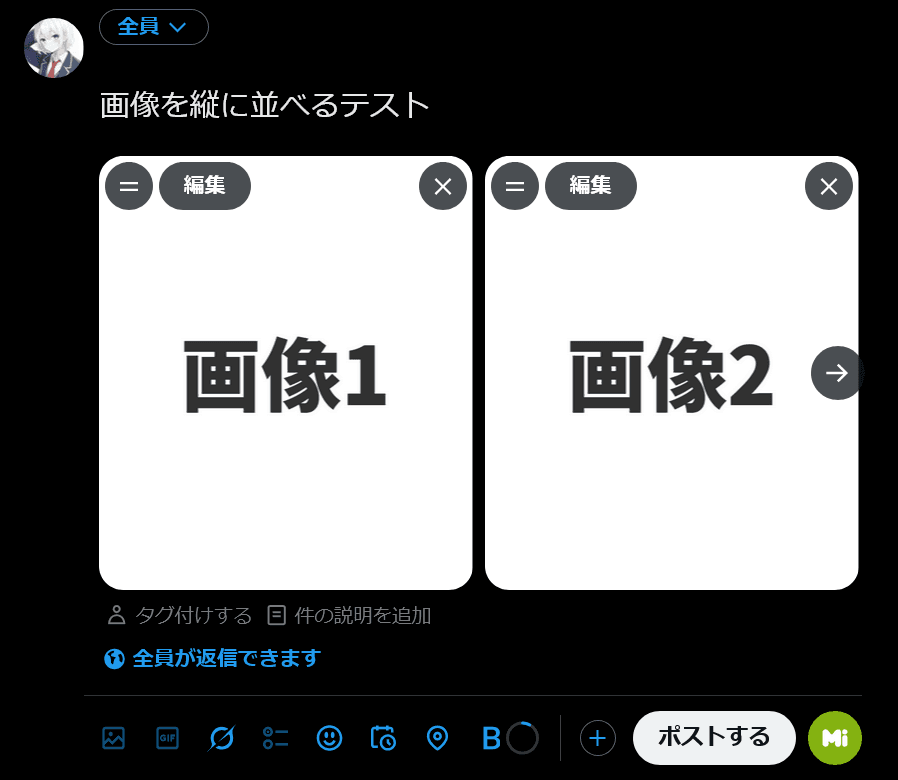
Before posting, drag the two-line handle shown at the top left of each image.
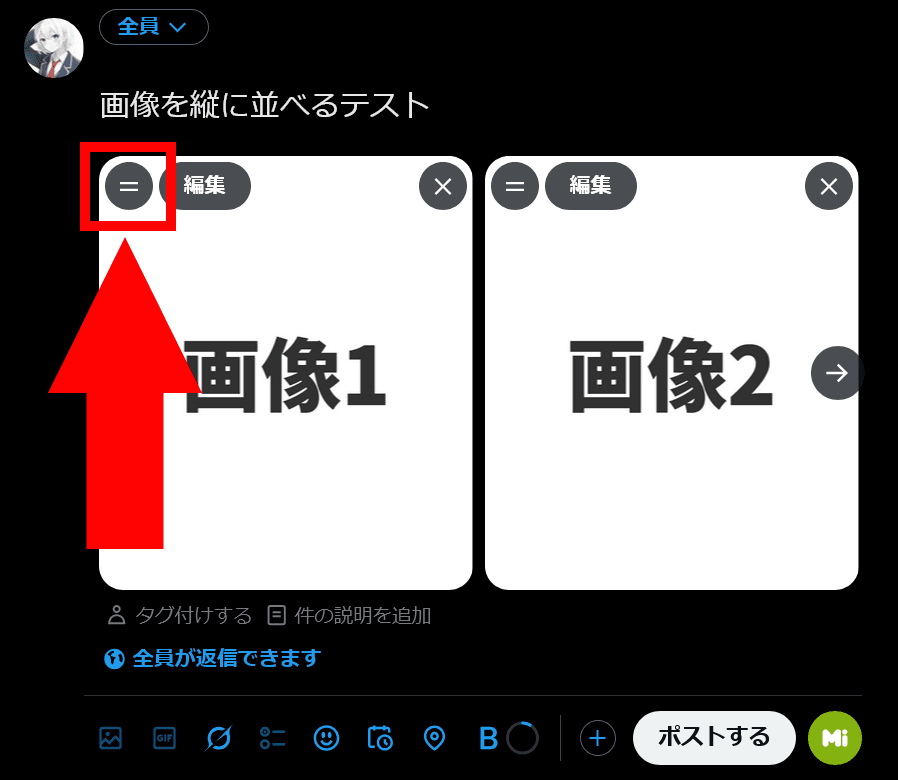
The images will be arranged vertically. If you want to insert an image between blocks of text, use the two-line handle to drag the image to where you want to insert it.
![ポストの作成画面のスクリーンショット。[画像1]から[画像4]までが縦に並んで添付されている](/_next/image/?url=%2Fapi%2Fmedia%2Ffile%2Fx-composer-vertical-layout-images.png&w=1920&q=75)
Causes and solutions when you can’t arrange images vertically
If the two-line handle does not appear at the top left of the attached images and you can’t arrange them vertically, possible causes include the following.
You are not subscribed to X Premium
The feature to attach images arranged vertically is part of the long-form posting feature of X’s paid subscription service, “X Premium”.
Therefore, free accounts that are not subscribed to X Premium cannot arrange images vertically.
You are using the mobile app
Based on the author’s testing, as of the time of writing, the Android X app could not arrange images vertically.
Also, the mobile web version could not arrange images vertically either.
The iOS app could not be tested, but it is possible that the iOS version also cannot arrange images vertically in the same way.
If you want to reliably arrange images vertically, use the desktop web.
Note that while you cannot arrange images vertically at the time of posting on the mobile app or mobile web, posts that were created on the desktop web with images arranged vertically will also display vertically on the mobile app and mobile web.
You haven’t tapped the post
Even if you arrange images vertically, images are displayed in the usual layout in the post as it appears on the timeline.
Only when you tap the post shown on the timeline will the images be displayed vertically.
You are trying to rearrange them after posting
You can configure images to be arranged vertically only before posting. Images attached to a post that has already been posted cannot be arranged vertically later.
Conclusion
We introduced how to make images appear vertically when you tap a post on X.
By dragging the two-line handle shown at the top left of the attached images before posting, you can arrange the images vertically.
Share this article
Follow us for updates
Adding us to your preferred sources on Google makes it easier to find our articles on Google. Also, be sure to follow us on X and our RSS feed.


Related articles
- Bug with X search source: command not working correctly and how to work around it
- Why your X poll might not be showing up, and what to do if the vote count seems low
- Is X preventing your posts? How to delete accumulated unsent drafts
- X is currently experiencing a bug that prevents posting over Wi-Fi: Causes and fixes when you cannot post
- What is X’s [Snooze Topics]? How to use it and why you may not be able to snooze topics
-1.png&w=1080&q=75)
I've been using JavaScript more than my native language since birth. I am nowhere and everywhere on the internet.
I build web apps and browser extensions in TypeScript as a web frontend programmer. I released Shadowban Scanner, a tool that detects shadowbans on X, and Restore Link Card, a tool that brings back link cards. Media outlets in Japan and abroad covered both tools. For iGEM 2023, I built the Wiki for Team Japan-United and helped the team win the Grand Prize. On my blog, I cover news about X and social media, test and troubleshoot bugs, and share frontend development insights.

![スマートフォンのホーム画面の[Social]フォルダーを表示した写真。フォルダー内にはFacebook、Instagram、Threads、X、LinkedIn、TikTok、YouTubeのアイコンが配置されている](/_next/image/?url=%2Fapi%2Fmedia%2Ffile%2Ffacebook-instagram-threads-x-twitter-linkedin-tiktok-youtube-mobile-app-unsplash.jpg&w=3840&q=75)
![Screenshot of the dialog that says [Snooze Topics] [Select topics you don’t want to see for 24 hours]](/_next/image/?url=%2Fapi%2Fmedia%2Ffile%2Fx-snooze-topic-dialog-english.png&w=1920&q=75)

![[新しいXチャットへようこそ]というテキストが画面に大きく表示されており、その下には次の3つの説明が表示されている。[エンドツーエンドの暗号化:メッセージは、端末にかかわらずエンドツーエンドで暗号化されています。][最先端のプライバシー:Xを含め、他の人がメッセージを読むことはできません。][パスコードを設定:メッセージを保護するため、4桁のパスコードを設定してください。]これらの説明の下には、[パスコードを作成]という大きなボタンが配置されている](/_next/image/?url=%2Fapi%2Fmedia%2Ffile%2Fwelcome-to-new-chat.png&w=1920&q=75)