How to make your Discord profile private when you don’t want others to see it
When you connect with many different people on Discord, you may not want strangers who happen to share a server with you to view your profile.
With the new Profile Privacy setting Discord added, you can change who can see your profile.
Table of Contents
How to change who can see your Discord profile
When I opened the Discord mobile app as usual, I saw a message saying I could now change who can see my profile.
After checking the details, I found that this refers to the new Profile Privacy setting Discord added.
With this setting, you can hide your profile from strangers who only share a server with you.
I belong to many servers, including hobby servers and work-related servers, so I welcome the option to limit who can see my profile.
My account gained access to this feature on July 8, 2026 (JST). However, at the time of writing, Discord says it is testing this feature, so some accounts may not have access to it.
You can change who can see your Discord profile by following the steps below. I use desktop screenshots here, but you can change the setting on mobile by following the same basic steps.
Open Discord settings
Open [Profile Privacy] in the [Data & Privacy] section
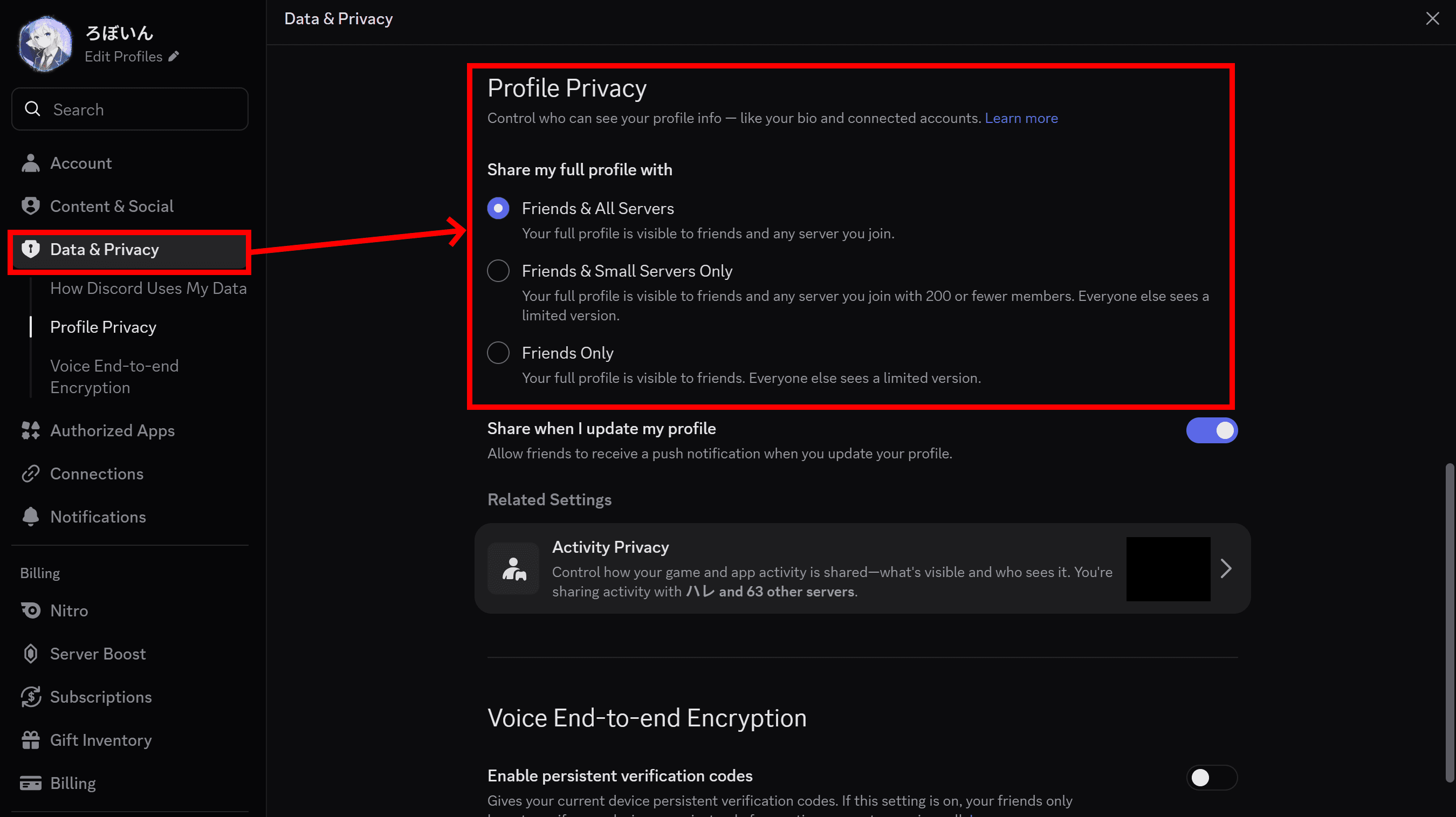
Select who can see your profile
- Friends & All Servers (default): Your full profile appears to your friends and all servers you are in
- Friends & Small Servers Only: Your full profile appears to your friends and servers you are in with 200 members or fewer. Other users see a limited version of your profile
- Friends Only: Your full profile appears to your friends. Other users see a limited version of your profile
What can and can’t you hide with Discord’s profile privacy setting?
Discord’s Profile Privacy setting does not let you hide every piece of profile information. Some items can be hidden, while others remain visible.
You can hide the following items:
- Custom status
- Pronouns
- Badges
- Activity
- Connected accounts
- About me
- Profile widget
- Wishlist
The following information remains visible to everyone, even if you limit who can see your profile:
- Avatar
- Banner
- Display name
- Username
- Server tag
- Account age
- Mutual friends
- Mutual servers
In other words, this new setting lets you limit who can see your Discord profile bio and external accounts connected to your Discord account, but your display name, icon, and similar information remain visible to everyone.
Recommended settings
In the Profile Privacy setting, you can choose from [Friends & All Servers], [Friends & Small Servers Only], and [Friends Only].
For example, choose [Friends & Small Servers Only] or [Friends Only] if you want only close-knit servers or friends to see your full profile.
Choose [Friends & All Servers] if you do not mind sharing all profile information, including your bio.
Why can’t I find the setting?
Some accounts may not show the Profile Privacy setting covered in this article.
According to Discord’s help page, Discord is testing this feature, so it does not appear to be available on every account.
If you cannot find the Profile Privacy setting, update the app to the latest version first.
If the setting still does not appear after the update, Discord has not rolled out the feature to your account yet, so you need to wait until you gain access.
How is this different from activity sharing?
Discord has already offered a setting that lets you limit who can see your activity.
Discord’s activity sharing feature displays things such as the game you are playing or music you are listening to in your account status.
By contrast, the new Profile Privacy setting lets you limit who can see more profile items, including activity.
When I checked it myself, accounts that had received the Profile Privacy setting could still change the activity sharing scope.
When you change the Profile Privacy setting, Discord asks whether you also want to change your activity sharing settings, so you can update both settings at the same time or manage them separately.
Conclusion
With the new Profile Privacy setting Discord added, you can limit who can see your account profile.
Discord is testing the feature, so every account may not have access to it. Still, it is useful if you do not want strangers to view your profile.
Verification details and sources
Verification environment
Mobile
- OS: Android 17
- Device: Google Pixel 8
- App: Discord version 336.10 - Stable
Desktop
- OS: Windows 11
- App: Discord version stable 574916 (8297940) Host 1.0.9244
Verification details
I used the Discord app on actual devices and confirmed that I could change who can see my profile by following the steps described in this article.
Last verification date
Reference links
Share this article
Follow us for updates
Adding us to your preferred sources on Google makes it easier to find our articles on Google. Also, be sure to follow us on X and our RSS feed.


-1.png&w=1080&q=75)
I've been using JavaScript more than my native language since birth. I am nowhere and everywhere on the internet.
I build web apps and browser extensions in TypeScript as a web frontend programmer. I released Shadowban Scanner, a tool that detects shadowbans on X, and Restore Link Card, a tool that brings back link cards. Media outlets in Japan and abroad covered both tools. For iGEM 2023, I built the Wiki for Team Japan-United and helped the team win the Grand Prize. On my blog, I cover news about X and social media, test and troubleshoot bugs, and share frontend development insights.

![Screenshot of [Accessibility, display, and languages] > [Display] > [Font size] in the X settings](/_next/image/?url=%2Fapi%2Fmedia%2Ffile%2Fx-android-font-size-settings-english.png&w=3840&q=75)

![[新しいXチャットへようこそ]というテキストが画面に大きく表示されており、その下には次の3つの説明が表示されている。[エンドツーエンドの暗号化:メッセージは、端末にかかわらずエンドツーエンドで暗号化されています。][最先端のプライバシー:Xを含め、他の人がメッセージを読むことはできません。][パスコードを設定:メッセージを保護するため、4桁のパスコードを設定してください。]これらの説明の下には、[パスコードを作成]という大きなボタンが配置されている](/_next/image/?url=%2Fapi%2Fmedia%2Ffile%2Fwelcome-to-new-chat.png&w=1920&q=75)