How to post individual images with a sensitive flag on X

On X, you need to add a flag when posting sensitive content such as adult content or grotesque content.
In this article, we explain in an easy-to-understand way how to set a sensitive flag on individual images you post on X.
Table of Contents
Do you need to flag sensitive content?
If you post sensitive content on X without adding a flag, in the worst case your account may be restricted or suspended.
Content with a sensitive flag set may have its visibility limited in the recommended timeline or in search results.
However, if you do not flag it appropriately, there is a risk that it may appear in the timelines of people who do not want to view such content, or that your account may be suspended, so be sure to set it appropriately.
How to set a sensitive flag for individual images
If you want to set a sensitive flag on individual images in a post rather than for the entire account on X, refer to the following steps.
Desktop (web client)
On desktop (web client), you can set a sensitive flag with the following steps.
Open the X post composer and attach an image
Click the [Edit] button shown in the top-left of the image
![A screenshot of the X post composer with an image attached. A button labeled [Edit] is displayed in the top-left of the attached image](/_next/image/?url=%2Fapi%2Fmedia%2Ffile%2Fx-image-edit-button-english.png&w=1920&q=75)
Open the tab with the flag icon, and select the appropriate flag from [Nudity] [Violence] [Sensitive]
![A screenshot of the X image editing screen. The tab with the flag icon is open, and an explanation is shown that says [Put a content warning on this post] [Select a category, and we’ll put a content warning on this post. This helps people avoid content they don’t want to see.]. As category options, [Nudity] [Violence] [Sensitive] are displayed](/_next/image/?url=%2Fapi%2Fmedia%2Ffile%2Fx-composer-content-flag-english.png&w=1920&q=75)
Click the [Save] button in the top-right, then close the image editing screen
Post as usual
For the mobile app
On the mobile app, you can set a sensitive flag with the following steps.
Here, we introduce the steps for the Android app, but it seems that you can set it with almost the same steps on iOS as well.
Open the X post composer and attach an image
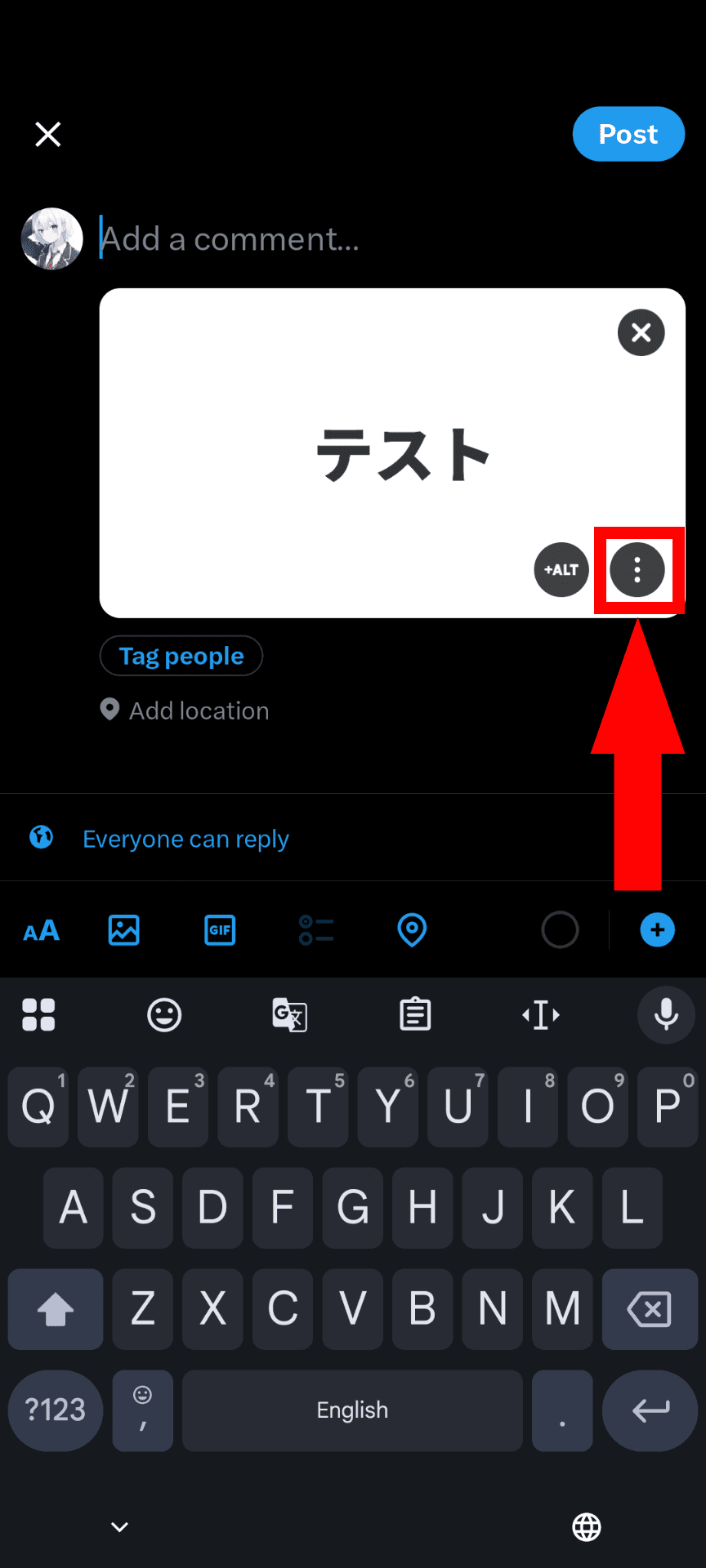
Tap the menu button in the bottom-right of the image
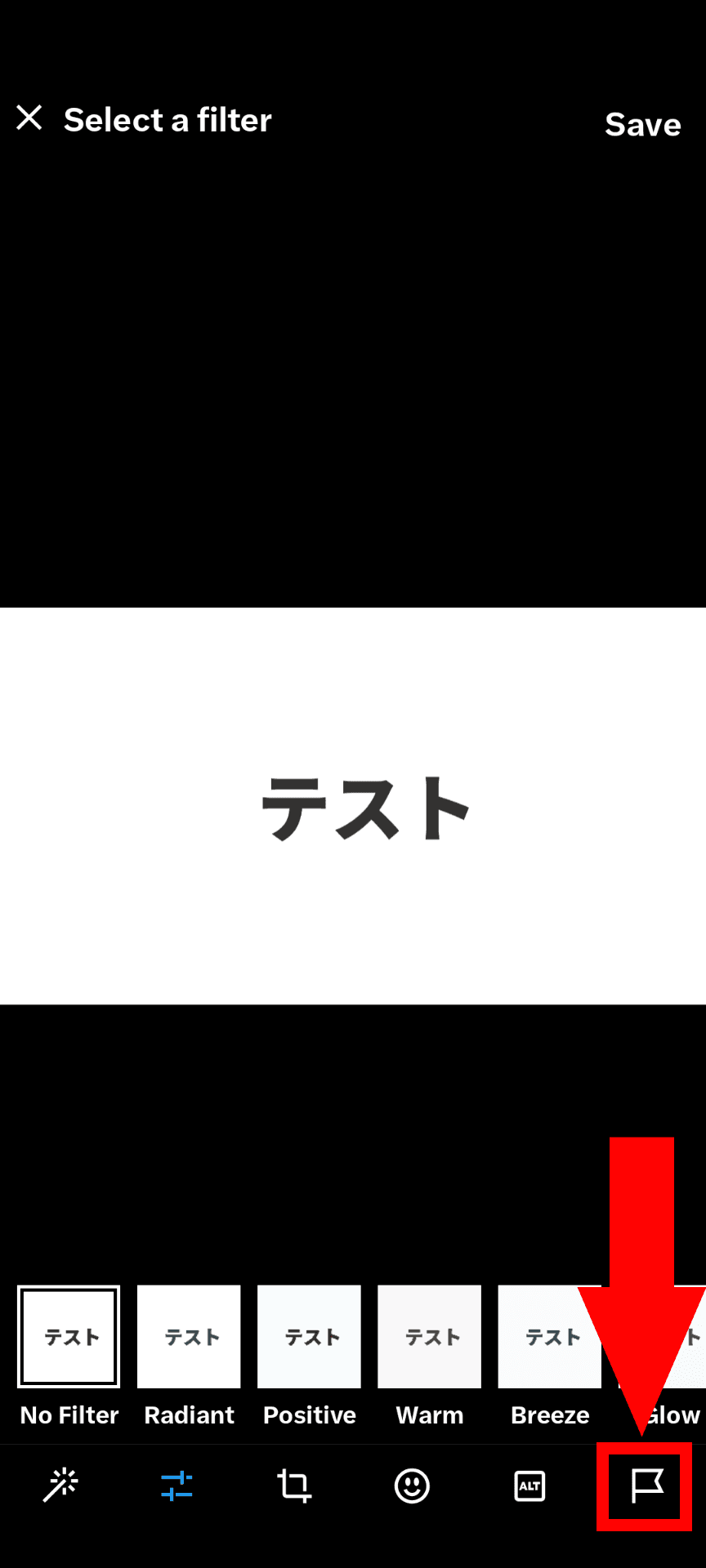
The image editing screen will appear, so tap the flag icon in the bottom-right
Select the appropriate flag from [Nudity] [Violence] [Sensitive], then tap the [Done] button in the top-right
![A screenshot of the X smartphone app. A screen titled [Content warning] is shown, and an explanation is displayed that says [Put a content warning on this post] [Select a category, and we'll put a content warning on this post. This helps people avoid content they don't want to see.]. As category options, [Nudity] [Violence] [Sensitive] are displayed](/_next/image/?url=%2Fapi%2Fmedia%2Ffile%2Fx-mobile-app-content-warning-english.png&w=1920&q=75)
Post as usual
Conclusion
In this article, we introduced how to set a sensitive flag on individual images you post on X.
On X, if you do not set appropriate flags, there is a risk that your account may be restricted or suspended.
Use this article as a reference and try setting sensitive flags appropriately.
Share this article
Follow us for updates
Adding us to your preferred sources on Google makes it easier to find our articles on Google. Also, be sure to follow us on X and our RSS feed.


-1.png&w=1080&q=75)
I've been using JavaScript more than my native language since birth. I am nowhere and everywhere on the internet.
I build web apps and browser extensions in TypeScript as a web frontend programmer. I released Shadowban Scanner, a tool that detects shadowbans on X, and Restore Link Card, a tool that brings back link cards. Media outlets in Japan and abroad covered both tools. For iGEM 2023, I built the Wiki for Team Japan-United and helped the team win the Grand Prize. On my blog, I cover news about X and social media, test and troubleshoot bugs, and share frontend development insights.

![[新しいXチャットへようこそ]というテキストが画面に大きく表示されており、その下には次の3つの説明が表示されている。[エンドツーエンドの暗号化:メッセージは、端末にかかわらずエンドツーエンドで暗号化されています。][最先端のプライバシー:Xを含め、他の人がメッセージを読むことはできません。][パスコードを設定:メッセージを保護するため、4桁のパスコードを設定してください。]これらの説明の下には、[パスコードを作成]という大きなボタンが配置されている](/_next/image/?url=%2Fapi%2Fmedia%2Ffile%2Fwelcome-to-new-chat.png&w=1920&q=75)




![Screenshot of [Accessibility, display, and languages] > [Display] > [Font size] in the X settings](/_next/image/?url=%2Fapi%2Fmedia%2Ffile%2Fx-android-font-size-settings-english.png&w=3840&q=75)
![Screenshot of X’s settings screen showing the options under [Accessibility, display, and languages] > [Data usage]](/_next/image/?url=%2Fapi%2Fmedia%2Ffile%2Fx-data-saver-high-resolusion-image-settings-english.png&w=3840&q=75)